Best practices for getting started with Claude Cowork
Austin Lau, growth marketing lead at Anthropic, explains when to use Claude Cowork, how to decide what workflows to delegate, and concrete steps to get started. On June 4, Austin will share how he uses Claude Cowork for marketing.
In 2024, we had Claude in a chat window. You asked a question and you got an answer, but it was up to you to turn that answer into something useful. In 2025, Claude Code let engineers ship at a pace that made the rest of us a little jealous.
This year, we can all catch up with Claude Cowork.
I started using Claude Code last year for long, multi-step tasks that chat wasn’t equipped to handle. Within a week, I went from not knowing what a terminal was to building out Claude Code workflows that completed 30-minute tasks in 30 seconds. I was using Claude Code for non-technical work because Claude Cowork didn’t exist yet.
Now, 90% of my work happens in Claude Cowork. In this post, I'll show you how to tell which of your tasks belong there, walk through real examples from my own work, and get you to your first finished deliverable in about ten minutes.
Using Chat vs Claude Cowork vs Claude Code
If your job is non-technical knowledge work–emails, decks, spreadsheets, docs, meetings, and "can you pull together a summary of this”–then Claude Cowork is for you. You don't need to know how to code. You don't need to know what an "agent" is or how to build one.
If you've spent the last two years with an AI chat tab open among 100 other tabs and files, copy-pasting prompts or questions into it and copy-pasting the answers back out, you already know how to use Claude Cowork. It's that, minus the copy-pasting.
The same Claude models power chat, Claude Cowork, Claude Code, Claude Design, and every other place Claude appears. These are separate workspaces that you use for different types of work, but the same models run inside all. Here’s a framework for how to think about when to use which one:
- Chat is often how knowledge workers get introduced to Claude. You bring what you have to Claude: upload a file, paste some text, describe what's going on, and get an answer. Chat is for answers, brainstorming, and thinking out loud.
- Claude Cowork in the Claude desktop app flips that around. Instead of bringing your work to Claude, you bring Claude to your work. You point it at a folder on your computer, connect it to the apps you already use, and tell it what you want done. With Claude Cowork, you describe an outcome, step away, and come back to finished work.
- Claude Code is made for developers building and shipping software. If your work lives in code, start there.
Many people don't know that Claude Cowork and Claude Code run on the same engine under the hood.
When should you use Claude Cowork?
Understanding when to use Claude Cowork vs chat is the spot where most people get stuck, so here's my rule of thumb:
- Use chat if what you want fits in a few exchanges, like a question, an explanation, a brainstorm, or a gut check.
- Use Claude Cowork if what you need is a deliverable, for example, a file someone will open, a deck someone will present, or a spreadsheet to be sorted. Use it for anything that’s multi-step or touches more than one file/file type or more than one app, or that you'd describe as a task rather than a question. With Claude Cowork, you are delegating work to Claude.
A few examples of where the line falls:
| Sample question or task | Use |
|---|---|
| What should I cover in our business review meeting? | Chat |
| Read the last three months of meeting notes in this Google Drive folder and build me a QBR deck using our template. | Claude Cowork |
| How do I VLOOKUP something? | Chat |
| Go through my spreadsheets and change all the VLOOKUP to INDEX MATCH. | Claude Cowork |
| Suggest a better title tag and meta description for this page. | Chat |
| Use the new title tags and meta descriptions for these 30 pages from this sheet and update them using the CMS connector. | Claude Cowork |
The most common mistake is reaching for chat for everything and never feeling the difference Claude Cowork can make. The opposite mistake is handling Claude Cowork one-off questions, then waiting around for something chat would've answered in five seconds.
The five ingredients of a Claude Cowork-shaped task
If you’re not sure what projects to delegate to Claude Cowork when you’re first getting started, run them through this checklist. You don't need all five criteria, but a good candidate hits a few:
- More than one thing goes in. Multiple files, a whole folder, or a file plus some connectors. If there's only one input, chat probably handles it fine for the most part (you should still experiment).
- A file comes out. You need a deliverable that you can attach, present, share, or repurpose: a doc, a deck, a spreadsheet, or a CSV.
- You'll do it again. One-offs are fine, but recurring tasks are the sweet spot. You can schedule them to run before you're even at your desk.
- You already know what good looks like. You're familiar with the shape of the output, so you can tell in 15 seconds whether the output is right, wrong, or 70% there.
- The middle is the boring part. The thinking lives at the start (deciding what you want) and the end (deciding if it's right). Everything in between (extract, compile, reconcile, and reformat) is what you hand off.
How I use Claude Cowork at Anthropic
I manage growth marketing at Anthropic, so my examples are marketing-flavored. Don't read these looking for a workflow to copy—that's not going to be helpful in the long run. Watch how each one hits a few items from the checklist above, because that's the pattern you'll be looking for in your own Claude Cowork workflows.
Daily briefing
The number of Slack channels and emails a marketer receives every day can be overwhelming. I have a "daily briefing" task that runs every morning at 6am. Claude Cowork is connected to my Slack and Gmail, and my prompt tells it to review my unread emails and the channels I care about, sort them into buckets, and produce a short report.
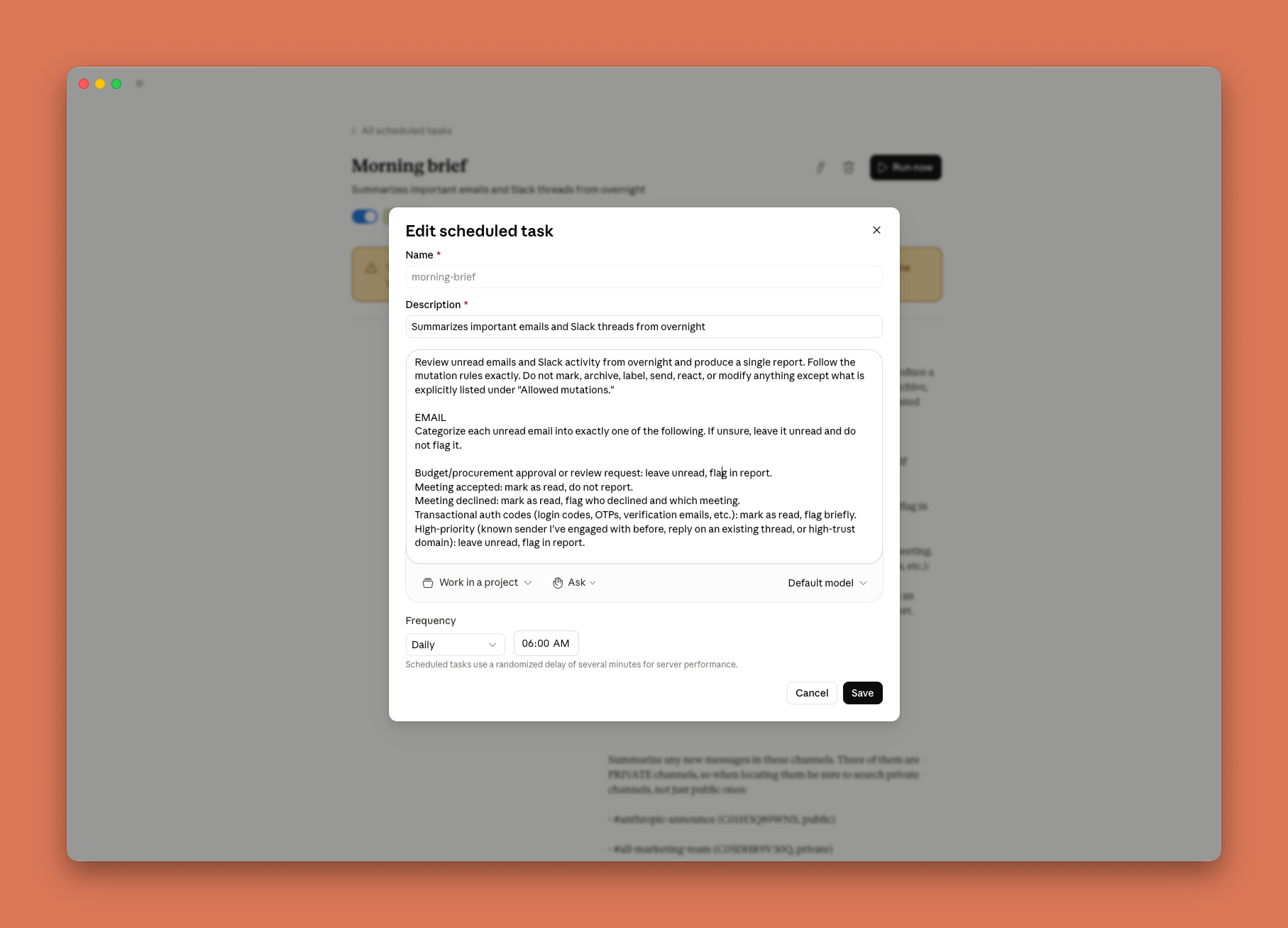
The report gives me a TLDR of what to look into, flagged emails grouped by type, channel summaries, and any overnight product-related incidents that could have impacted marketing. Anyone drowning in Slack and email can run some version of this workflow.
Budget pacing
Part of my job includes budget pacing for performance marketing. It's the kind of work nobody wants because it's boring and tedious. Many performance marketing teams track daily spend and run rate in Google Sheets to estimate pacing to goal. Either you're manually exporting daily spend from each channel and pasting it into the sheet, or you're paying for a third-party tool to extract, transform, and load data for you.
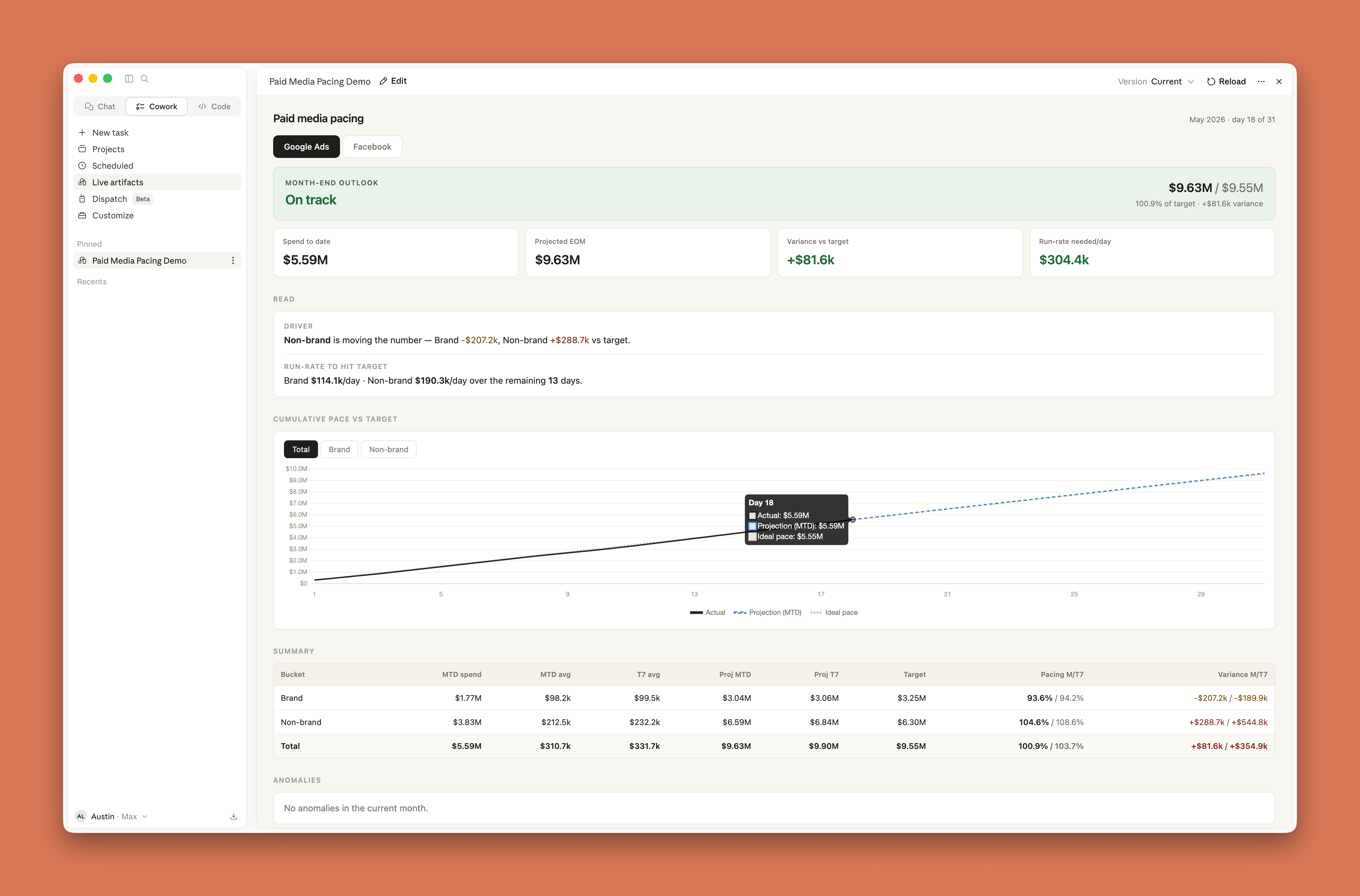
With Claude Cowork, I connect to Google Ads and Meta Ads and create a live artifact (basically an HTML dashboard) in the desktop app that automatically pulls in my daily spend and calculates pacing for me. I can also just tell Claude in plain English how to filter my campaigns and what to look out for.
Run that against the checklist above: multiple sources in (every channel's spend), a file out (in this case it's the dashboard), I rerun it constantly, and the middle is the mindless soul-sucking download-copy-paste grind I absolutely do not want to do myself. Since the ad platforms are integrated through my connectors, I can update this dashboard at any time.
Reporting
Instead of exporting a pile of CSVs and building pivot tables or combining files manually, I have Claude Cowork connected to Google Search Console. It pulls what I care about (queries, countries, pages) and reconciles it into a single sheet, instead of Google's default of one CSV per dimension when you export data manually.
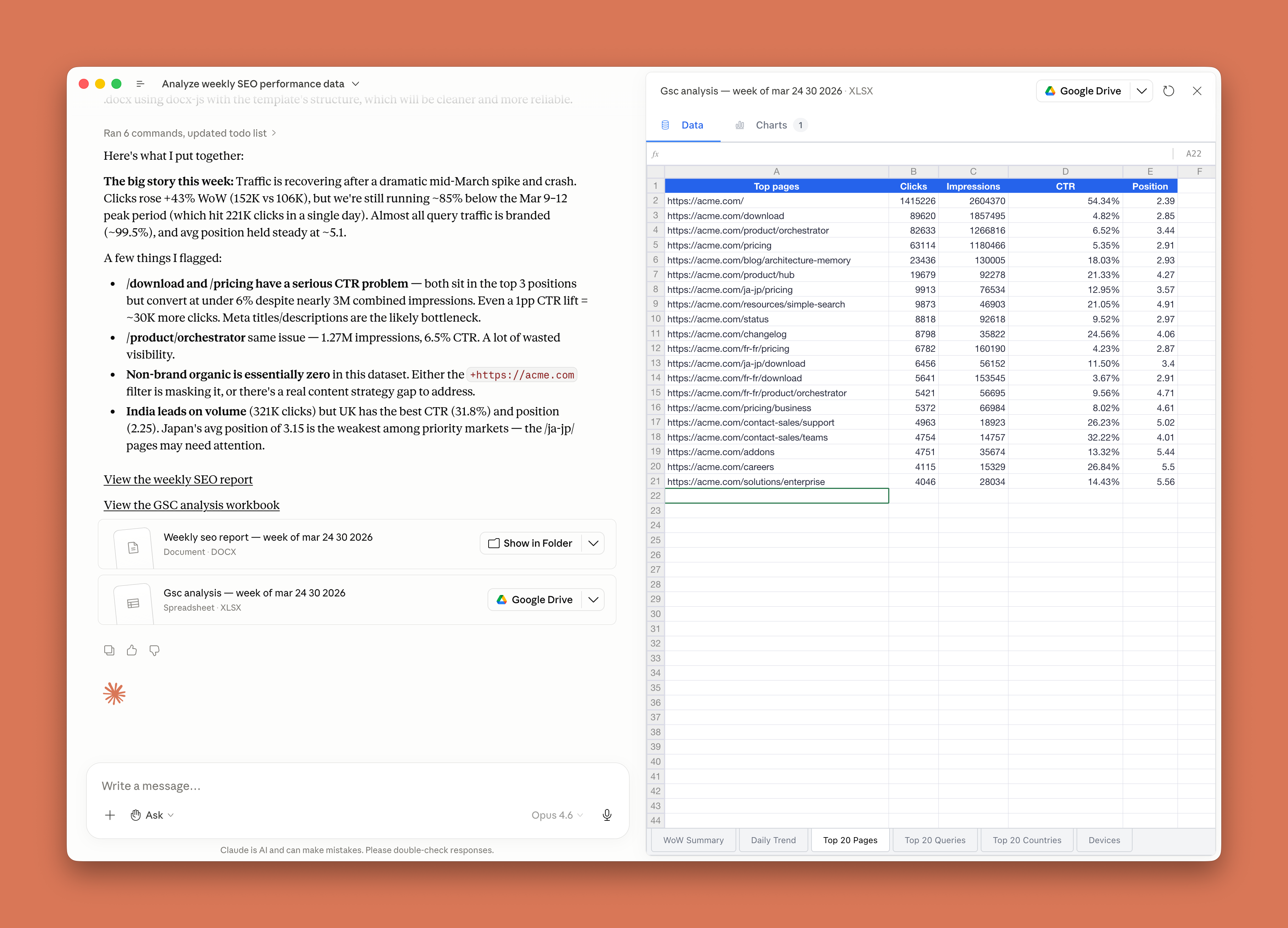
I also give Claude the context on what to focus on, like looking at the last seven days vs the prior seven, filtering to only specific countries, flagging anything that moved meaningfully, and writing up the report in the template that I want. From there I can go ahead and tweak anything or ask Claude follow up questions.
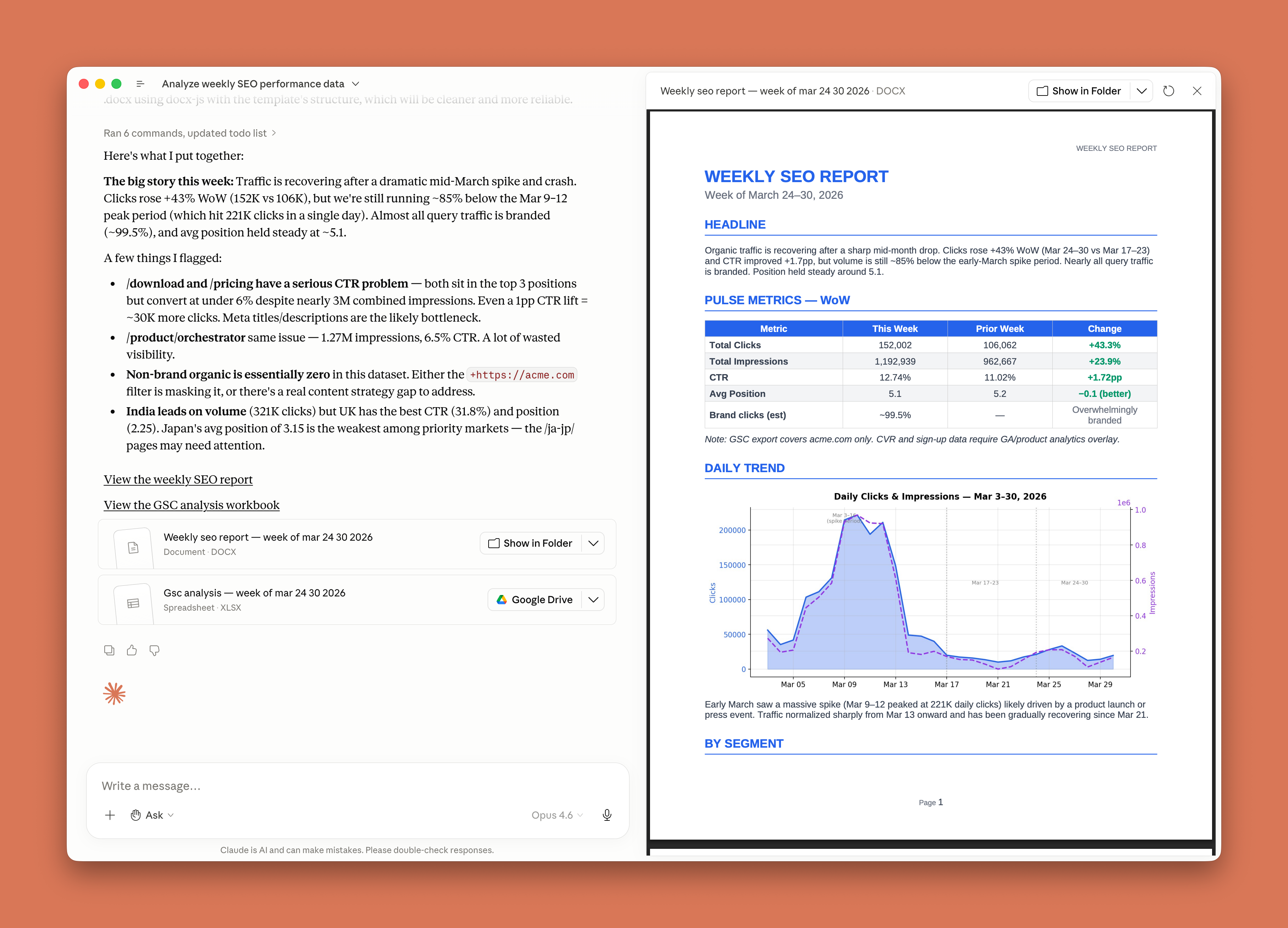
With scheduling in Claude Cowork, this runs automatically every week. Reporting used to take me ~30 minutes a week; now it takes five and I spend them on the part that needs my judgement: filling in missing context and workshopping the callouts.
These are just some examples of how I use Claude Cowork, but they barely scratch the surface. Check out another article I wrote that highlights a more detailed walkthrough of another complex use case that spans plugins, skills, local MCPs, and Dispatch for more best practices.
Your first 10 minutes with Claude Cowork
First time opening the app? Here’s how to get started:
- Open the Claude desktop app and switch to the Claude Cowork tab.
- Give Claude something to work with. Drop in a few files, point it at a folder on your computer, or connect an app you frequently use (Slack, Gmail, Notion, CRM, etc). The difference between a mediocre Claude Cowork output and a great one is almost never your prompt, but whether you're providing enough rich context for Claude to work with.
- Tell Claude the outcome you want. Describe the deliverable you want at the end and provide any necessary context.
- Start with a real task you know well. You'll see immediately where it's strong, where it needs context from you, and you already know what "good" looks like for it.
- Make Claude ask you questions before it starts. This is the single most useful habit I’ve built. Include this as part of your prompt: Before we begin, repeat my ask back to me so we're aligned, then ask me as many clarifying questions as you have.
This surfaces things you didn't think to specify, like which time period are we looking at, what does "good" mean here, or what edge cases do you know that Claude doesn't. The trap is assuming Claude already knows what's obvious to you. Answering five questions up front costs you 30 seconds. Finding those same gaps afterwards costs you time and tokens, and it's a pain to fix.
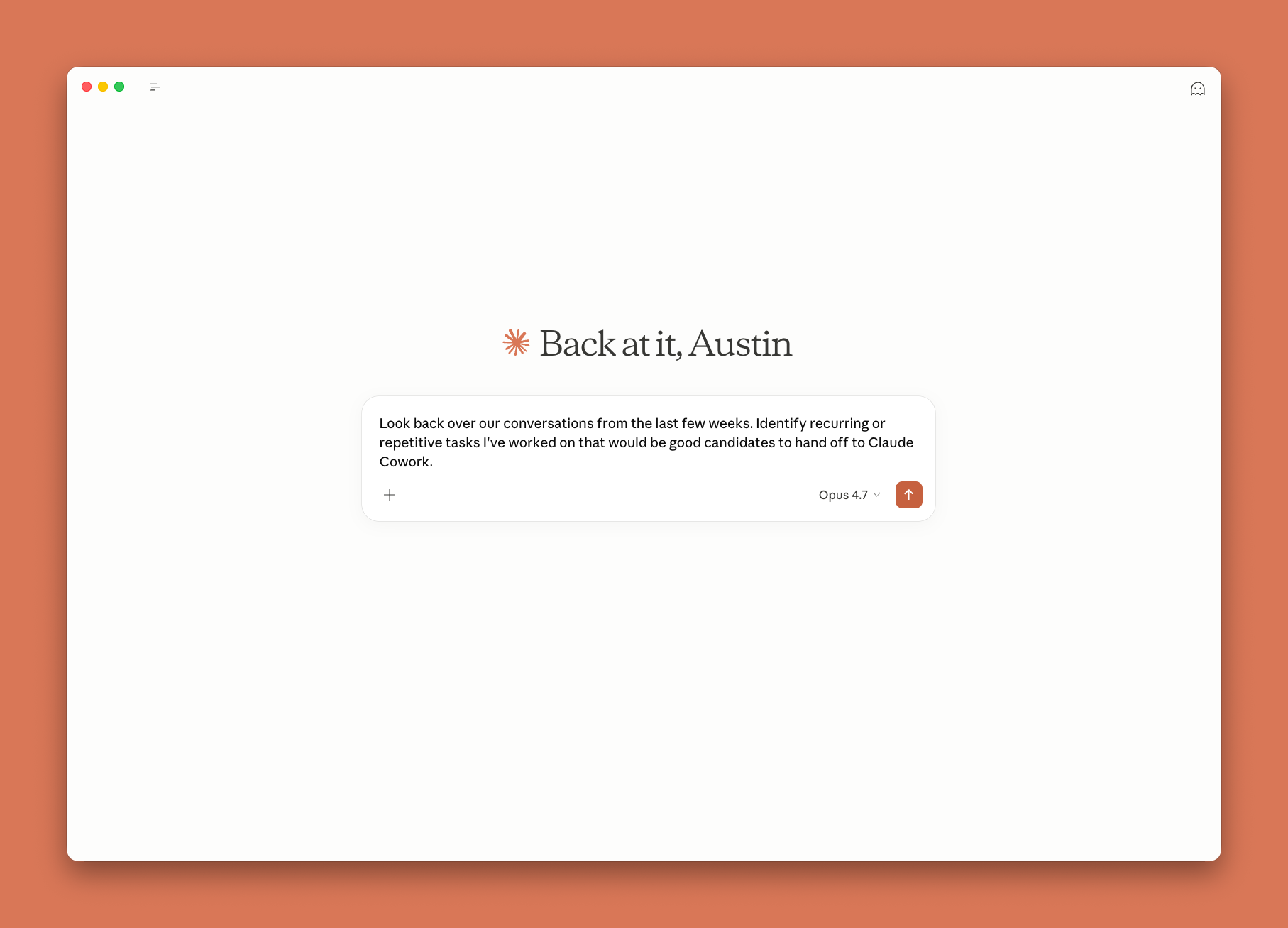
Still not sure what to hand off? Ask Claude. Claude has memory and can search your past conversations, so you can ask it which tasks you do most often and which ones to try in Claude Cowork.
When I still reach for chat
I still use chat extensively to talk through a positioning problem, pressure-test an idea before I commit to it, or to ask random questions like why my dog keeps licking the bed.
The point isn't that chat is the "old" thing. Chat is for when the output is a thought in your head, and Claude Cowork is for when the output is something you’ll hand to someone else.
Go build something
Pick one repetitive task you do every week, try using Claude Cowork for it, and see what comes back. The first few tasks might feel a little awkward, but after a few tries you'll quickly go from "how do I use this" to "what do I hand it next."
This article was written by Austin Lau, on the growth team at Anthropic, and expresses his opinions, usage patterns, and advice on Claude Cowork.