Get started in Claude Cowork in three steps
The three setup steps before your first task: open the desktop app, run the guided setup, and point Cowork at where the work lives.

Claude Cowork takes on whole tasks across your files and connected tools to deliver finished work. It reads from your folders and the services you connect, does the work over many steps, and saves the result where you can open it.
If you're still deciding which mode fits a task, see when to use Chat vs Cowork.
From the home page, select Cowork in the mode picker.
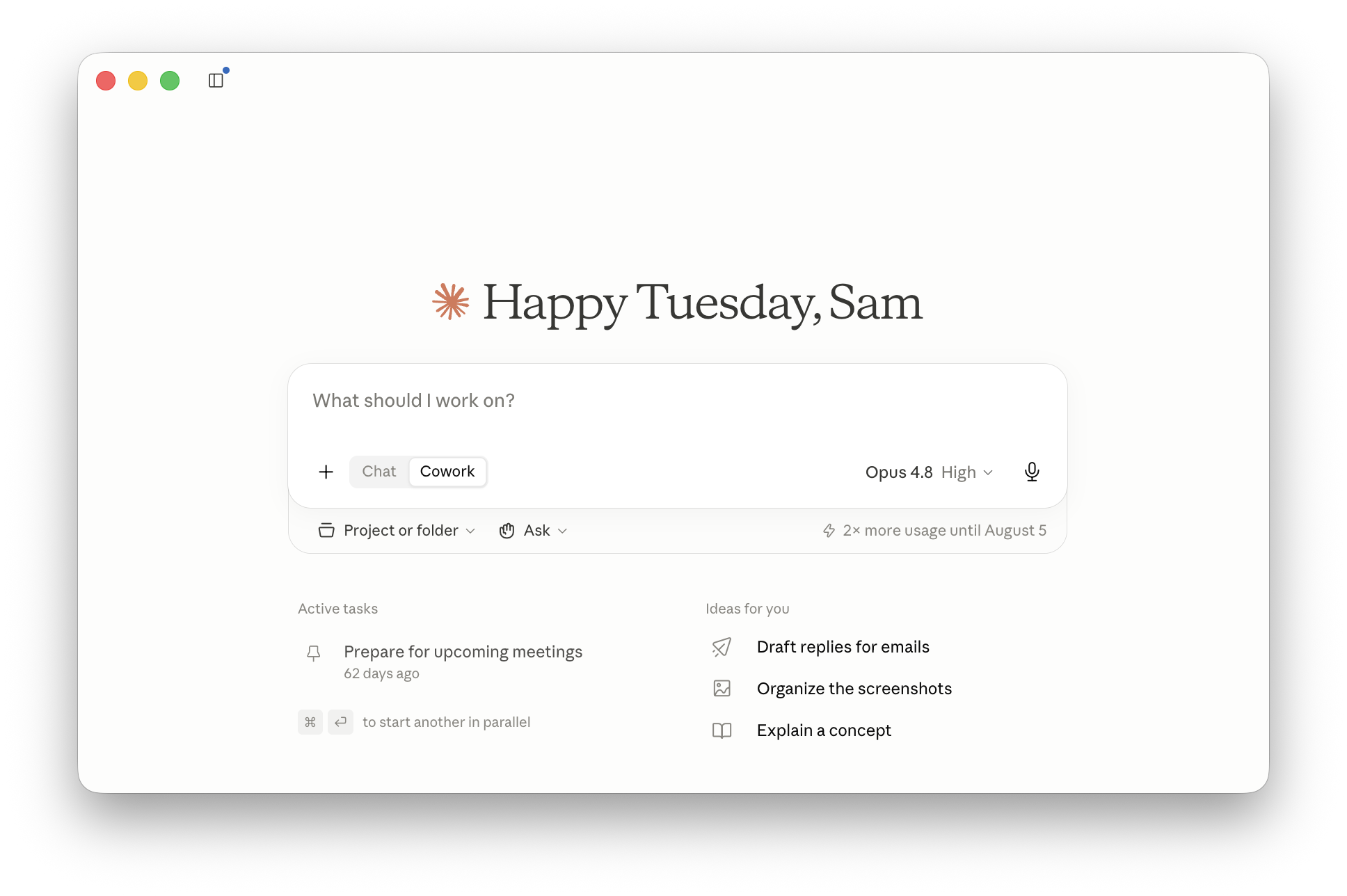
In your first Cowork session, type /setup-cowork and press enter.
Claude walks you through setup in the conversation: pick your role, install a plugin matched to it, and connect the tools that plugin uses — Slack, Google Workspace or Microsoft 365, and whichever systems your role lives in. New users will see a Set up Cowork banner that starts the same flow; the skill works anytime you want to revisit it.
A plugin packages the skills, connectors, and example prompts for a role, so finishing setup leaves you with a starting point for real work, not an empty session. You can browse all plugins in Cowork or add more connectors from Customize in the sidebar.
Select Work in a folder in the chat bar to pick where Claude can read context from and save finished work back to.
With a working location set, Cowork finds what's relevant on its own and writes the result there as a real file you can open, share, or keep editing.
Open a new Cowork session and start on something from your to-do list: a task that's spread across your tools, takes several steps, or needs real work on your computer. Set the working folder and describe the result you need.
Type / for the starting prompts your plugin installed, or browse Cowork use cases for more by role.