Using the Blender Connector in Claude
Connect Claude to Blender so it can read and work with your open scene directly.

The Blender connector gives Claude access to your open Blender scene through Blender's Python API. With it connected, you can ask Claude to read and explain a complex node or modifier setup, batch-apply changes across many objects, clean out unused data, and write Python that adds new tools to Blender's interface.
The connector was built by the Blender developers and released as part of Claude for Creative Work.
First, add the Blender connector in Claude Desktop, then install an add-on inside Blender so the two can communicate. After setting up once, start the connection from inside Blender each time you work.
In Claude Desktop, go to Customize > Connectors, search for Blender, and select Add.
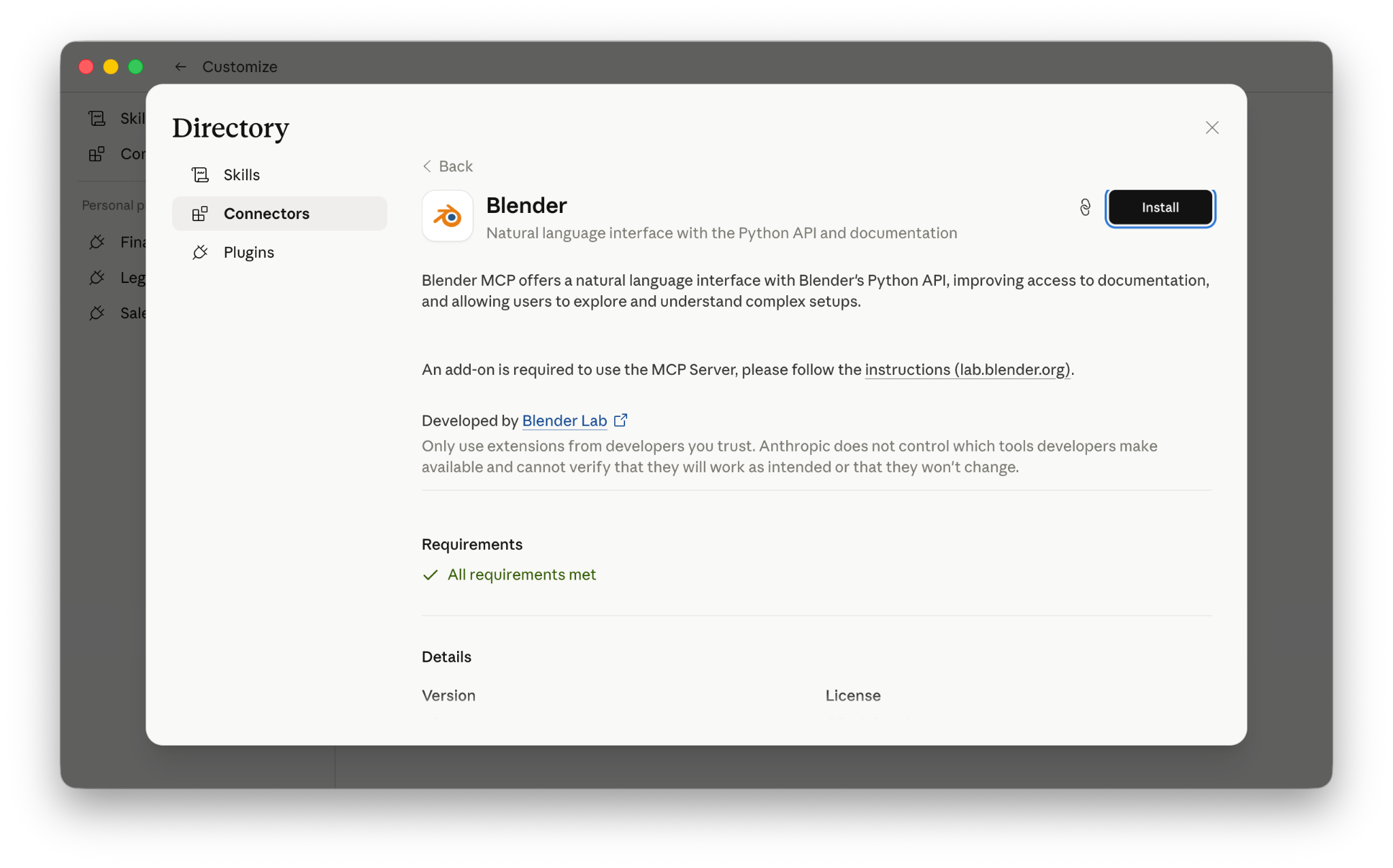
For more on installing connectors from the directory, see Browsing the Connectors Directory.
The connector is built on the open Model Context Protocol and works with other MCP clients, including Claude Code. For setup outside Claude Desktop, see Blender's MCP server documentation and the Claude Code MCP guide.
Your scene has objects, collections, and materials with default or misleading names left over from earlier iterations.
Look at the open scene and rename the data blocks so each name matches what it contains. Flag any names that are misleading, like a collection called "rocks" that only contains pebble meshes.
You've opened a .blend file from the community and want to understand how its Geometry Nodes tree works before you change anything.
Walk through the Geometry Nodes modifier on the active object. Explain what each node group does in the order data flows through them, and write your notes as frame labels inside the node editor so the explanation is saved in the file.
You want to change or delete something but aren't sure what else in the file depends on it.
List everything in this file that uses the "Glass_Tinted" material, including objects, node groups, and Geometry Nodes setups. Tell me what would break if I removed it.
Render times are long and you want to know where the polygon budget is going relative to what's visible on screen.
For each mesh in the scene, report its polygon count alongside how large it appears in the active camera's final render. Sort by polygon count and flag anything that's heavy but small on screen.
