How to use Claude in Excel for accounting: Revenue model validation
Use Claude to validate ASC 606 revenue models, surface reconciliation issues, and build financial visualizations
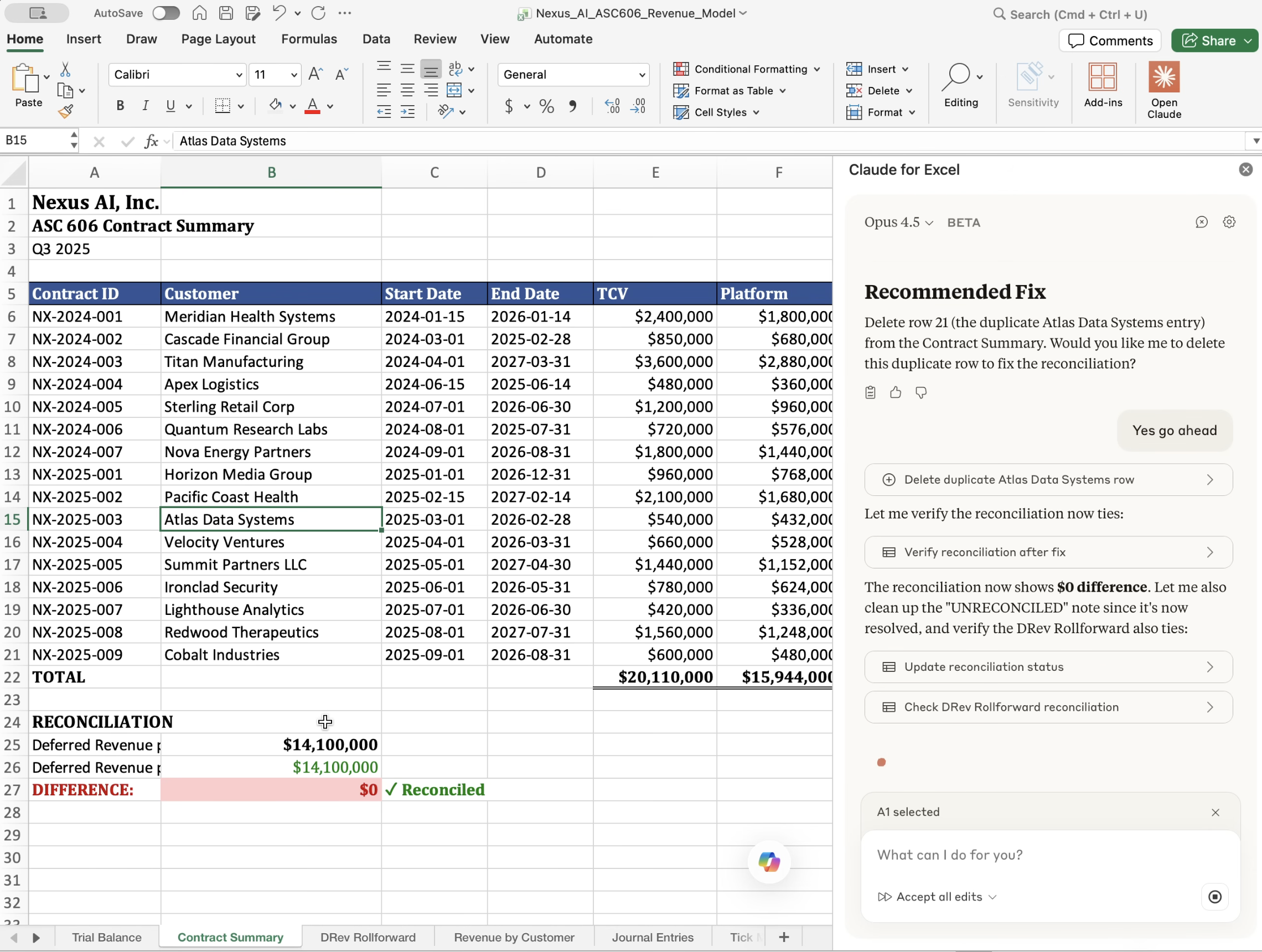
Claude in Excel works directly inside your spreadsheet through a sidebar, reading your data and making changes through conversation. In this tutorial, you'll see how an accountant uses Claude to validate an ASC 606 revenue recognition model—the kind of multi-tab workbook you might inherit during an audit or acquire in a transaction.
Understand workbooks you didn't build — Ask Claude to explain how tabs connect. It reads every sheet first, then maps the structure—how schedules tie together, where data flows, what feeds into what.
Surface errors and inconsistencies — Claude catches reconciliation gaps, duplicate entries, and missing data across multiple sheets. Instead of clicking through tabs yourself, you see everything it found upfront—and choose what to tackle first.
Fix issues with confirmation — When Claude finds a problem, it shows you what's wrong, explains the recommended fix, and waits for your go-ahead. You stay in control of what changes.
Add columns and formatting through conversation — Describe what you need—status indicators, legends, new calculations—and Claude builds it. It learns patterns from your existing data and applies them consistently.
Create charts by describing them — Tell Claude what visualization you need. It creates helper tables when necessary, builds the chart, and will rebuild if the first version isn't right.
Follow along with the video, or copy these prompts to try in your own workbook.
Ask Claude to explain a workbook you've inherited or need to audit. Claude reads every tab before responding, giving it full context for follow-up questions.
"Walk me through this model. What's on each tab and how does everything tie together?"
After reading the workbook, Claude proactively identifies problems: reconciliation gaps, duplicate entries, missing data. You choose which to tackle first.
"Yes, please look at the reconciliation issue first."
Claude shows you what it found and what it recommends. It won't make changes until you say so.
"Yes, go ahead."
Describe what you want—status indicators, legends, new calculations—and Claude adds them.
"Add a check mark column showing testing status for each contract. Use ✓ for tested, IP for in progress, and NP for not yet started. Add a legend at the bottom."
Tell Claude what visualization you need. It creates helper tables when necessary and will rebuild if the first version isn't right.
"Create a waterfall chart showing the Q3 deferred revenue rollforward—beginning balance, bookings, revenue recognized, adjustments, and ending balance."
Claude remembers everything from your conversation. Circle back to issues it flagged earlier without re-explaining.
"Let's go back to the issues you identified—a missing journal entry and one other I think?"
Claude reads before it answers.
When you ask about the model, Claude doesn't guess—it reads all six sheets first, then explains how they connect. This prevents errors from incomplete context and gives Claude the baseline it needs for follow-up questions.
Issues surface together.
Instead of discovering problems one at a time as you click through tabs, Claude presents everything it found upfront: the reconciliation gap, the duplicate, the missing entry, the flagged items. You decide what to tackle first.
Changes require confirmation.
Claude shows the math, explains what will change, and waits for your "yes, go ahead" before modifying anything. You see exactly what's happening and can verify the logic.
Context carries through the conversation.
When you say "let's go back to the issues you identified," Claude remembers what it flagged earlier. You don't need to re-explain or re-read the model.
Claude learns patterns from your data.
When adding September journal entries, Claude analyzed the existing July and August entries, identified that revenue splits 80% Platform / 12% Support / 8% Services, and applied that same logic. The new entries follow your established pattern.
This tutorial shows one use case: validating an ASC 606 revenue model with reconciliation issues and missing entries. The same approach works for any multi-sheet model where you need to understand the structure, catch problems, or extend what's already built—budgets, forecasts, audit workpapers.
Get started:
Learn more: