Claude in Chrome
すべてのタブでお手伝い
Claude in Chrome は、サインインしたページを読み込み、クリック、入力、フォームへの入力を行います。次に何をするかを決められます。
すべての有料プランで利用できます。有料プランではありませんか?今すぐアップグレードする
コピー、貼り付け、タブの切り替えはもう必要ありません。
ブラウザでの検索から完成した成果物まで
Claude in Chrome と Claude Cowork を組み合わせれば、ウェブ研究を完成度の高いコンテンツに変えられます。Chrome がナビゲートして情報を収集し、Claude Cowork が Excel モデル、比較資料、レポートを生成するため、コピー&ペーストする必要はありません。
Claude Codeと連携
開発ワークフローを Chrome に連携させ、テストと反復を共に行うパートナーとして活用できます。
毎日使うツールを使用
Claude をワークフローに組み込み、ブラウザを離れることなくアプリをより効果的に動作させます。
タスクをバックグラウンドで実行
ワークフローを開始して、次の作業に進みます。Claude は、
ユーザーが他の作業に集中している間、作業を完了させます。
分析ダッシュボードからメトリクスを取得
Claude は分析ダッシュボードを操作し、必要な数値を抽出して、それらを要約にまとめます。エクスポートもタブ切り替えも手動コピーも不要です。
Google ドライブのファイルを整理
Claude は Google ドライブを整理して、フォルダー構造を作成し、ファイルを適切な場所に移動し、重複ファイルや古いファイルにフラグ付けして確認することができます。自分自身で整理を行う代わりに、変更を承認するだけです。
自身のカレンダーから準備と計画を策定
Claude は、ユーザーのカレンダーを読み取り、メールスレッドからコンテキストを抽出し、準備が必要な会議にフラグを立て、会議室が未手配の場合は予約することができます。毎晩実行し、翌日の予定を把握した状態で一日を始めることができます。
競合他社を研究し、比較資料を入手する
Claude in Chrome は競合他社のサイトにアクセスし、価格、機能、ポジショニングを収集します。Claude Cowork は、次の戦略会議に向けてすべてをフォーマット済み PowerPoint にまとめます。
訪問営業の記録を CRM に記録
Claude は、ユーザーのカレンダーを読み取り、出席者と Salesforce の連絡先と照合し、各訪問営業の活動ログを作成できます。何かが作成される前にメモを追加し承認します。
プロモーションメールの削除
Claude は受信トレイをスキャンし、マーケティングメール、ニュースレター、自動通知を識別後、一括削除する前に確認可能なリストとして提示します。
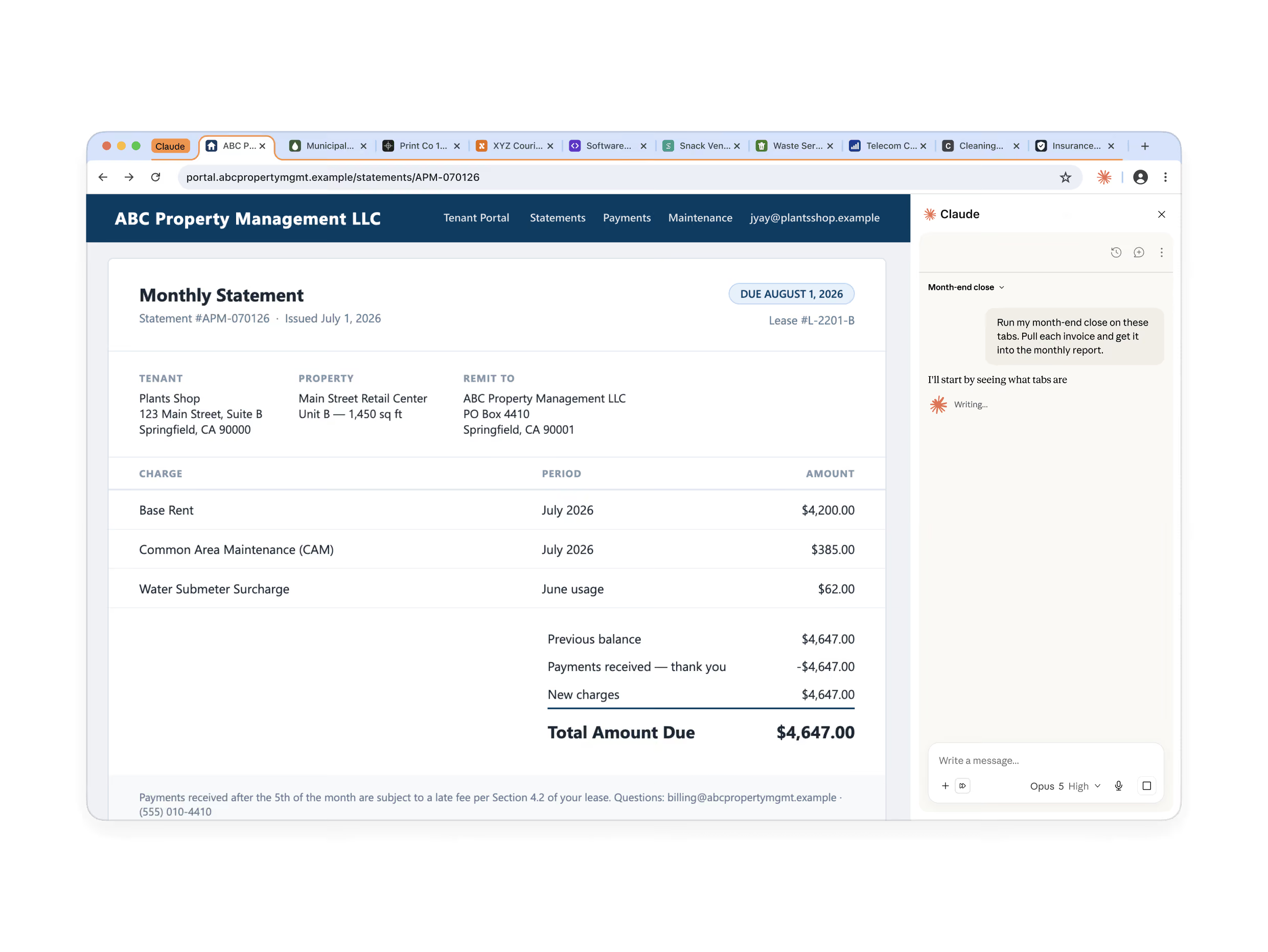
API のないウェブにもアクセス可能
社内ツール、レガシーポータル、管理コンソール、請求書システムにアクセスできます。Claude は、目の前のタブで、お持ちのログイン情報を活用して動作します。Claude のタブグループにさらに多くのタブをドラッグすれば、Claude はそれらすべてのタブで機能します。
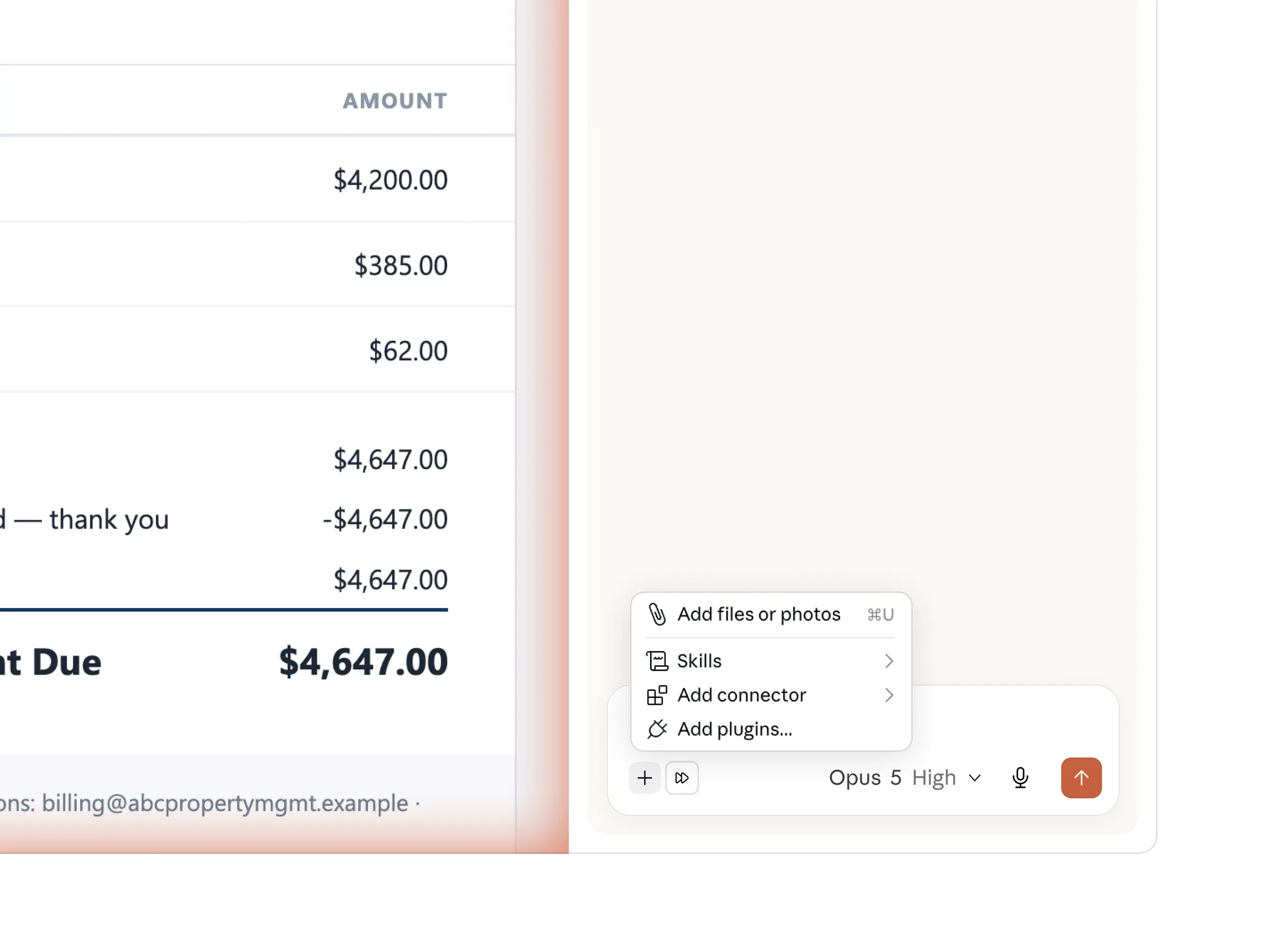
すべての操作をサイドパネルで
サイドパネルで Claude Cowork セッション全体が実行されるようになりました。 すでに構築した Skills、プラグイン、コネクタがそのまま利用でき、ブラウザで設定する必要はありません。
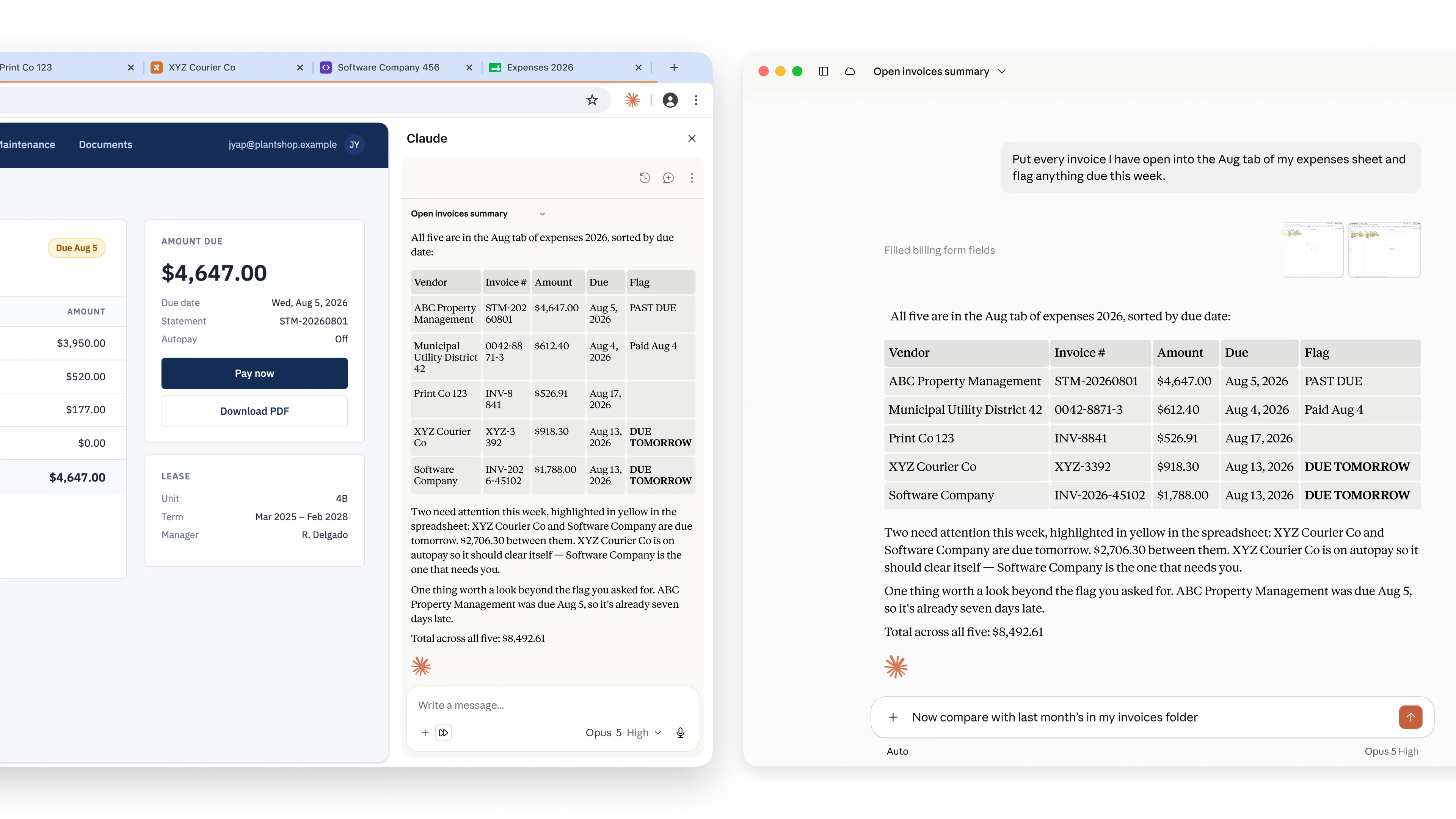
どこでもセッション継続
すべての会話は履歴に保存されます。 セッションはマシンではなくアカウントに紐付いているため、Chrome で作業を開始し、再度説明することなく、デスクトップやモバイルで引き継ぐことができます。パネルで保存したスキルは、あらゆるサーフェスからも実行できます。
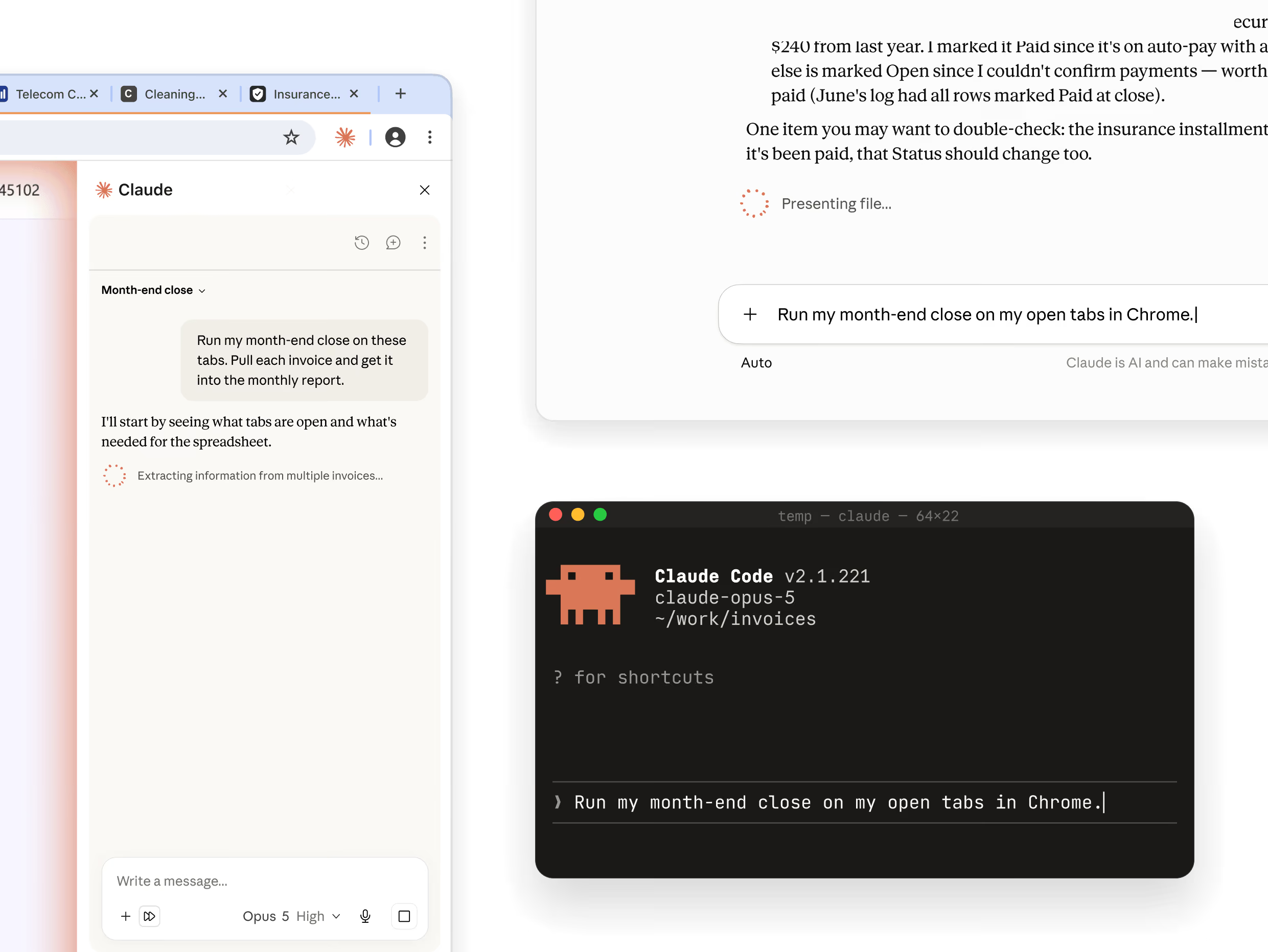
拡張機能にアクセスする 3 つの方法
作業が目の前のページにあり、他に何も開く必要がない場合はサイドパネルを通じて Claude in Chrome にアクセスし、ブラウザでの作業がより長いジョブの 1 つのステップである場合は Claude Cowork で、テスト中のサイトを構築している場合は Claude Code でアクセスします。
ページに隠された指示は、Claude のアクションをリダイレクトしようとすることがあります。Claude in Chrome には、実際の攻撃に対してテスト済みの防御策が組み込まれていますが、ベストプラクティスとして以下の習慣を推奨します。
私たちが構築したもの
ガードレールで アクションを自動承認
選択した場合、Claude は各ステップの承認を求めることなく、タスクを処理できます。 ページで動作する前に、リスクとサイトに隠された指示について、別の安全チェックがアクションをレビューします。 何かおかしいと思われる場合は、通知が表示されます。
サイトごとに権限を付与
より多くの制御を希望する場合は、権限モードに切り替えてください。 一度に 1 つのサイトへのアクセスを付与します。 Claude は、承認していないものにはアクセスできません。
Claude が重要なアクションを実行する前に停止
購入、財務処理、その他の取り消しできないアクションは、確認を待ってから実行されます。
管理者が組織のために決定
Team と Enterprise では、管理者が組織全体でこの拡張機能をオンまたはオフにし、サイトの許可リストとブロックリストを設定します。
推奨事項
機密性の高いワークフローでは使用しないでください
銀行取引、健康記録、共有したくない資格情報を含むものはスキップしてください。すでによく知っているワークフローから始めましょう。
Claude のプロンプトを確認
Claude は、財務、個人的、または業務に重要なアクションの実行前に確認を求めます。Claude のプロンプトを慎重に確認してください。
異常な挙動に注意
サイトによっては、ユーザーの指示を上書きする指示を非表示にしています。 分類器が防御を提供しますが、Claude が予期せぬ動作をした場合は、一時停止して確認してください。
何かおかしいと感じた場合はお知らせください
フィードバックのオプションから問題を報告してください。これにより、未知の攻撃を発見できます。
Claude Cowork には、独自の組み込みブラウザが搭載されました。インストールは不要で、お客様自身のブラウジングとは完全に分離されています。ブラウザの利用に慣れていない場合、Claude はデフォルトで組み込みブラウザを使用します。すでに Claude in Chrome を使用している場合、それがデフォルトのままとなり、Claude はすでにサインインしているブラウザで引き続き動作します。設定 → Cowork → 優先ブラウザでいつでも切り替えられます。
ブラウザ AI は、プロンプトインジェクション攻撃など、固有のセキュリティリスクに直面します。悪意のある攻撃者が Claude をだまして銀行情報の共有や重要なファイルの削除など、意図しない行動を取らせようとする可能性があります。安全対策は講じておりますが、万全とは言えません。攻撃ベクトルは絶えず進化しており、Claude はハルシネーションを起こし、その結果、意図しない行動を引き起こすことがあります。想定される攻撃シナリオを含むテスト結果を共有しましたので、十分な情報に基づいた判断を行うことができます。また、本製品を使用する前にリスクに関する内容をご一読 (opens in new tab)することを強くお勧めします。ブログ投稿を読む。 (opens in new tab)
Claude in Chrome は単体での使用時、ブラウザー内でのナビゲーション、情報の抽出、各種操作の実行を支援します。Claude Cowork と組み合わせることで、Chrome は大規模な作業に向けた研究レイヤーとして機能します。Claude が Web から情報を収集し、その後 Claude Cowork が Excel ブック、PowerPoint 資料、書式設定済みレポートなどの完成ファイルを生成します。どちらも Cowork で引き続き利用できます。Claude in Chrome をすでに使用している場合を除き、Claude はデフォルトで組み込みブラウザを使用します。設定 → Cowork → 優先ブラウザでデフォルトを選択できます。
これは Google の拡張機能です。Google API から取得した情報の使用は限定的な利用要件を含め、Chrome ウェブストアのユーザーデータポリシーに準拠します。