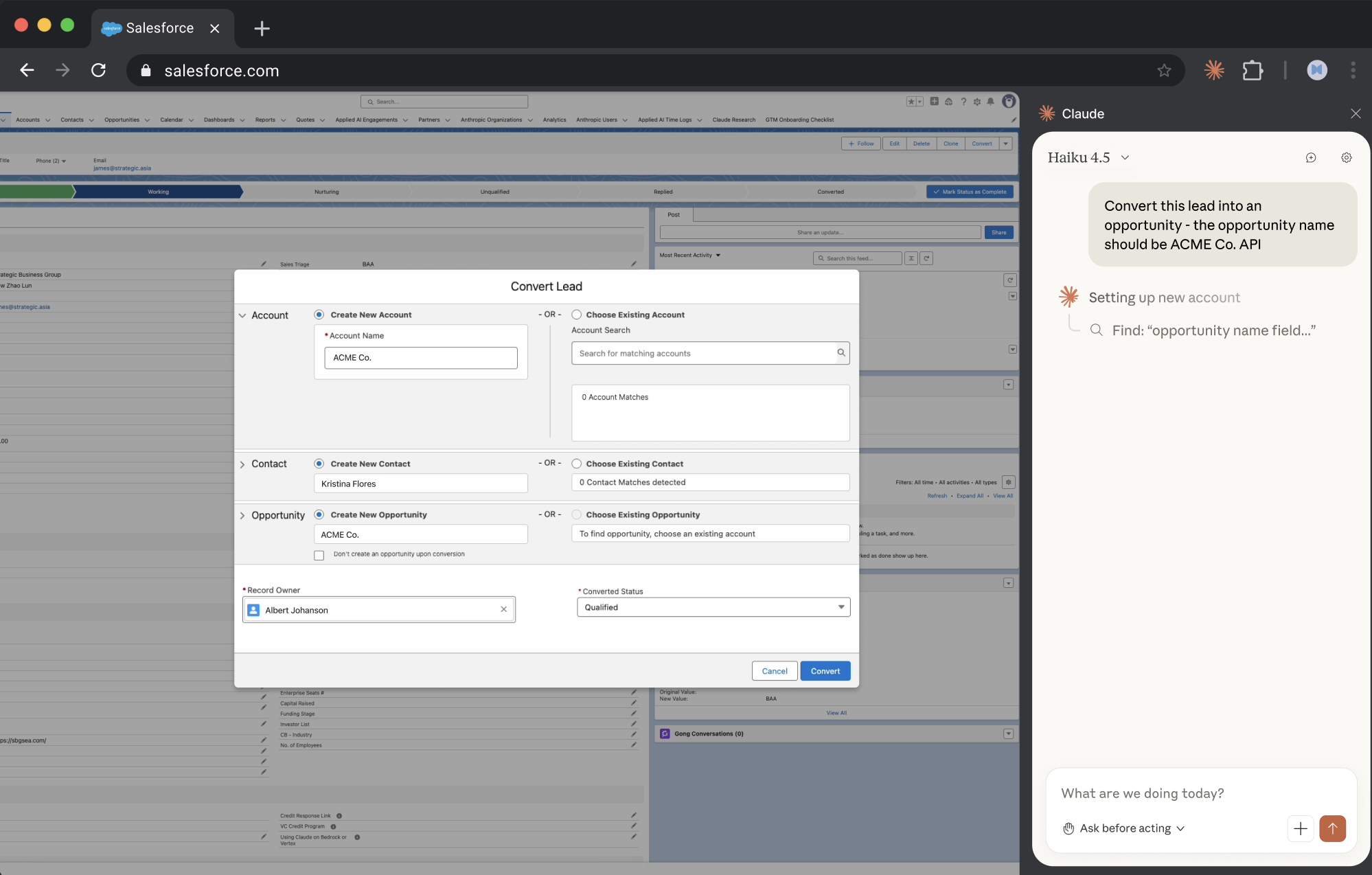
Log sales calls to your CRM
Claude in Chrome can read your calendar, match attendees to Salesforce contacts, and draft activity logs for each call. You add notes and approve before anything gets created.
Claude reads your Google Calendar, finds each meeting's attendees in Salesforce, and drafts activity logs. You provide notes on what was discussed and review everything before Claude creates the records.
This works for logging a single day or catching up on a backlog. Claude handles the cross-referencing and formatting; you add the context that makes the logs useful.
Log my calls from today in Salesforce.
Steps:
Do not submit. Show me everything for review before saving to Salesforce.
Claude uses browser use to work across your calendar and CRM through your existing browser sessions. If you're logged into Google Calendar and Salesforce, Claude can read your meetings, look up contacts, and create activity records. No API configuration or IT tickets required.
Log into Google Calendar and Salesforce in Chrome before starting. Claude navigates between them using your existing sessions.

If you take notes during calls—in a doc, notepad, or even bullet points—have them accessible. Claude can format rough notes into structured activity descriptions.
Claude shows what it found on your calendar, matches attendees to Salesforce contacts, and drafts activity logs for your review.
External Meetings Today
5 found — Here's the status:
9:00 AM — Intro call - Acme Corp
- Salesforce match: Sarah Chen (VP Ops)
- Status: Ready to log
10:30 AM — Demo - TechStart
- Salesforce match: Marcus Johnson
- Status: Ready to log
1:00 PM — Follow-up - Blue Sky
- Salesforce match: Rachel Torres
- Status: Ready to log
2:30 PM — Pricing - Orion Systems
- Salesforce match: James Park
- Status: Ready to log
4:00 PM — Discovery - NewCo
- Salesforce match: No match found
- Status: Needs input
Ready to Log (4 calls)
Give me a quick summary for each and I'll format the activity log.
1. Acme Corp — Sarah Chen
You: "Good discovery call. Evaluating us vs Competitor X. Pain point is reporting—current tool takes 2 hours for what should take 5 minutes. Decision by end of Q1. Next step is technical demo with ops team."
Draft Activity Log:
- Subject: Discovery Call - Acme Corp
- Type: Call
- Related To: Acme Corp - New Business
Description:
Discovery call with Sarah Chen (VP Operations).
Discussion:
- Evaluating our solution against Competitor X
- Primary pain point: reporting inefficiency (2 hours for reports that should take 5 minutes)
- Decision timeline: End of Q1
Next Steps:
- Schedule technical demo with operations team
- Send competitive comparison materials
Needs Your Input
5. NewCo Discovery
No contact found matching the attendee email ([email protected]).
Options:
- Create a new contact record
- Log the activity against the Account only
- Skip this one
Once you confirm and give me the remaining summaries, I'll show the complete batch for final review.
While logging activities, update the opportunity records based on what you learned.
For Acme Corp, move the opportunity to "Demo Scheduled" and update the close date to end of Q1. Add Competitor X to the competitors field.
Process multiple days of calls at once before a pipeline review.
I've fallen behind on logging. Can you do this for all my external meetings from the past week? I'll review everything before our Monday pipeline meeting.
Add new contacts when attendees don't exist in Salesforce yet. Claude can create them and link the activity in one step.
Go ahead and create a contact for Alex at NewCo. His title is Director of Partnerships—you can pull the rest from his email signature in the calendar invite. Then log the activity against that new record.
For cross-app workflows, drag both Google Calendar and Salesforce into Claude's tab group. You'll see a tab group highlighting the tabs Claude can access. Now Claude can read calendar attendees and look up Salesforce contacts simultaneously—no tab switching. Before visiting new sites, Claude asks for permission. You can grant site-level permissions for websites you trust, allowing Claude to work without repeated approvals on those specific domains.
Before clicking "send," "publish," "post," "submit," or similar action buttons, Claude asks for approval. This includes sending emails, posting to social media, submitting forms, or messaging others on your behalf.
Once you have an activity log format that works, save the prompt as a shortcut by clicking on the shortcut icon below a successful prompt. You can also set a schedule for when you want the workflow to run next. Alternatively, manually trigger the workflow, by typing "/" and selecting the shortcut.