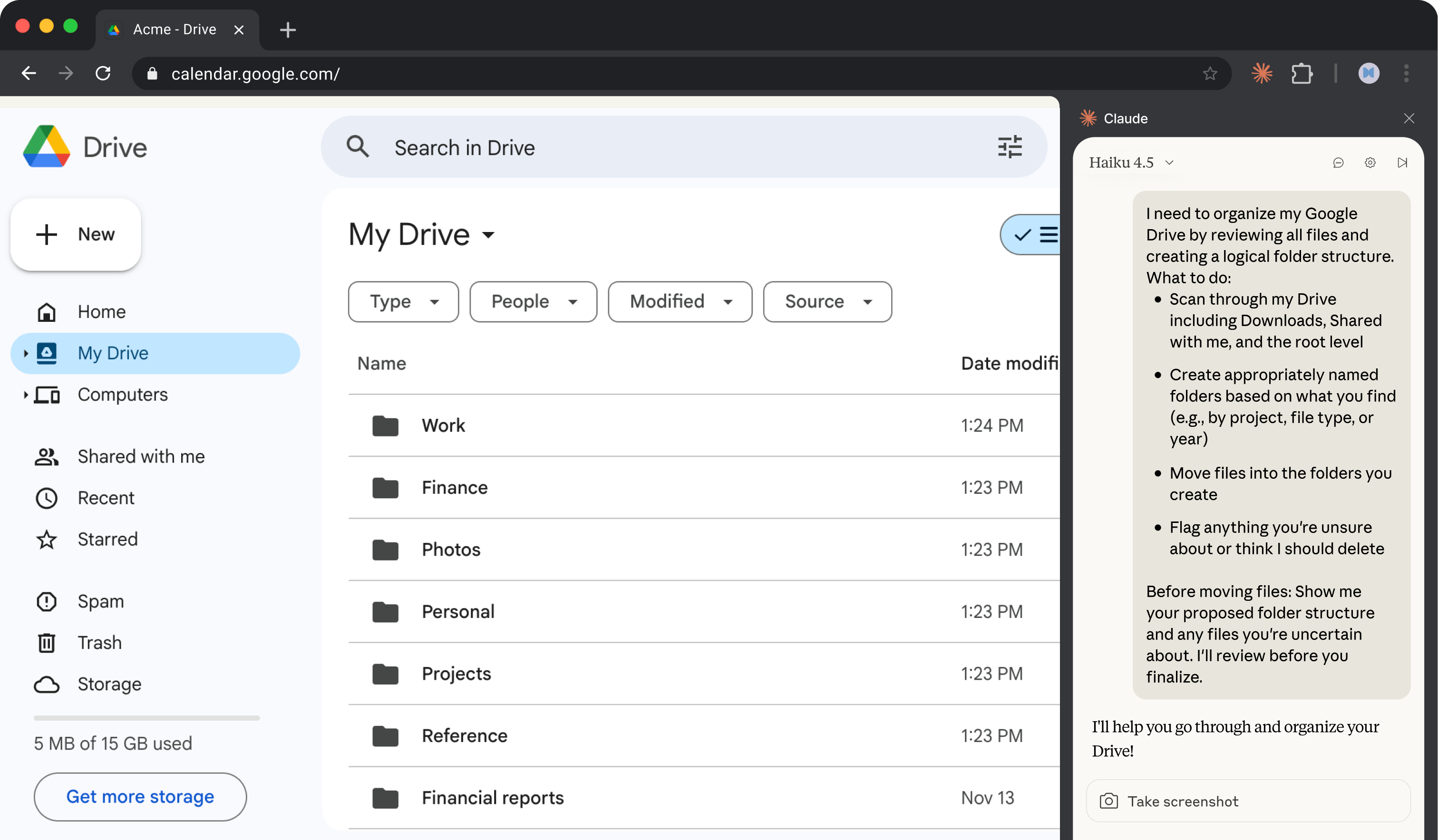
Organize files in Google Drive
Claude in Chrome sorts through your Drive, creates a folder structure, moves files where they belong, and flags duplicates and old files for you to review. You approve the changes instead of doing the sorting yourself.
Years of files piling up in Google Drive—downloads you never sorted, documents people shared with you, old project folders mixed with random screenshots. The task of organizing it feels endless, so it never happens. Claude in Chrome can navigate your Drive, create a folder structure, and move files where they belong while you do something else.
Tell Claude what kind of organization you want, or let it figure out a structure based on what's there. You review the results instead of doing the sorting yourself.
I need to organize my Google Drive by reviewing all files and creating a logical folder structure.
What to do:
Before moving files: Show me your proposed folder structure and any files you're uncertain about. I'll review before you finalize.
Claude works directly in your Google Drive through the browser—the same interface you'd use. It can see your files, create folders, and move things around without downloading or uploading anything.
Log into Google Drive before starting. If you have specific folders you want to preserve or a naming convention you prefer, mention that in your prompt.
If your Drive is very large, consider asking Claude to start with one section—like just your Downloads or just files from the past year. You can expand from there.

Claude reports what it organized, what it moved, and what needs your decision before going further.
Drive Organized
847 files sorted | 12 folders created | 23 items need your review
I went through everything in your Drive and created a structure based on what I found. Here's the new layout:
New Folder Structure
FolderFilesWhat's in itWork156Documents with company names, meeting notes, presentationsFinance89Tax docs, receipts, bank statements, invoicesPhotos234Images and screenshots, organized by yearPersonal67Travel docs, medical records, insuranceProjects145Grouped by project name where I could identify oneReference52Manuals, guides, saved articlesShared With Me73Files owned by others (can't move these, but grouped the view)Archive0Empty for now—waiting for your approval on old files
Needs Your Review
Duplicates Found (8 sets)
I haven't deleted anything. Say the word and I'll keep the newest version of each.
Old Files to Consider Archiving (12 files)
Couldn't Categorize (3 files)
Everything Else
Sorted and in place.
Want me to handle the duplicates, move the old files to Archive, or rename the unclear ones?
Clean up redundant copies once you've confirmed which version to keep. Claude can delete in bulk or one at a time.
Go ahead and delete the duplicate files you found. Keep the most recent version of each.
Move untouched files out of your main view without deleting them. Useful for anything you might need later but don't want cluttering your folders.
Move everything that hasn't been opened in over a year to an Archive folder. I'll look through it later but get it out of my main view.
Replace generic names with descriptive ones based on file contents. Easier to search later.
A lot of these files have useless names like 'Document (3)' or 'Screenshot 2023-04-12'. Can you rename them based on what's actually in them?
Once you've refined your folder structure preferences, save your prompt as a shortcut (type "/" and create one like /drive-organize). Include your preferred folder names and file categories so future cleanups match your system.
Turn on the schedule toggle for the ability to schedule this workflow. Claude runs the workflow automatically and notifies you when there's something to review. This keeps a regular scan for new unsorted files and duplicates to keep your Drive organized long term.
File deletion is a high-risk action. Even in "Act without asking" mode, Claude will pause and request approval before permanently removing files. Duplicates and old files get flagged for review—nothing disappears without your explicit confirmation.