Compare products across sites
Claude in Chrome reads the specs from multiple product pages you have open, normalizes the data, and creates a comparison table in Google Sheets. You stop tab-switching and start deciding.
You've got four browser tabs open with different laptops—or TVs, or vacuums, or whatever you're comparing. Each site shows specs differently: one says "RAM," another says "Memory," a third buries it in a collapsible section. You're switching back and forth, trying to remember which one had better battery life. Claude in Chrome can read each product page, pull the specs, normalize the labels, and build a comparison table in Google Sheets.
Open the product pages you want to compare. Tell Claude which specs matter to you, and it handles the rest.
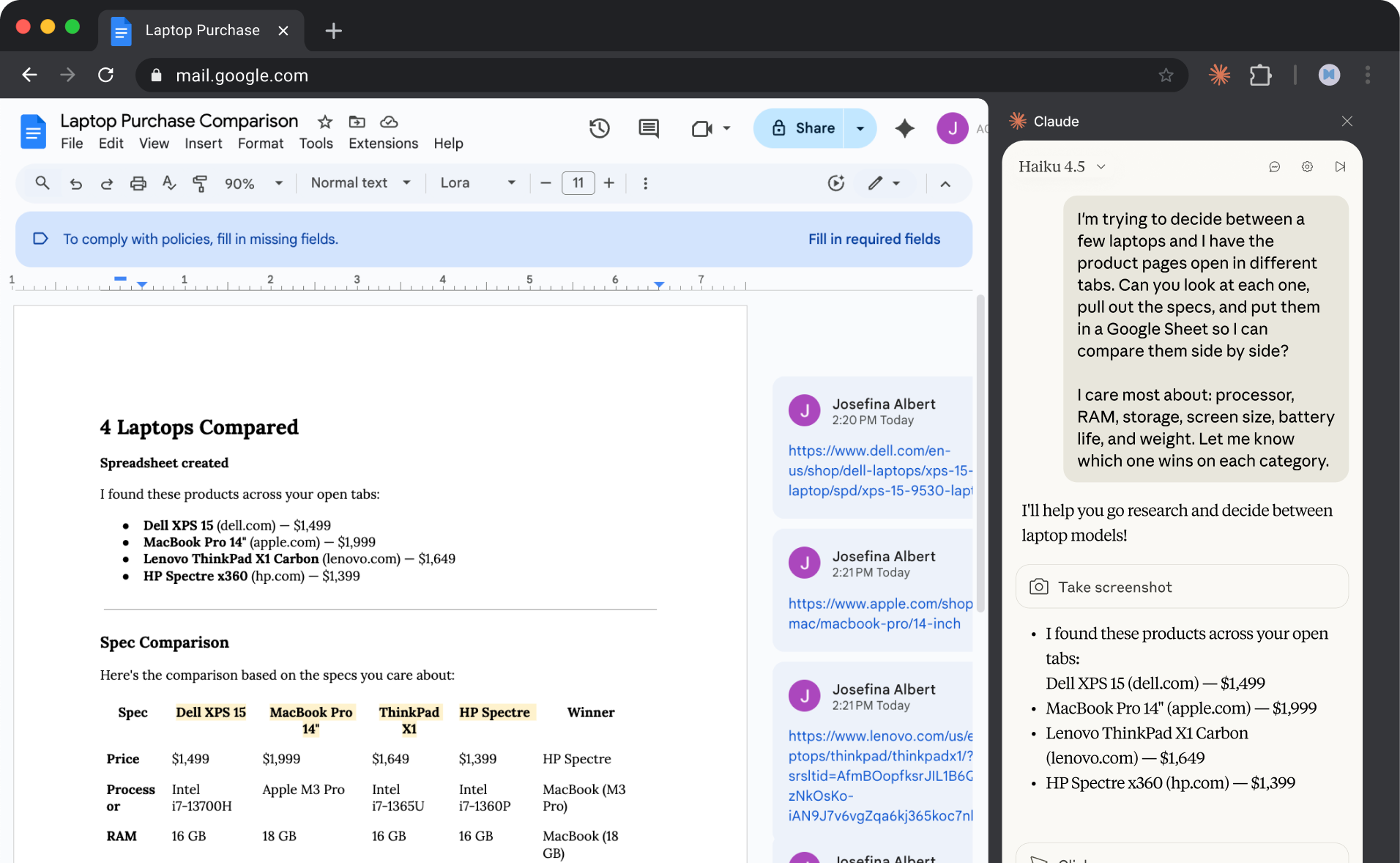
I'm trying to decide between a few laptops and I have the product pages open in different tabs. Can you look at each one, pull out the specs, and put them in a Google Sheet so I can compare them side by side?
I care most about: processor, RAM, storage, screen size, battery life, and weight. Let me know which one wins on each category.
Claude reads directly from the product pages you have open—switching between tabs to extract the specs, then creating a spreadsheet with everything normalized into consistent columns.
Open the product pages you want to compare in separate browser tabs. Log into Google Sheets so Claude can create the comparison there. Claude navigates between tabs on its own—you just need everything accessible in your browser.
If you're comparing several products, consider telling Claude which specs matter most upfront. Otherwise it will pull everything it finds, which can make the spreadsheet wider than you need.

Claude shows the comparison table it built, highlights which product wins each category, and gives a quick recommendation.
4 Laptops Compared
Spreadsheet created
I found these products across your open tabs:
Spec Comparison
Here's the comparison based on the specs you care about:
Price
- Dell XPS 15: $1,499
- MacBook Pro 14": $1,999
- ThinkPad X1: $1,649
- HP Spectre: $1,399
- Winner: HP Spectre
Processor
- Dell XPS 15: Intel i7-13700H
- MacBook Pro 14": Apple M3 Pro
- ThinkPad X1: Intel i7-1365U
- HP Spectre: Intel i7-1360P
- Winner: MacBook (M3 Pro)
RAM
- Dell XPS 15: 16 GB
- MacBook Pro 14": 18 GB
- ThinkPad X1: 16 GB
- HP Spectre: 16 GB
- Winner: MacBook (18 GB)
Storage
- Dell XPS 15: 512 GB SSD
- MacBook Pro 14": 512 GB SSD
- ThinkPad X1: 512 GB SSD
- HP Spectre: 1 TB SSD
- Winner: HP Spectre (1 TB)
Screen
- Dell XPS 15: 15.6" OLED
- MacBook Pro 14": 14.2" Liquid Retina
- ThinkPad X1: 14" IPS
- HP Spectre: 13.5" OLED
- Winner: Dell (15.6" OLED)
Battery
- Dell XPS 15: 13 hours
- MacBook Pro 14": 17 hours
- ThinkPad X1: 15 hours
- HP Spectre: 12 hours
- Winner: MacBook (17 hrs)
Weight
- Dell XPS 15: 4.2 lbs
- MacBook Pro 14": 3.4 lbs
- ThinkPad X1: 2.48 lbs
- HP Spectre: 3.01 lbs
- Winner: ThinkPad (2.48 lbs)
Quick Notes
I've created the comparison in Google Sheets with conditional formatting highlighting the winner in each row.
Bottom Line
The MacBook wins the most categories (processor, RAM, battery) but costs $350–600 more than the others.
I can also pull real-world battery tests from reviews if you want—manufacturer claims are often optimistic.
Expand your comparison as you find more candidates. Claude adds new products to the existing spreadsheet without starting over.
I just found one more option—here's the page [tab]. Can you add it to the spreadsheet and update the comparison?
Before deciding, see what actual buyers say. Claude can scan reviews and summarize common praise and complaints.
The MacBook looks like the best specs, but what are people saying about it? Can you check reviews and tell me if there are any common complaints I should know about?
Once you've picked a winner, Claude can check multiple retailers to find the lowest current price.
I think I want the MacBook Pro. Can you check a few sites and find where it's cheapest right now?
If you already have relevant product page tabs open, you can drag them into Claude's designated tab group. You'll see a banner highlighting the group of tabs that Claude is active in. Claude can read and work across all tabs in the group simultaneously—no tab-switching required. Before visiting new sites, Claude asks for permission. You can grant site-level permissions for websites you trust, allowing Claude to work without repeated approvals on those specific domains.
If you research products regularly, save your workflow as a shortcut by clicking on the shortcut icon below a previous prompt. Next time you're comparing options, just type "/" and select the shortcut for Claude to follow the same directions.