

Office runs one step at a time
Claude sends each step to Office and waits for Office to finish it. While Office is busy, other actions can stall too.[1]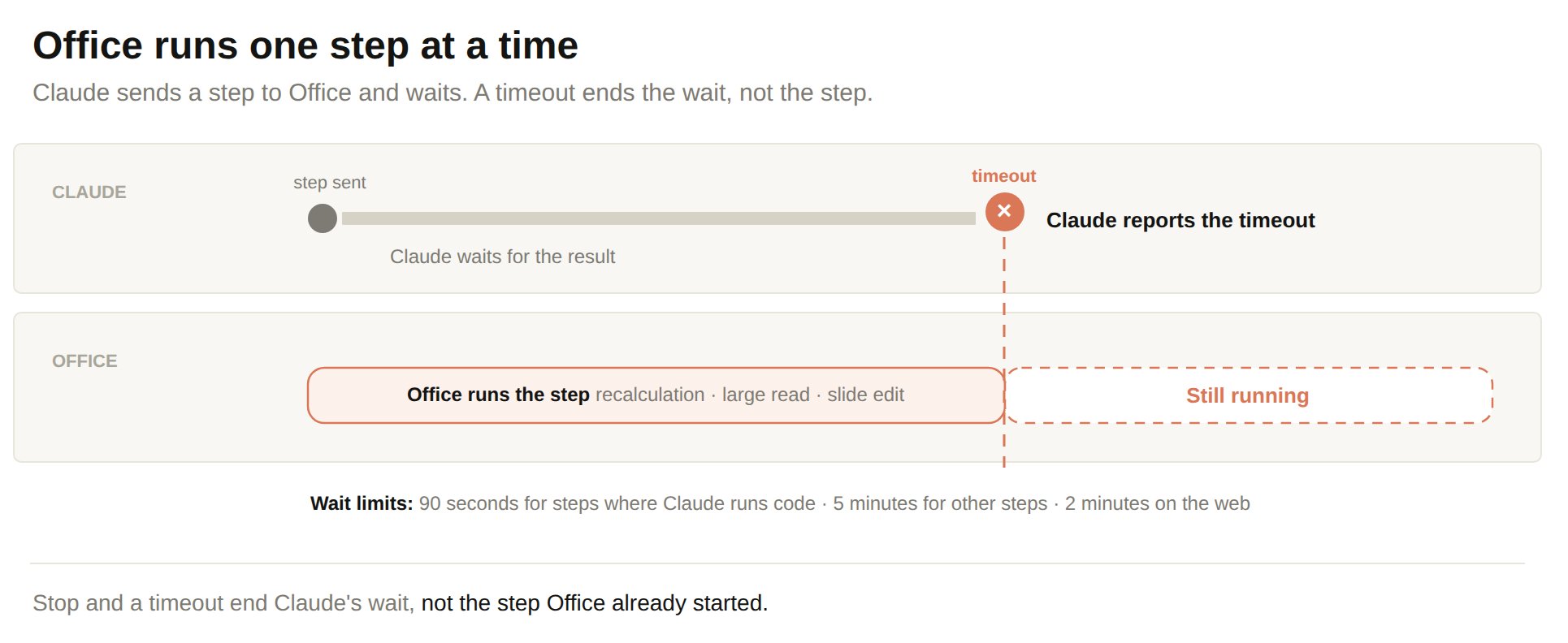
- Let each step finish: do not click, type, edit, run macros, or start a data refresh while Claude works. If a refresh is already running, wait for it or stop it with Esc or Stop Refresh.[2] If Office asks whether to keep running the add-in, continue.[3]
- Give Claude only what the task needs: name the sheet and range, or copy the sheets you need into a new workbook.
- Ask for large changes one step at a time: split a big job into smaller requests.
- Wait after a timeout: let Office respond, save, then ask for a smaller step.
Limits to know
These limits come from Claude for M365 and from Office itself.File size and risk
Sessions with larger files more often end with a step that never finished. This is how Claude for M365 detects an Office crash, a force quit, or a reload. Larger files also mean longer sessions. The chart is directional, based on what Claude for M365 usage shows.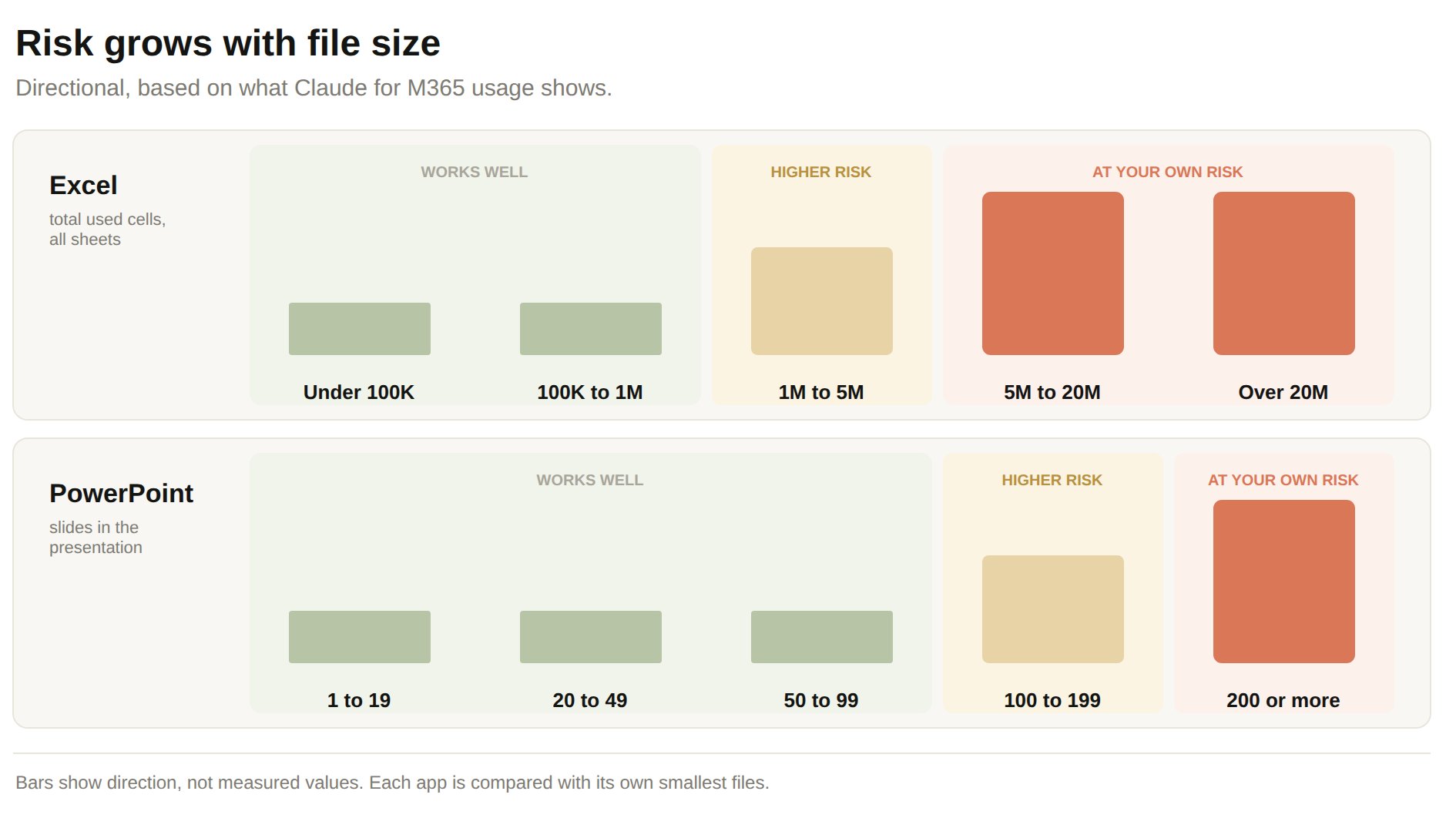
To estimate the total for a workbook, go to each sheet and press Ctrl+End to
move to its last cell.[7] Multiply the number of the last row by the
number of the last column, then add the results for all sheets. A last cell
of Z100000 is column 26 and row 100,000, about 2.6 million cells. Formatting
on empty cells moves the last cell, so a sheet can count as larger than its
data.[7]
A single sheet above 5 million cells also passes the limit for one Office
read.[3]
Limit what is open at once
Workbooks that you open in the same instance of Excel share one Excel process, and each workbook has its own Claude pane.[8] Every pane sends its commands to that process. Office queues the command batches it receives, up to 50 at a time.[4] When the computer is short of CPU or memory, the wait grows, and Excel can stall or crash.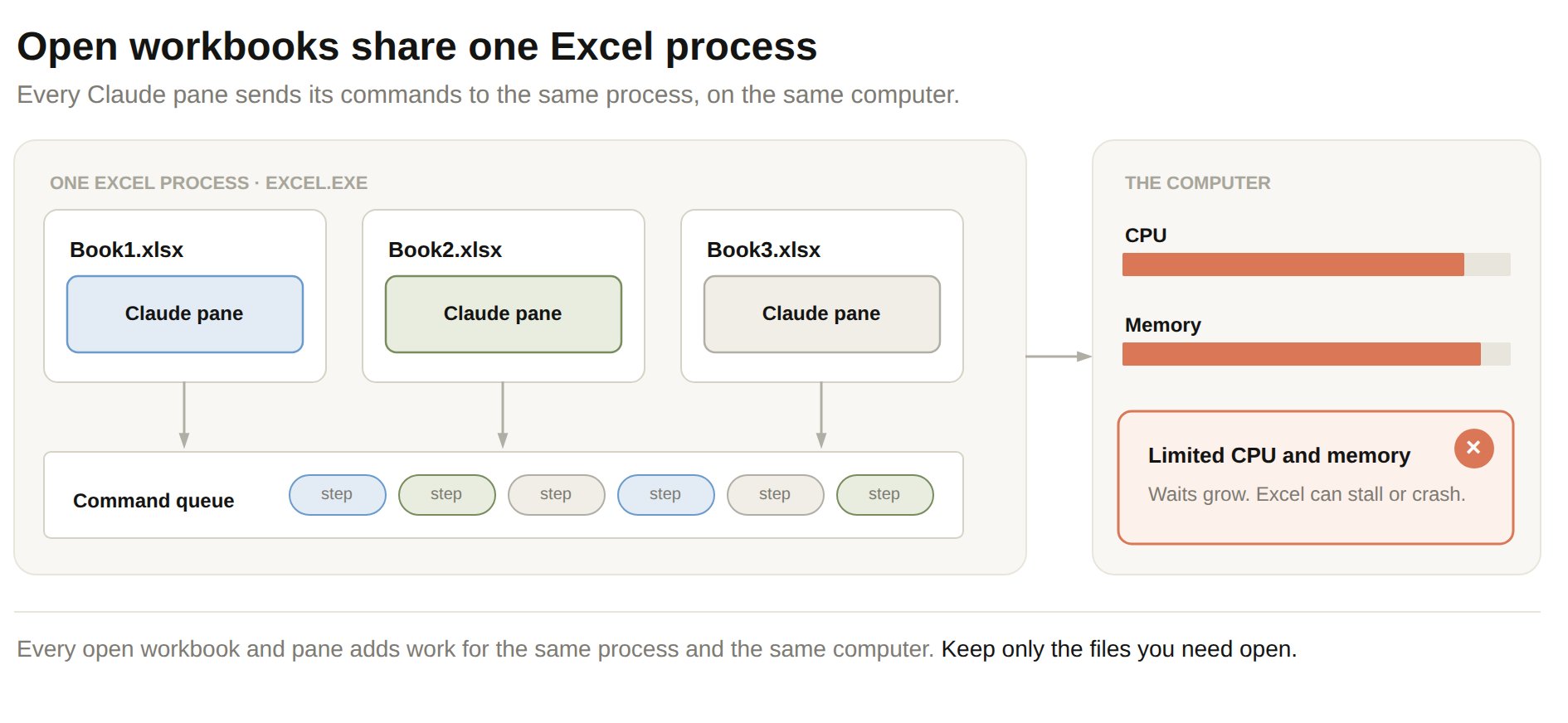
- Close the files you are not working in.
- For large files, work in one file at a time.
- When Claude works across Office apps, ask it to finish in one app before it moves to the next. See Work across M365 apps.
- If Excel runs out of memory with several workbooks open, open Excel in a new instance.[8]
Lighter files respond faster
A smaller used range and lighter formulas shorten the time Office needs for each step.Make large workbooks lighter
Excel has built-in tools that show what makes a workbook heavy.
Save a copy of the workbook before you run Check Performance. It removes
formatting from cells that look empty, including cells used for pixel
art.[10]
If the workbook is still too large, copy the sheets you need into a new
workbook.[11]
Ask for formulas that calculate fast
Some formulas make Excel recalculate far more cells than others. Ask Claude for these forms.- Conditional sums and counts: SUMIFS, COUNTIFS, and AVERAGEIFS. They calculate much faster than array formulas.[12]
- Today’s date: TODAY in one cell, with other cells that refer to it.[11]
- Direct references: cell references in place of OFFSET and INDIRECT, which recalculate at each recalculation.[13]
Pause calculation during large changes
Excel recalculates dependent formulas after every change. For large formula changes, pause recalculation until Claude is done.1
Set calculation to manual
On the Formulas tab, select Calculation Options, Manual.[14]
The option Automatic except for Data Tables skips only data tables.
Ordinary formulas still recalculate after every change.
2
Ask Claude for the changes
Claude writes the formulas without a recalculation after each one.
3
Recalculate
Press F9 when Claude is done. In Manual mode, formula results stay out of
date until you press F9.
4
Check the results
Ask Claude to verify the formulas after the recalculation.
5
Turn automatic calculation back on
Select Calculation Options, Automatic.
Make large presentations lighter
Large pictures and media make a presentation larger.[16] Compress them before you ask Claude for large changes.
Save a copy of the presentation before you compress. Deleting cropped picture
areas and discarding editing data cannot be undone.[16]
Ask Claude to change a few slides at a time.
When Office stops responding
Use this table when Office stops responding during a request.
When something goes wrong, keep your work and the chat for your admin.
1
2
Download the chat
In the Claude pane, select More options, then Download Transcript.
3
Send it to IT
Send the file and the time of the problem through your usual support
channel. The file contains your chat.
Investigate a crash or hang
Windows, Office, and Claude each keep a record of what happened. Start with the time of the problem, then check the records below in order. The Windows and Office records exist on Windows only.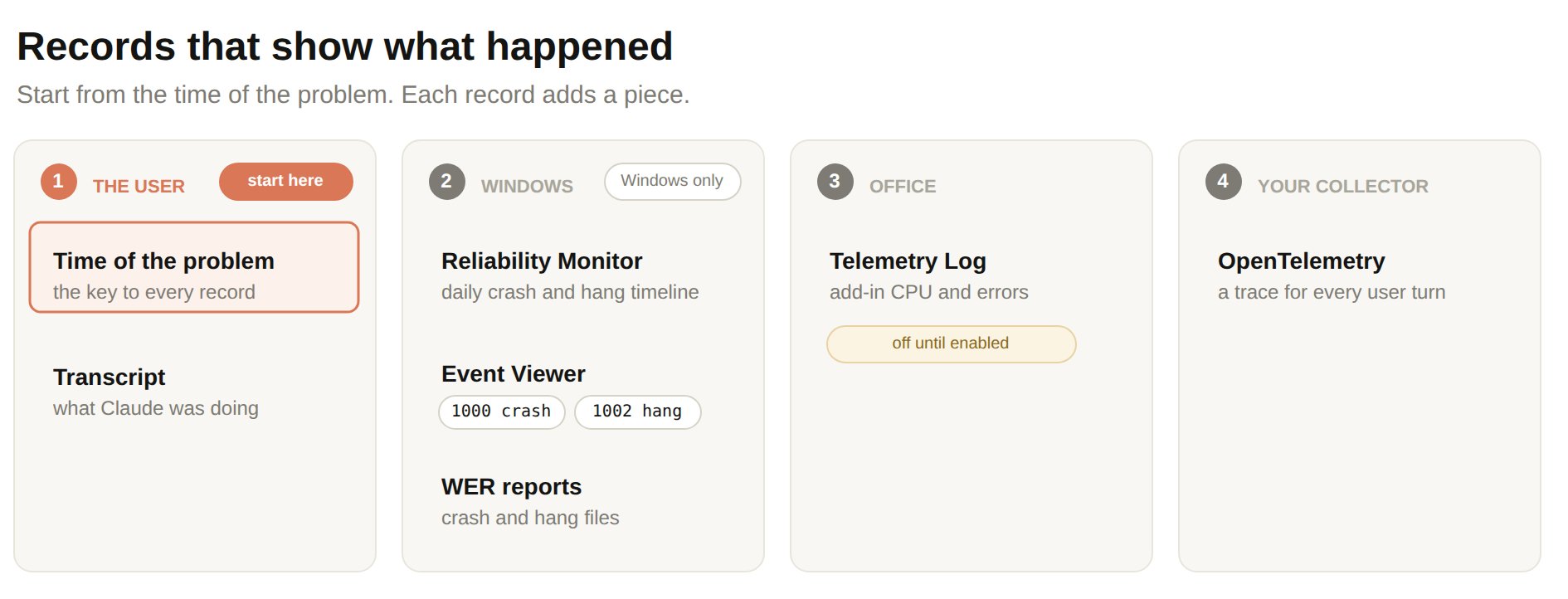
Collect the user’s report
The time of the problem is the key to every other record. Ask the user for the time, the Office app, and whether Office closed or stopped responding. Then ask the user to select More options in the Claude pane, then Download Transcript. The transcript shows what Claude was doing when the problem started.Check Reliability Monitor
Reliability Monitor shows a daily timeline of app crashes and hangs. Use it to confirm that the problem happened and to see how often it repeats. Press Windows+R and run this command.[20]Read Event Viewer
Event Viewer separates a crash from a hang. Open Event Viewer, select Windows Logs, then Application. Look for events fromEXCEL.EXE,
POWERPNT.EXE, WINWORD.EXE, or OUTLOOK.EXE near the time of the
problem.
Find Windows Error Reporting files
Windows Error Reporting keeps a report for each crash or hang. The reports are in one of two folders.[23] The folder for the signed-in user:Check the Office Telemetry Log
The Office Telemetry Log can list add-in CPU and runtime error events.[24] It records events only after you turn on theEnableLogging policy.[25] Microsoft no longer supports the
Office Telemetry Dashboard but keeps the log.[26]
After you turn on the policy, open this folder:
Search your OpenTelemetry collector
Claude sends one trace for every user turn, including steps that failed. Search your collector for traces at the time of the problem. See Configure a custom OpenTelemetry collector.References
Microsoft documentation for the limits, steps, and file locations on this page.- ↑ a b “Excel not responding, hangs, freezes or stops working”. Microsoft Support. “If you try to perform other actions while Excel is in use, Excel may not respond.” The page also lists whole-column references, many hidden objects, excessive styles, and large numbers of shapes as causes of slowness.
- ↑ “Refresh an external data connection in Excel”. Microsoft Support.
- ↑ a b c d e “Resource limits and performance optimization for Office Add-ins”. Microsoft Learn.
- ↑ a b “Avoid using the context.sync method in loops”. Microsoft Learn. “Office supports no more than 50 batch jobs in the queue. Any more triggers errors.”
- ↑ “File size limits for workbooks in SharePoint”. Microsoft Support.
- ↑ “Large Address Aware capability change for Excel”. Microsoft Learn.
- ↑ a b “Locate and reset the last cell on a worksheet”. Microsoft Support.
- ↑ a b “Tips for improving Excel’s performance”. Microsoft Support. The page advises opening Excel in a new instance when several workbooks in one instance run out of memory.
- ↑ “Check Workbook Statistics”. Microsoft Support.
- ↑ a b “Cleanup cells in your workbook”. Microsoft Support.
- ↑ a b c “Clean up an Excel workbook so that it uses less memory”. Microsoft Learn.
- ↑ “Excel performance: Tips for optimizing performance obstructions”. Microsoft Learn. “You should always use the SUMIFS, COUNTIFS, and AVERAGEIFS functions instead of array formulas where you can because they are much faster to calculate.”
- ↑ “Excel performance: Improving calculation performance”. Microsoft Learn. “A volatile function is always recalculated at each recalculation even if it does not seem to have any changed precedents.”
- ↑ a b “Change formula recalculation, iteration, or precision in Excel”. Microsoft Support. The page covers the Manual and Automatic except for Data Tables options, the desktop and web scope, and the “Recalculate workbook before saving” setting that Manual turns on.
- ↑ “How Excel determines the current mode of calculation”. Microsoft Learn. “Changing the calculation mode of one open document changes the mode for all open documents.”
- ↑ a b c “Reduce the file size of your PowerPoint presentations”. Microsoft Support. “if you delete the cropped picture data, you won’t be able to restore it.” Discarding editing data also cannot be restored.
- ↑ “Compress your media files”. Microsoft Support.
- ↑ a b “Help protect your files in case of a crash”. Microsoft Support.
- ↑ “Recover an earlier version of an Office file”. Microsoft Support.
- ↑ “perfmon”. Microsoft Learn. “/rel | Starts the Reliability Monitor.”
- ↑ “Troubleshoot application or service crashing behavior”. Microsoft Learn. “The Event ID 1000 with the Error level is the actual application crashing event.”
- ↑ “Excel freeze: Application Hang error”. Microsoft Q&A. This is a community answer. Microsoft has no official page that names event 1002.
- ↑ “Troubleshooting a failover cluster using Windows Error Reporting”. Microsoft Learn. “Windows Error Reporting Reports are stored in %ProgramData%\Microsoft\Windows\WER”. The per-user folder comes from “Windows Error Reporting (WER) for developers”. Microsoft Learn, archived. “The reports are usually saved at %localAppData%\Microsoft\Windows\WER”.
- ↑ “Troubleshooting Office files and custom solutions with the telemetry log”. Microsoft Learn. , which lists the add-in events “Add-in used too much CPU” and “Add-in encountered runtime error”.
- ↑ “Deploy Office Telemetry Dashboard”. Microsoft Learn. “By default, data collection is disabled in Office.” The page gives the
%localappdata%\Microsoft\Office\16.0\Telemetrypath and theEnableLoggingsetting. - ↑ “Removal of Office Telemetry Dashboard from Microsoft 365 Apps for enterprise”. Microsoft Learn. “Office Telemetry Log isn’t being removed and is still available on client devices running Windows.”