

Connection paths
Four connection paths are available. Your IT admin selects one during deployment. End users see the same interface regardless.Requirements by connection path
All paths need:- Claude for Excel, PowerPoint, Word, or Outlook installed from Microsoft AppSource or via admin deployment.
- Microsoft 365 with Entra ID for admin consent and token issuance.
- For Outlook: Microsoft Graph admin consent for
Mail.ReadWrite,Calendars.Read,User.Read, andoffline_access, granted via Anthropic’s app or your own Entra app registration.
Your organization’s IT team manages these resources. Anthropic cannot
provide or reset credentials.
Network allowlist
The add-in requires access to specific domains. The required domains differ depending on whether your organization uses the Anthropic API directly (1P) or a third-party platform (3P).In all configurations, prompts and responses travel only to your chosen
inference provider. Domains pointing to Anthropic (such as
pivot.claude.ai) serve the add-in’s interface, feature configuration,
and operational telemetry, not prompt or response content.Anthropic API (1P)
Use this table if your organization signs in with Claude accounts and inference goes toapi.anthropic.com.
If your organization has
IP allowlisting
enabled for Claude, route
bridge.claudeusercontent.com through the same
proxy egress as claude.ai and api.anthropic.com, for example by
placing it in the same Zscaler app segment or Netskope steering policy. If
you cannot route it that way, add the egress address your proxy uses for
that domain to your organization’s Claude IP allowlist, but only when that
address is dedicated to your organization: a shared proxy egress range also
admits the proxy vendor’s other customers.
Anthropic checks connections to bridge.claudeusercontent.com against your
organization’s Claude IP allowlist using the address they arrive from. If
your proxy sends traffic for that domain out through an address that is not
on that allowlist,
work across apps stops while the rest of
the add-in keeps working.
Third-party platforms (3P)
Use this table if your organization signs in with Microsoft Entra ID and inference goes to your LLM gateway, Bedrock, Vertex AI, or Azure AI Foundry.
If Anthropic serves your add-in settings from your Claude organization,
as described in
Serve add-in settings from your Claude organization,
also allow
claude.ai, api.anthropic.com, hcaptcha.com, and
*.hcaptcha.com. Members sign in with their Claude account at
claude.ai, and the add-in reads your organization’s settings from
api.anthropic.com. The claude.ai sign-in and approval pages run an
hCaptcha browser check. Inference still goes only to the gateway or cloud
provider those settings name.
Deploy the add-in for your organization
Use theclaude-for-msft-365-install plugin to configure and deploy the add-in
across your organization. The plugin provisions cloud resources (for
Bedrock or Vertex AI direct), generates the add-in manifest, and obtains
admin consent in a single guided flow.
Run the setup wizard
Install the plugin from the financial services marketplace, then run the setup wizard from inside Claude. Add the marketplace in your shell:claude plugin list and compare your version against the
latest published version.
If yours is older, update it:
- LLM gateway: collects the gateway URL and token, determines the API format, generates the manifest, handles Azure admin consent.
- Bedrock direct: creates the IAM OIDC identity provider and role, generates the manifest, handles Azure admin consent.
- Vertex AI direct: walks through Google OAuth client creation, generates the manifest, handles Azure admin consent.
- Foundry direct: captures
azure_resource_nameandazure_api_key, then generates the manifest. For keyless Entra ID sign-in, add the parameters described in Foundry direct without an API key to the generated manifest.
Bedrock and Vertex AI paths require Node.js for manifest generation and
validation. The wizard checks for it and prompts installation if
missing.
Available commands
The plugin exposes the following slash commands once installed.
Run
/claude-for-msft-365-install:debug whenever a connection or sign-in
does not behave as expected. It triages from the symptom, reads the “Copy
error details” paste from the connection-failed screen, and explains how
each connection path works, so you can resolve most third-party platform
questions without escalating.
What the wizard provisions
The setup wizard creates resources in your cloud account based on the connection path you choose.Per-user configuration
If values vary per user, such as different gateway tokens or AWS roles for different teams, run/claude-for-msft-365-install:update-user-attrs
with per-user keys after initial setup to write configuration via
Microsoft Graph extension attributes.
At load, the add-in resolves each configuration key from three sources in
order of precedence: a bootstrap endpoint, Microsoft Entra ID extension
attributes, then manifest parameters. Per-user attributes override the
manifest defaults, so one deployed manifest can serve teams with
different settings.
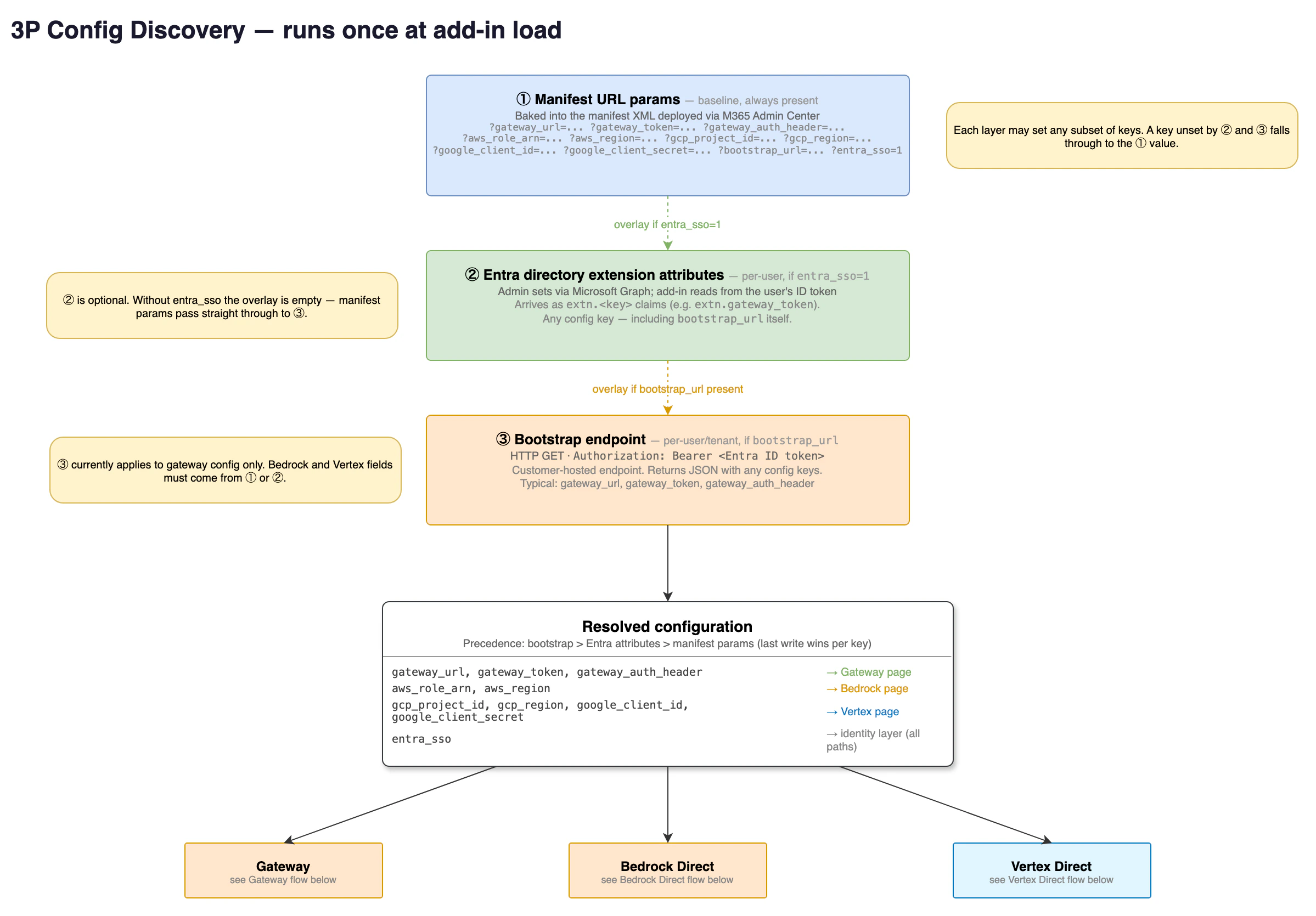
Configuration resolution at add-in load: bootstrap, Entra ID attributes, then manifest parameters.
Keep credentials out of the manifest URL query string
Prefer a bootstrap endpoint (bootstrap_url) or Entra ID sign-in with
gateway_auth_source=entra, so no credential appears in the manifest or
in any URL. If you keep URL configuration, put gateway_token,
azure_api_key, google_client_secret, otlp_headers,
inference_headers, and mcp_servers after #, never after ?:
the browser sends the query string to the server on every load, where
request logs record it, while the fragment stays in the browser. The
add-in warns in the console when one of these keys arrives in the query
string and ignores it there from October 19, 2026.
The following example shows the change. Apply it to both SourceLocation
and the Taskpane.Url resource, keep & written as & in the XML,
and redeploy the manifest from the Microsoft 365 admin center.
Admin feature controls
Thedisabled_features configuration key turns off individual add-in
features for your users. It travels over the same three channels as every
other key: manifest parameters (comma-separated), Entra ID extension
attributes (comma-separated), or a bootstrap endpoint (JSON array), so it
can apply org-wide from one manifest or vary per user.
Unknown slugs are ignored, so setting a slug from a newer add-in version
on an older deployment is safe.
Disabling
web_search pairs with the mcp_servers key: attach your own
search tool from a server inside your network, and with the built-in
search disabled the model uses the tool you provide. This keeps search
queries on infrastructure you control.
For document-scoped control, such as disabling a feature only on files
carrying certain sensitivity labels, use the access_policies key
instead; a statement without a resource behaves exactly like
disabled_features. The setup wizard’s
/claude-for-msft-365-install:manifest and
/claude-for-msft-365-install:access-policies commands document both
keys in full.
Deploy to Outlook
Outlook requires a separate manifest file from Excel, PowerPoint, and Word. Microsoft uses a different add-in schema for mail applications, so the two cannot be combined into one file. When you tell the setup wizard you are deploying to Outlook, it generates a second file namedmanifest-outlook.xml alongside manifest.xml. Upload each file as its
own custom app in the steps below.
Claude for Outlook reads mail and calendar data through Microsoft Graph,
which requires a one-time tenant-wide grant from a Global Administrator
regardless of which platform serves the model. Complete the
Microsoft Graph admin consent
step before deployment so users are not prompted individually. The Graph
token stays in the user’s Outlook client and is never sent to your
gateway or to Anthropic.
If your organization’s policy does not permit consenting to a third-party
multi-tenant application, register your own single-tenant Entra
application with the same delegated Graph permissions and provide its
client ID to the setup wizard as graph_client_id. See
Use your own Entra app instead.
Claude for Outlook on third-party platforms supports Claude Opus 4.7 and
later and Claude Sonnet 5 and later. Earlier model generations are not
available on the Outlook surface.
Deploy to Microsoft 365
After the wizard generates your manifest files:1
Upload the manifest
Open the Microsoft 365 Admin Center and go to Settings, Integrated
apps, Upload custom apps. Select “Office Add-in” as the app type,
then upload the
manifest.xml file. If you are deploying Outlook,
repeat this step with manifest-outlook.xml as a second custom app.2
Choose who gets the add-in
If all users share the same configuration, select “Entire
organization”. If you wrote per-user attributes, assign to “Specific
users/groups” matching exactly who was configured. Others would open
the add-in with no configuration.
3
Finish deployment
Accept permissions and finish deployment.
/claude-for-msft-365-install:debug to diagnose these, or to
sideload and validate a manifest locally before a tenant-wide upload.
Start with a pilot group to confirm functionality, then widen
assignment. You can change assignment later without redeploying.
Serve add-in settings from your Claude organization
Anthropic can serve the add-in’s configuration to the members of a Claude organization directly, in place of manifest parameters, Microsoft Entra ID attributes, or a bootstrap endpoint. Members sign in with the add-in’s standard “Log in” button and their Claude account. The add-in then reads the organization’s settings from Anthropic and connects to the gateway or cloud provider those settings name. Prompts and responses still travel only to that provider, never to Anthropic. This option is in preview. It works in Anthropic’s preview environments and is not yet enabled for production organizations. Members need the add-in’s “Log in” button, which the Microsoft AppSource install and any manifest without connection parameters show.How the sign-in works
The sequence below is what a member sees. No per-member admin action is needed.- The member selects “Log in” on the add-in’s sign-in screen and approves the sign-in in the browser with their Claude account.
- Anthropic’s sign-in response identifies the member’s organization as one whose add-in settings Anthropic serves. The add-in confirms with Anthropic that the account and organization on the token match that response, stores the sign-in, and reloads the task pane. If the check fails, the add-in discards and revokes the token and shows “Couldn’t verify your organization’s sign-in.”
- After the reload, the add-in reads the organization’s settings from
api.anthropic.comand opens the connection screen with the served values filled in, such as the gateway URL, API format, authorization header, and available models. When the served settings include every value the connection needs, the add-in connects without further input. Otherwise the member enters the missing value, typically the gateway token from your IT team, and connects. - While the member stays signed in, the add-in reads the served settings again at each launch and periodically while it runs, so changes an admin makes apply without redeploying the manifest.
What served settings control
Served settings use the same configuration keys as the manifest and a bootstrap endpoint, including the keys described in Per-user configuration and Admin feature controls. A few rules are specific to this path:- Single source: for a member signed in this way, the served document is the only configuration source. The add-in does not merge it with manifest parameters, Entra ID attributes, or a bootstrap endpoint, and nothing from the task pane URL fills a key the served document leaves out.
- Applied as delivered: the add-in applies served settings the same way it applies manifest configuration, with no per-setting consent prompt. The Claude organization admin who edits served settings can be a different person from the Microsoft 365 admin who deployed the manifest.
- No bootstrap endpoint: a member signed in this way uses no
bootstrap endpoint at all. If served settings name a
bootstrap_url, the add-in ignores it and never sends the member’s token there. - Last known settings at reload: the add-in keeps the most recent served document so a reloading task pane can start on it while it reads the current one. The saved copy is used only for the member and organization it was fetched for, and is replaced as soon as the current document arrives.
- Settings withdrawn: if Anthropic stops serving settings for the organization, the add-in stops using any saved copy and shows “Claude isn’t available for your organization here” until the member signs out. If the first read fails before any settings have arrived, the add-in shows “Couldn’t load your organization’s settings” with Try again and Sign out actions instead of starting on defaults.
What the add-in stores for this sign-in
The sign-in is an OAuth access token and refresh token that can read the member’s profile and the organization’s add-in settings. The add-in also sends it with the feature-flag and telemetry requests described in What Anthropic collects so those requests identify the signed-in member. It carries no inference access, so it cannot be used to send prompts to Anthropic. The add-in stores the token in localStorage within its sandboxed iframe, in the same place and form as a Claude account sign-in, and refreshes it in the background. It is not synced to Anthropic’s servers. Unlike a Claude account sign-in, it is also not copied to the Office add-in storage that lets a sign-in carry across Office applications, so a member can be asked to log in again in another Office application or after Office clears the add-in’s browser storage. Signing out revokes the token with Anthropic, removes it and the saved settings from storage, and signs the member out of any other open Claude task panes that share that storage. If the browser blocks the add-in’s storage, for example when third-party site data is blocked for Office on the web, the add-in refuses the sign-in rather than holding it in memory only. It revokes the token and asks the member to allow site data for the add-in and select “Log in” again.Connection instructions for end users
Claude account with organization-served settings
Use these steps if your IT team told you to sign in with your Claude account and your organization’s settings are served by Anthropic.1
Open the add-in
Open Excel, PowerPoint, Word, or Outlook and launch the Claude add-in.
2
Log in with your Claude account
On the sign-in screen, select “Log in”, then approve the sign-in in
the browser window that opens. The task pane reloads when the
sign-in is accepted.
3
Review the connection and connect
The connection screen opens with your organization’s values filled
in. If a field such as the gateway token is empty, enter the value
your IT team provided, then connect. If every value was served, the
add-in connects on its own.
LLM gateway
1
Open the add-in
Open Excel, PowerPoint, Word, or Outlook and launch the Claude add-in.
2
Select your connection mode
On the sign-in screen, select “Cloud provider or gateway”. Then
choose your connection: Gateway, Vertex, Bedrock, or Azure. Contact
your IT team for connection details if you’re unsure which one to
select.
3
Enter your credentials
For Gateway, enter the gateway URL (HTTPS base URL of your LLM
proxy, for example
https://llm-gateway.example.com) and the API token your IT team
provided. By default the add-in sends the token in the x-api-key
header with every request. If your admin set
gateway_auth_header: authorization in the manifest, the add-in
sends Authorization: Bearer <token> instead.4
Connect
The add-in checks the connection by sending a test request to the
gateway. On success, you see the main add-in experience.
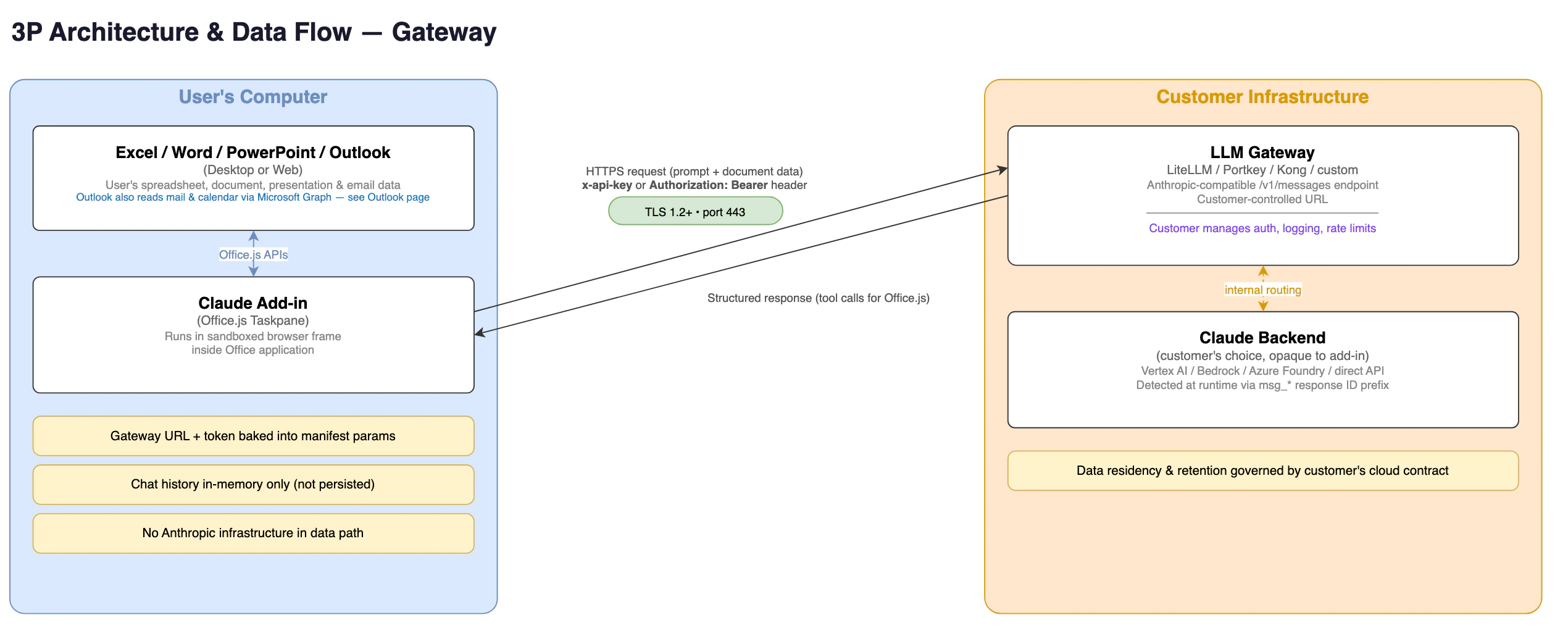
LLM gateway request flow: the add-in calls your gateway, which routes to your chosen provider.
Bedrock, Vertex AI, or Foundry direct
1
Open the add-in
Open Excel, PowerPoint, Word, or Outlook and launch the Claude add-in.
2
Authenticate
For Bedrock (Excel, PowerPoint, and Word only), sign in with your
Microsoft work account. The add-in uses your Entra ID token to
assume the AWS role your admin
configured, so no separate AWS credentials are needed.
For Vertex AI, sign in with the Google account your admin authorized
via the Google OAuth client created during setup.
For Foundry, the add-in connects automatically if your admin
pre-filled the Azure resource name and API key. If your admin enabled
keyless sign-in, the add-in uses your Microsoft work account and no
key is involved. Otherwise, enter the values your IT team provided
and select Connect.
3
Start working
The add-in reads the configuration your admin provisioned and
connects to Bedrock, Vertex AI, or Foundry directly.
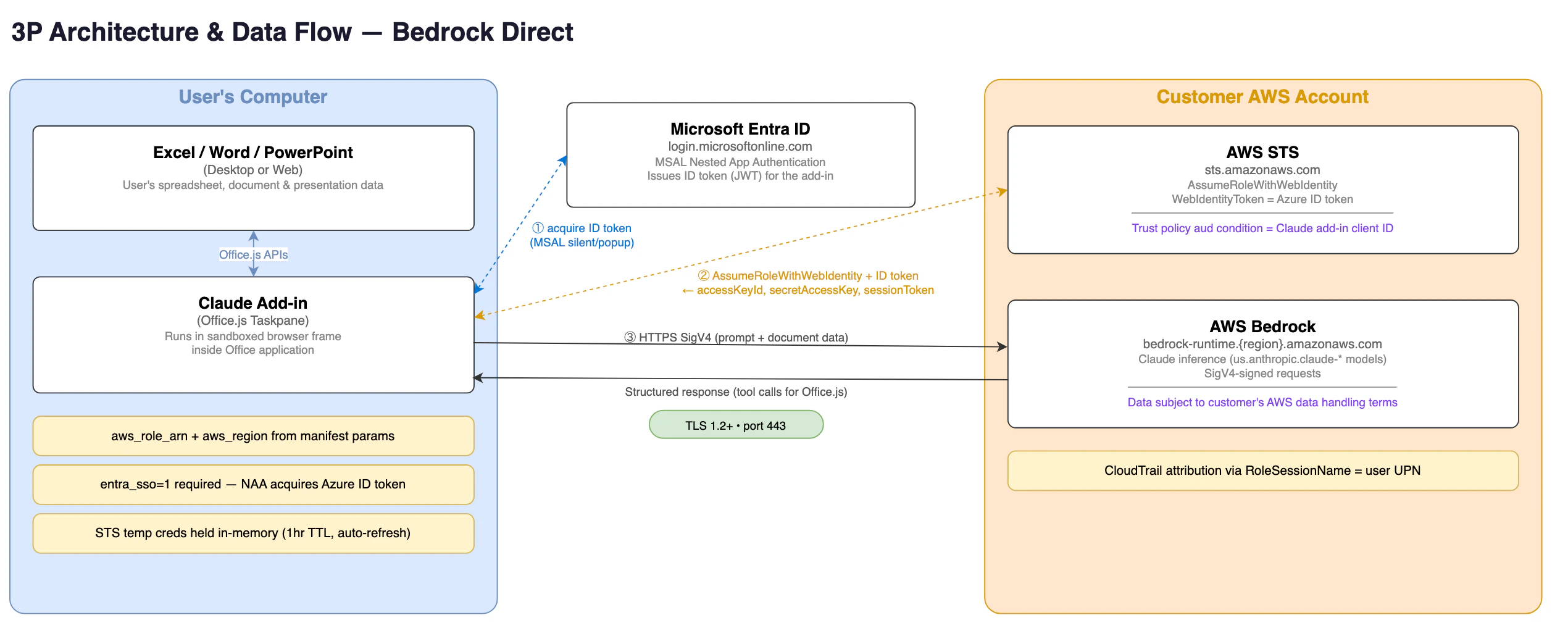
Bedrock direct flow: the add-in exchanges an Entra ID token for an AWS role, then calls Bedrock.
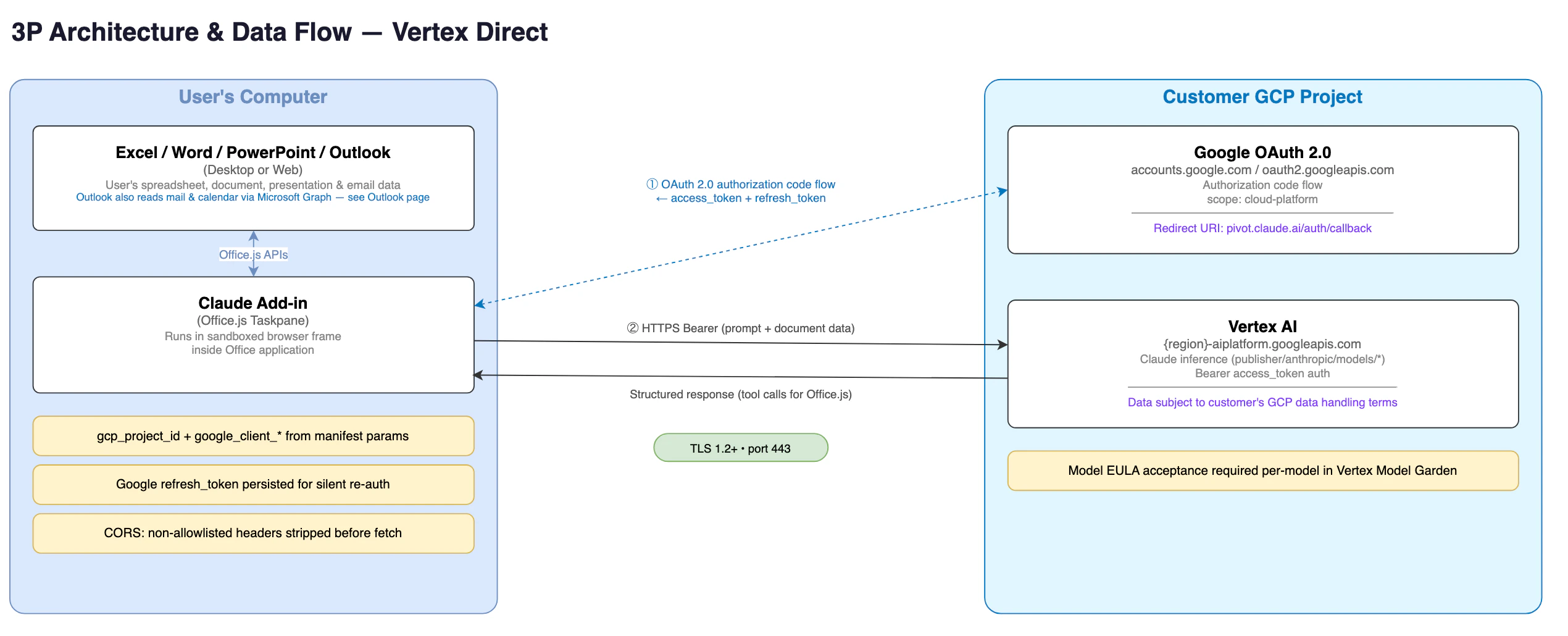
Vertex AI direct flow: the add-in authenticates with Google OAuth, then calls Vertex AI.
Foundry direct without an API key
Instead of a shared resource key, each user can authenticate to your Foundry resource with their own Microsoft Entra ID token. The add-in acquires the token through Nested App Authentication inside Office, sends it to<resource>.services.ai.azure.com as Authorization: Bearer,
renews it silently before it expires, and re-authenticates once if Azure
rejects a token early. No key is stored on the device and no key is
embedded in the manifest.
This uses the same Entra app registration that Claude Desktop’s
in-app Foundry sign-in uses (inferenceFoundryClientId), with the add-in’s
redirect URI added. Set up:
- In your Entra app registration, add the Azure Cognitive Services
delegated permission
user_impersonationand grant admin consent. Register the add-in’s redirect URI as described in Use your own Entra app instead. - Grant the users or groups who will sign in the Cognitive Services User role on the Foundry resource.
- Put these parameters in the manifest URL (no
azure_api_key):
When
gateway_auth_source=entra is set, the add-in ignores any
azure_api_key it receives: the administrator chose keyless sign-in.
Each user sees a one-time Microsoft sign-in prompt if silent sign-in is
not available; afterwards the add-in connects automatically.
Route Foundry direct through your own gateway
If your organization reaches Azure AI Foundry through a gateway or proxy it operates, such as Azure API Management, setazure_base_url to that
gateway’s base URL, path included. The add-in then sends every Foundry
request to <azure_base_url>/v1/messages instead of
https://<resource>.services.ai.azure.com/anthropic/v1/messages, with
the same credential and headers it would send to the resource: the API
key as x-api-key, or each user’s Microsoft Entra ID token as
Authorization: Bearer with keyless sign-in. azure_resource_name is
still required and names the resource behind the gateway.
Use the same value you would set as Claude Code’s
ANTHROPIC_FOUNDRY_BASE_URL. The URL must use HTTPS. Because the add-in
calls the gateway from the browser, the gateway must meet the
CORS requirements, and your network must allow its
domain as listed in the network allowlist. On this
path the add-in also sends the anthropic-beta header, and with keyless
sign-in the authorization header, so the gateway’s CORS preflight must
allow both and the gateway must forward anthropic-beta to Foundry.
Users who connected before you set azure_base_url keep their direct
connection until they log out and sign in again, as described in
Change or update your gateway connection.
Until the setup wizard accepts this key, add azure_base_url to the
generated manifest URL by hand, or deliver it per user through Microsoft
Entra ID extension attributes or a bootstrap endpoint.
The following manifest parameters configure this path.
Route Vertex AI direct through your own gateway
If your organization reaches Vertex AI through a gateway or proxy it operates, setgcp_base_url to that gateway’s base URL, API version
included. Each user still signs in with Google, and the add-in keeps the
Vertex AI request format, but it sends every request to
<gcp_base_url>/projects/<project>/locations/<region>/publishers/anthropic/models/<model>:rawPredict,
or :streamRawPredict for streaming responses, instead of
https://<region>-aiplatform.googleapis.com/v1/..., with the user’s
Google access token as Authorization: Bearer. Google sign-in and token
refresh still go to accounts.google.com and oauth2.googleapis.com.
gcp_project_id, google_client_id, and google_client_secret are
still required, and gcp_region still names the region in the request
path.
Use the same value you would set as Claude Code’s
ANTHROPIC_VERTEX_BASE_URL. The URL must use HTTPS. Because the add-in
calls the gateway from the browser, the gateway must meet the
CORS requirements, and your network must allow its
domain as listed in the network allowlist. On this
path the add-in sends the same headers it sends to Vertex AI:
authorization, content-type, accept, and user-agent. The token
the gateway receives is the user’s Google OAuth token with the
cloud-platform scope, so the gateway should forward it to Vertex AI
and not store it.
Users who connected before you set gcp_base_url keep their direct
connection until they log out and sign in again, as described in
Change or update your gateway connection.
Until the setup wizard accepts this key, add gcp_base_url to the
generated manifest URL by hand, or deliver it per user through Microsoft
Entra ID extension attributes or a bootstrap endpoint.
Change or update your gateway connection
If your gateway API token expires or your IT team provides a new URL, select Logout from the account menu and sign in again with your new credentials. This applies to LLM gateway, Bedrock, Vertex AI, and Foundry direct connections alike.Gateway requirements for IT teams
The Office add-ins support the same three API formats as Claude Code. Setgateway_api_format in your add-in manifest to specify which format
your gateway uses.
CORS requirements
The add-in’s taskpane loads fromhttps://pivot.claude.ai. Every
request to your gateway is cross-origin, and the browser silently
discards responses lacking CORS headers.
Your gateway must return Access-Control-Allow-Origin: https://pivot.claude.ai
(or *) on every response: GET, POST, OPTIONS, and all error responses.
Setting it only on the OPTIONS preflight is insufficient. For the
preflight, return Access-Control-Allow-Headers listing the request
headers the add-in sends, such as
x-api-key, authorization, content-type, anthropic-version. The *
wildcard does not cover the Authorization header per the Fetch
specification, so list it explicitly if you set
gateway_auth_header: authorization.
Required endpoints
The endpoints your gateway must expose depend on which API format it speaks.gateway_api_format: anthropic (default):
gateway_api_format: bedrock:
Native Bedrock
InvokeModel pass-through. gateway_url must point at
the pass-through prefix, for example https://litellm.example.com/bedrock.
gateway_api_format: vertex:
Native Vertex pass-through.
gateway_url must include the API-version
segment, for example https://litellm.example.com/vertex_ai/v1. Also
requires gcp_project_id and gcp_region so the add-in can build the
path.
Required header
Foranthropic format, the gateway must forward the anthropic-version
request header to the upstream provider.
For bedrock and vertex formats, the SDK places anthropic_version
in the request body instead. The gateway must preserve it there.
Failure to forward the header or preserve the body field may result in
reduced functionality or prevent the add-in from working.
Authorization header
The add-in can send your gateway’s authorization token in either thex-api-key header or the Authorization header. The default is
x-api-key. To switch to Authorization: Bearer, set
gateway_auth_header: authorization in the manifest.
Model discovery
For gateways usinggateway_api_format: anthropic, the add-in attempts
to discover available Claude models via GET /v1/models on login. If
your gateway doesn’t expose a model list at that path, the add-in falls
back to prompting the user for a model ID manually.
For gateway_api_format: bedrock and gateway_api_format: vertex, the
add-in uses a built-in model list and probes the gateway to verify each
model is reachable, rather than calling GET /v1/models.
Differences from Claude Code gateway setup
If your team already runs Claude Code through a gateway, the table below summarizes how the Office add-in setup differs.
When gateway configuration comes from a bootstrap endpoint, the add-in
keeps the token current without user action. It calls the bootstrap
endpoint again about five minutes before the expiry declared in the
bootstrap response and applies the returned token to the running session.
If the gateway rejects a request as unauthorized before that expiry, the
add-in calls the bootstrap endpoint once and retries the request if the
token changed.
Gateway tokens entered manually in the add-in UI do not refresh
automatically: sign out and sign in again with the new token when it
rotates.
Example gateway configuration with LiteLLM
LiteLLM is a third-party proxy service. Anthropic does not endorse, maintain, or audit LiteLLM’s security or functionality. This section is informational and may become outdated. Use at your own discretion. The example configurations below route Office add-in requests through LiteLLM to Anthropic, Bedrock, Vertex AI, or Azure.Route to Anthropic directly
Use thisconfig.yaml to point the gateway at the Anthropic API.
Route to Amazon Bedrock
Use thisconfig.yaml to route requests through Amazon Bedrock.
Route to Google Cloud Vertex AI
Use thisconfig.yaml to route requests through Vertex AI.
Route to Azure
Use thisconfig.yaml to route requests through Azure AI Foundry.
What Anthropic collects
Even when inference goes through your own infrastructure, the add-in communicates withpivot.claude.ai to load its interface and with
claude.ai/api/ to evaluate feature flags. These connections transmit
operational telemetry such as which features are used, performance
timings, and error rates, so Anthropic can maintain and improve the
add-in experience. They do not transmit your prompts or Claude’s
responses.
Anthropic collects information in accordance with Amazon Bedrock, Google
Cloud Vertex AI, or Microsoft Azure’s terms, consistent with Anthropic’s
arrangements with customers. Anthropic does not have access to a
customer’s AWS, Google, or Microsoft instance, including prompts or
outputs it contains. Anthropic does not train generative models with
such content or use it for other purposes. Anthropic can access
metadata such as tool use and token counts, and uses such metadata for
analytic and product-improvement purposes.
For details on what your organization’s gateway or cloud provider logs,
contact your IT team.
To route a full audit trail, including prompts, tool inputs, tool
outputs, and document references, to your own infrastructure, see
Configure a custom OpenTelemetry collector.
That page covers the otlp_endpoint, otlp_headers, and
otlp_attr_max_chars configuration keys, the CORS requirements for the
collector endpoint, and the full span reference.
Why sign-in redirects through pivot.claude.ai
During Google sign-in for Vertex AI, Anthropic sign-in, or Microsoft admin consent, your identity provider redirects the browser tohttps://pivot.claude.ai/auth/callback. Security reviewers sometimes ask
whether this means access tokens for your cloud provider or mailbox pass
through Anthropic’s servers. They do not. This section explains what the
redirect carries in each flow and why the page cannot obtain a token.
OAuth authorization-code redirects
Google sign-in for Vertex AI and Anthropic sign-in use the OAuth 2.0 authorization-code grant and redirect topivot.claude.ai/auth/callback.
MCP connector authorization uses the same grant with a dedicated
pivot.claude.ai/auth/gateway-callback redirect. In each case the URL
contains two query parameters:
code: a one-time authorization code, not an access tokenstate: a random value the add-in generated before sign-in started
pivot.claude.ai. It reads
those two parameters from the URL, shows a Copy button, and instructs you
to paste the value back into the add-in inside Office. The page has no
server-side logic that stores, forwards, or exchanges the code.
An authorization code on its own cannot be redeemed for an access token.
The token endpoint requires an additional secret that only the add-in
running on your machine holds:
- Anthropic sign-in and MCP connector authorization: a Proof Key for Code Exchange (PKCE) verifier. The add-in generates a random verifier locally, sends only its SHA-256 hash to the identity provider when sign-in starts, and keeps the verifier in browser session storage. The token endpoint rejects any exchange that does not present the original verifier.
- Google sign-in for Vertex AI: the
client_secretbelonging to the Google OAuth client your organization created during setup. This value is provisioned into the add-in’s configuration on each user’s machine and is sent only tooauth2.googleapis.comduring token exchange. Anthropic does not have this value.
state value pasted back matches the
one it generated and stored locally before sign-in. A mismatch is
rejected. This prevents an attacker from tricking a user into completing
a sign-in the attacker initiated.
After the add-in exchanges the code, the resulting access and refresh
tokens are held in the browser’s local storage inside the Office add-in
sandbox. The add-in presents the access token only to the inference or
MCP-proxy endpoint for your sign-in path, and presents the refresh token
only to the OAuth token endpoint. Each of these endpoints appears in the
Network allowlist. These tokens never reach
pivot.claude.ai.
Why the redirect cannot target localhost
Office add-ins run inside a sandboxed browser frame hosted by Microsoft 365. There is no local web server to receive a loopback redirect, and the browser tab that handles sign-in is isolated from the add-in frame’s storage. The redirect must therefore target a registered HTTPS URL, and the callback page atpivot.claude.ai bridges the two contexts by
displaying the code for you to paste back into the add-in.
Microsoft admin-consent redirects
The Microsoft Graph consent link in Grant Microsoft Graph consent uses Microsoft’s admin-consent endpoint. By Microsoft’s specification, the redirect back topivot.claude.ai/auth/callback carries only the consent outcome: an
admin_consent boolean and the tenant ID. It never carries an access
token or an authorization code. The callback page displays a confirmation
message and nothing else.
The Microsoft Graph access token itself is obtained separately through
Nested App Authentication,
where the Office host brokers the token directly into the add-in on the
user’s machine. The Microsoft Authentication Library (MSAL) caches it in
the browser’s local storage, and the add-in calls graph.microsoft.com
directly. The Graph token never reaches pivot.claude.ai or any other
Anthropic endpoint.
Identify Anthropic’s Microsoft Entra application
The admin consent link and Nested App Authentication both use a single multi-tenant application that Anthropic publishes in Microsoft Entra ID. When you review the consent prompt or the resulting enterprise application in your tenant, confirm it matches these values.
The add-in uses the following redirect URIs with this application. Each
one exists for a specific Microsoft sign-in path, and none of them
receives a Microsoft access token in the URL.
Verify this in your own environment
You can confirm every claim above with a network capture on a test machine:- The redirect to
pivot.claude.ai/auth/callbackcarriescodeandstate, oradmin_consentandtenant, in the query string. For an MCP connector the redirect topivot.claude.ai/auth/gateway-callbackcarriescodeandstate. Noaccess_tokenparameter appears. - The
POSTthat exchanges the code goes tooauth2.googleapis.comfor Vertex AI, toclaude.aifor Anthropic sign-in, or to the connector gateway’s own origin for an MCP connector, originates from the add-in frame, and includes thecode_verifierorclient_secretthat never appeared in any request topivot.claude.ai. - Microsoft Graph calls go directly to
graph.microsoft.comwith a bearer token that was issued bylogin.microsoftonline.comand never transited an Anthropic domain.
Differences from signing in with a Claude account
When you sign in with a Claude account, the add-ins connect directly to Anthropic. When you connect through a third-party platform, the add-ins send inference requests to your organization’s infrastructure instead, and your IT team controls how that traffic is routed and logged. Some features that rely on a Claude account are not available through third-party platforms yet. Support is being added. A member who signs in with a Claude account to an organization whose settings Anthropic serves is in the third-party platform column too, because inference goes to the organization’s provider.
If your team needs these features, talk to your Claude admin about
which sign-in path fits your organization.
Troubleshooting
”Connection refused” or network error
The gateway URL or cloud endpoint is unreachable from the user’s network. Verify the URL is correct, the service is running, and there are no firewall or VPN restrictions blocking the connection. Check the Network allowlist to confirm all required domains are allowed.401 Unauthorized or “Invalid token”
The auth token is invalid or expired. For gateway connections, confirm the token with your IT team. For direct-cloud connections, verify the user’s Entra ID account is in the assigned group and that the OIDC trust or OAuth client is configured correctly. For Foundry with an API key, regenerate the key in Azure Portal, Keys and Endpoint. For keyless Foundry sign-in, confirm the Entra app has the Azure Cognitive Servicesuser_impersonation permission with admin consent and that
entra_scope is https://cognitiveservices.azure.com/.default.
403 Forbidden or “Access denied”
The token is valid but lacks the right permissions. For Bedrock, verify the IAM role hasbedrock:InvokeModel permissions. For Vertex, verify
your Google account has the Vertex AI User role on the project. For
gateways, check the token’s scope with your IT admin. For Foundry, check
the resource’s networking rules, or confirm the key belongs to the right
resource. For keyless Foundry sign-in, confirm the user holds the
Cognitive Services User role on the resource.
404 Not found
The add-in could not reach the expected API path. For gateways, verify the URL is the base URL such ashttps://litellm.example.com:4000.
Don’t include /v1/messages in the URL field.
500 or other server errors
The gateway or cloud provider encountered an internal error. Check your gateway logs, such asdocker logs litellm for LiteLLM, for
upstream provider errors. Try the request again, and contact your IT
admin if the issue persists.
”No models available”
The add-in could not find Claude models. For gateways usinggateway_api_format: anthropic, your gateway may not expose a model
list at GET /v1/models; your IT team can configure the gateway to
serve a model list or give you a specific model ID to enter manually.
For gateways using gateway_api_format: bedrock or vertex, none of
the built-in models responded to the add-in’s probe; confirm with your
IT team that the gateway routes to a region or project with Claude
models enabled. For Bedrock or Vertex direct, confirm that at least one
Claude model (Claude Sonnet 4.5 or later) is enabled in your account and
region. For Foundry, confirm at least one Claude model is deployed in
the resource Model catalog.