

Claude for Outlook is currently in beta and available to Pro, Max, Team,
and Enterprise plans.
What you can do
With Claude for Outlook, you can:- Triage your unread inbox into what needs you, what Claude can handle, and what is noise.
- Draft replies, reply-alls, and forwards in your voice, landed unsent in Outlook’s compose pane.
- Summarize long threads into decisions made, open items, and who owes what, with per-email citations.
- Read
.docxand.xlsxattachments inline without opening them. - Find meeting times across attendees and draft invites into Outlook’s native appointment form.
- Prep for your next meeting with a one-page brief of recent threads and attached documents.
Get started with Claude for Outlook
Supported versions
Claude for Outlook runs on the following Outlook clients.- Outlook on the web
- Outlook on Windows, both new Outlook and classic Outlook, with a Microsoft 365 subscription
- Outlook on Mac with a Microsoft 365 subscription
Install for yourself
1
Open the marketplace listing
2
Install the add-in
Select “Get it now” to install.
3
Open Claude in Outlook
Open Outlook, open any email, select the Claude button in the message
ribbon, and sign in with your Claude account.
Deploy to your organization
Organization admins can deploy Claude for Outlook through the Microsoft 365 Admin Center.1
Allow Office Store access
In the Microsoft 365 Admin Center, go
to Settings, Org Settings, User owned apps and services, and turn on
“Let users access the Office Store”.
2
Open Integrated apps
Go to Settings, then Integrated apps.
3
Find the add-in
Search for “Claude for Outlook” in Microsoft AppSource.
4
Deploy
Deploy the add-in to your organization or to specific people. See
Microsoft’s deployment guide
for assignment options.
5
Grant Microsoft Graph consent
Complete the Microsoft Graph admin consent
step below so users are not prompted individually.
If your organization uses Microsoft Entra Privileged Identity
Management (PIM) for admin roles, the Integrated apps page does not
recognize roles activated through PIM, so deployment fails. This is a
known Microsoft issue,
tracking ID 11126536. To work around it, deploy from an admin account
with the required role assigned as permanently active rather than
PIM-eligible. See
Microsoft’s troubleshooting guidance.
Individual users can still
install the add-in themselves.
Install from a manifest file
If your organization blocks the Microsoft Store, an IT administrator can deploy the add-in by uploading its manifest file directly.1
Download the manifest
Download the
Claude for Outlook manifest
and save it to a secure location.
2
Open Integrated apps
In the Microsoft 365 Admin Center, go
to Settings, then Integrated apps.
3
Upload the add-in
Select Upload custom apps, then Office Add-in. Choose “I have a
manifest file on this device”, select the file you downloaded, and
upload it.
4
Assign people
Choose your deployment scope: the entire organization, specific
people, specific groups, or just yourself for testing.
5
Deploy
Review the settings and select Deploy. The add-in appears within
minutes for most people. Full organization rollout can take up to 24
hours on the Microsoft 365 side.
6
Grant Microsoft Graph consent
Complete the consent step in the next section.
Grant Microsoft Graph consent
Claude for Outlook reads mail and calendar data through Microsoft Graph. This requires a one-time tenant-wide grant from a Global Administrator and is separate from the Integrated apps deployment. Have a Global Administrator open the following admin consent link in a browser where they are signed in to your Microsoft 365 tenant.Mail.ReadWrite, Calendars.Read, User.Read, and offline_access.
After they select Accept, all users in the organization
can use Claude for Outlook without additional Microsoft prompts. The grant
takes effect immediately. Only the add-in rollout in the previous step can
take up to 24 hours.
If this step is skipped, every user sees a “Need admin approval” message
when Claude first tries to read mail or calendar data.
The redirect to pivot.claude.ai after consent carries only the consent
outcome, never a token or authorization code. See
Why sign-in redirects through pivot.claude.ai
for what each redirect carries and how to verify it in a network capture.
Use your own Entra app instead
If your organization’s policy does not permit consenting to a third-party multi-tenant application, register a single-tenant application in the Microsoft Entra admin center and have the add-in use it instead. The data flow is identical; the Graph token stays in the user’s Outlook client either way. The difference is that approval and Conditional Access policy live entirely under an application your organization owns.1
Register the application
In the Entra admin center, go to App registrations and create a new
registration. Choose “Accounts in this organizational directory only”.
2
Configure authentication
Under Authentication, add a Single-page application platform with
redirect URI
brk-multihub://pivot.claude.ai. In Advanced settings,
set “Allow public client flows” to Yes.3
Add Graph permissions
Under API permissions, add the Microsoft Graph delegated permissions
Mail.ReadWrite, Calendars.Read, User.Read, and offline_access.
Select “Grant admin consent” for your tenant.4
Add the client ID to the manifest
Copy the application’s client ID from the Overview page. Download the
manifest from the
Install from a manifest file section
and open it in a text editor. Search for
https://pivot.claude.ai/?m=.
At the end of every URL that starts this way, inside the quotation
marks, add &graph_client_id=YOUR_CLIENT_ID. Lines that refer to a
URL by resid need no change, and neither do the icon or support
URLs. Save the file, then upload and deploy it as that section
describes.& exactly as shown: an XML file cannot contain
& on its own.
graph_client_id instead of
editing the file. See
Deploy to Outlook.
Deploy in a US Government or national cloud
If your Microsoft 365 tenant is in GCC High, DoD, or 21Vianet, register your own Entra application withgraph_client_id as described above
(Anthropic’s multi-tenant application exists only in the global cloud)
and set graph_cloud to the matching value:
For a DoD tenant, every URL in the manifest that starts with
https://pivot.claude.ai/?m= ends with:
graph_cloud may be omitted: the
add-in detects those clouds at sign-in from the authority host Outlook
reports. Setting it explicitly is still recommended when your compliance
program requires the endpoints to be fixed in the reviewed manifest
rather than derived at runtime. DoD tenants share an authority host with
GCC High, so graph_cloud=us-gov-dod is always required for DoD.
Connect through a third-party platform
If your organization routes API traffic through an internal LLM gateway, Amazon Bedrock, Google Cloud Vertex AI, or Azure AI Foundry, you can use the add-in without Claude accounts. This is the same gateway pattern used by Claude Code. For setup instructions and gateway requirements, see Use Claude for M365 with third-party platforms.Triage your inbox
Ask Claude what needs your attention. Claude reads your unread mail and attachments and sorts them into three groups: action items for you, items Claude can handle for your review, and noise you can archive in one selection. Each action item carries a one-line reason. Items Claude can handle, such as scheduling asks, acknowledgments, and standard-form documents, arrive pre-drafted. Prompts to try:- “What needs me?”
- “Draft replies for everything you can handle”
- “Archive all the calendar responses and newsletters”
Draft replies in your voice
Tell Claude what you want to say. It drafts the reply into Outlook’s native compose pane, unsent. Tone is learned from your sent folder, so the draft matches your sentence length and formality register. Claude leaves the closing off so Outlook can append your configured signature without duplication. Claude chooses reply versus reply-all deliberately and warns before adding anyone who was not on the thread. Prompts to try:- “Reply to this and agree to the extension, push back on the fee”
- “Reply-all thanking everyone and confirming Thursday works”
- “Forward this to Dana with a two-line summary”
Summarize long threads
Claude reads the entire conversation, including every reply and forward, and tells you what has been decided, what is still open, and who owes what. Every claim cites the specific email it came from. Selecting a citation opens that message in Outlook. Prompts to try:- “What’s been decided and what’s still open?”
- “Who owes what on this thread?”
Read attachments inline
Claude reads.docx and .xlsx attachments on the open email without
you opening them. For .pptx attachments, open the deck in PowerPoint
with the thread loaded as context using
Work across M365 apps. PDF attachments
are not currently read inline; save the file and upload it through the
sidebar instead.
Prompts to try:
- “Summarize the attached memo”
- “What’s in the spreadsheet on this email?”
Search your mailbox
Ask Claude to find a past conversation by topic, not only by keywords. Results return as citations that open the source message in Outlook so you can verify every answer against the original email. Prompts to try:- “When did we last discuss the cap with Fernwood?”
- “Find the email where Dana sent the revised term sheet”
Find time and create events
Claude checks free/busy for everyone whose calendar you can see and proposes slots that respect working hours and existing holds. The invite is drafted into Outlook’s native appointment form with attendees, subject, and agenda for you to review and send. Prompts to try:- “Find 30 minutes with Dana and the Fernwood team next week”
- “Block Thursday afternoon for deep work”
Prep for meetings
For your next event, Claude pulls the last thread with each attendee and any attached documents into a one-page brief, so you walk in knowing the open items and what each person last said. Prompts to try:- “Prep me for my 2pm”
- “What’s open with Dana before our call?”
Work across M365 apps
Claude for Outlook shares context with Claude for Excel, PowerPoint, and Word, so Claude can work across your open Office apps in a single conversation. For example, you can open an attached letter of intent in Word with the email thread already loaded as context, or pull numbers from an email into an open Excel model, without copying between apps. For setup instructions, see Work across M365 apps.Model availability
When you sign in with a Claude account, you can choose between Claude Opus 4.7, Opus 4.6, and Sonnet 4.6. When you connect through a third-party platform such as Vertex AI, Azure AI Foundry, or an LLM gateway, Opus 4.7 is the only officially supported model.How Claude accesses your mailbox
Claude reads the email or event you have open via Office.js. For anything that spans your mailbox or calendar, including thread retrieval, search, free/busy lookups, and move or flag operations, Claude uses Microsoft Graph. All Graph calls run in your browser, and the Graph access token stays in the browser’s MSAL cache and is never sent to Anthropic. Claude never sends mail or invites on its own. The add-in does not request theMail.Send permission. Every draft lands unsent in Outlook’s compose
or appointment form, and you click Send.
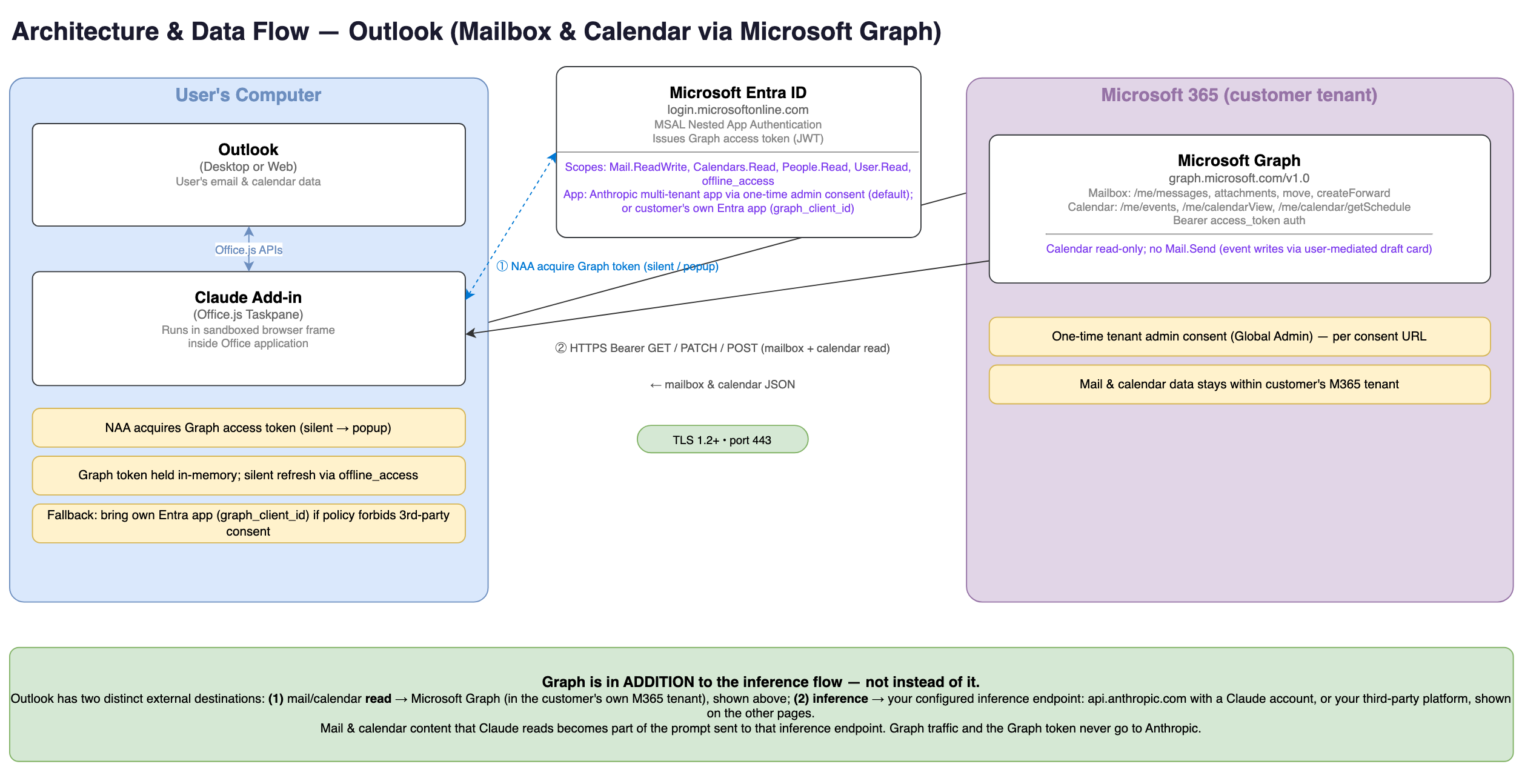
Outlook mailbox access: the open item comes through Office.js, broader mailbox actions use Microsoft Graph, and the Graph token stays in the browser.
When you sign in with a Claude account
Mailbox content that Claude reads becomes part of the prompt sent toapi.anthropic.com. Standard API retention applies: see
Data retention and audit. The add-in does not
keep a server-side copy or index of your mailbox.
When you connect through a third-party platform
The prompt goes only to the inference endpoint you configured, such as Amazon Bedrock, Vertex AI, Azure AI Foundry, or an LLM gateway. On Amazon Bedrock, Vertex AI, or a gateway that routes to them, no mailbox content reaches Anthropic. On Azure AI Foundry, Anthropic operates the Claude models and processes prompts as an independent processor for Microsoft, as described in Claude in Microsoft Foundry. See Use Claude for M365 with third-party platforms for configuration details. The add-in does not keep a server-side copy or index of your mailbox.Chat history
Chat history is stored locally in your browser using IndexedDB. Conversations are not stored on Anthropic’s servers and are not synced across devices or browsers. You can clear all chat history from Settings at any time. The local store is also cleared when you clear your browser data. Chat history is specific to the combination of the add-in surface, your user ID, and your organization ID, so your Excel and Outlook histories are separate. Reinstalling the add-in or switching between Claude add-ins does not remove it. See Data storage and retention for where it sits on disk and how long it is kept.Data retention and audit
For Claude for Outlook use, inputs and outputs are deleted on Anthropic’s backend within 30 days of receipt or generation, except as described in How long do you store my organization’s data? Enterprise organizations can route full audit telemetry from Claude for Outlook to their own OpenTelemetry collector for integration with a SIEM or observability platform. See Configure a custom OpenTelemetry collector for setup. On Pro, Max, and Team plans, observability and audit export are not available. Claude for Outlook does not inherit custom data retention settings your organization may have configured and is not included in Enterprise audit logs. For Enterprise organizations with the Compliance API enabled, Claude for Outlook sessions are included in the Compliance API. This coverage is in public beta and requires no additional setup: the same Compliance Access Keys apply.Prompt injection risks
Be cautious with email from external or untrusted senders. Email bodies and attachments are untrusted input and may contain instructions intended to manipulate Claude rather than you. Prompt injection refers to malicious instructions hidden in an email body, signature, or attachment that try to trick the AI into taking unintended actions. For example, a routine inbound email might contain hidden text instructing Claude to forward a thread or draft a reply you did not ask for. Claude may interpret these instructions as legitimate requests. Review every draft and inbox action before accepting it, especially when working with email from external or untrusted senders.Recommended use during beta
As a beta feature, Claude for Outlook is not recommended for:- Unattended sending. Claude never sends mail or invites on its own; every draft lands unsent for your review.
- Client-facing or counterparty correspondence without reading the draft first.
- Replacing your judgment on which emails matter or how to handle a relationship.
- Mailboxes containing privileged or regulated data without appropriate organizational controls.
- Review drafted replies and invites before sending, especially recipient lists.
- Verify thread summaries against the cited source emails for high-stakes conversations.
- Apply appropriate Microsoft 365 permissions and Conditional Access policies for the add-in.
- Maintain human oversight for anything leaving your organization.