Clean up promotional emails
Claude in Chrome can scan your inbox, identify promotional and marketing emails, and flag them for your review. You decide what to delete in bulk rather than clicking through one by one.
Promotional emails accumulate faster than you can unsubscribe. Claude in Chrome can scan through your inbox, identify marketing emails, newsletters, and automated notifications, then present them as a list for you to review before deleting in bulk.
Tell Claude what to look for and what to leave alone. It flags candidates for deletion and waits for your approval before taking action.
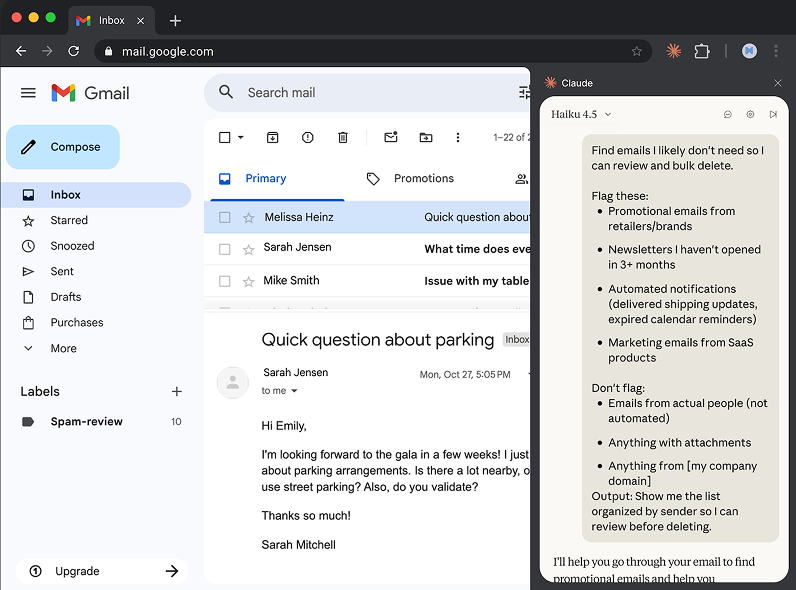
Find emails I likely don't need so I can review and bulk delete.
Flag these:
Don't flag:
Output: Show me the list organized by sender so I can review before deleting.
Claude works within your Gmail session. It can read email content, see sender information, and check whether you've opened messages. It only takes action when you confirm.
Before starting your Claude in Chrome session, make sure you're logged into your Gmail account.

Claude uses your session to scan and sort through your inbox. Claude presents what it found, organized for your review.
I've scanned your inbox and found 847 emails that match your criteria. Here's the breakdown by sender:
Retailers and brands (312 emails)
Unopened newsletters (203 emails)
Automated notifications (198 emails)
SaaS marketing (134 emails)
I left alone:
Ready to delete all 847, or would you like to keep any of these senders?
Keep certain senders or categories, then confirm the deletion.
Keep Morning Brew and the Figma updates. Delete everything else.
For senders that keep filling your inbox, have Claude unsubscribe instead of just deleting.
For the retailers with more than 15 emails, go through and unsubscribe me instead of just deleting. I don't want to continue receiving these messages.
While scanning emails, Claude can spot receipts and payment confirmations from services you might have forgotten about.
While you're in there, can you find any recurring payment emails? I want to see which subscriptions I'm paying for and see if there are some I forgot to cancel.
Before clicking "send," "publish," "post," "submit," or similar action buttons, Claude asks for approval. This includes sending emails, posting to social media, submitting forms, or messaging others on your behalf.
Once your cleanup prompt works well, click the shortcut button below the prompt to save it as a shortcut. Next time, just type "/" to view the command instead of rewriting the whole prompt. Alternatively, you can schedule the shortcut to run automatically.
Claude keeps scanning even when you switch to other tabs—as long as Chrome is open. Turn on notifications in extension settings to get alerted when Claude finishes or needs your approval. You'll see a desktop notification when the cleanup list is ready.