

Admins can disable the user layer entirely; see Controlling user extensions.
Managed MCP servers (admin)
Use themanagedMcpServers configuration key to deploy MCP servers (remote HTTP/SSE or local stdio command) to every device. These appear in the user’s connector list automatically, can’t be removed by the user, and support per-tool policy locks (allow / ask / blocked). The same key also activates the servers bundled inside the app (Microsoft 365, web search, and GitHub); see Built-in connectors.
The Connectors section of the in-app configuration window provides a form for each server: name, per-tool policy, headers or a headers helper script, transport, and URL.
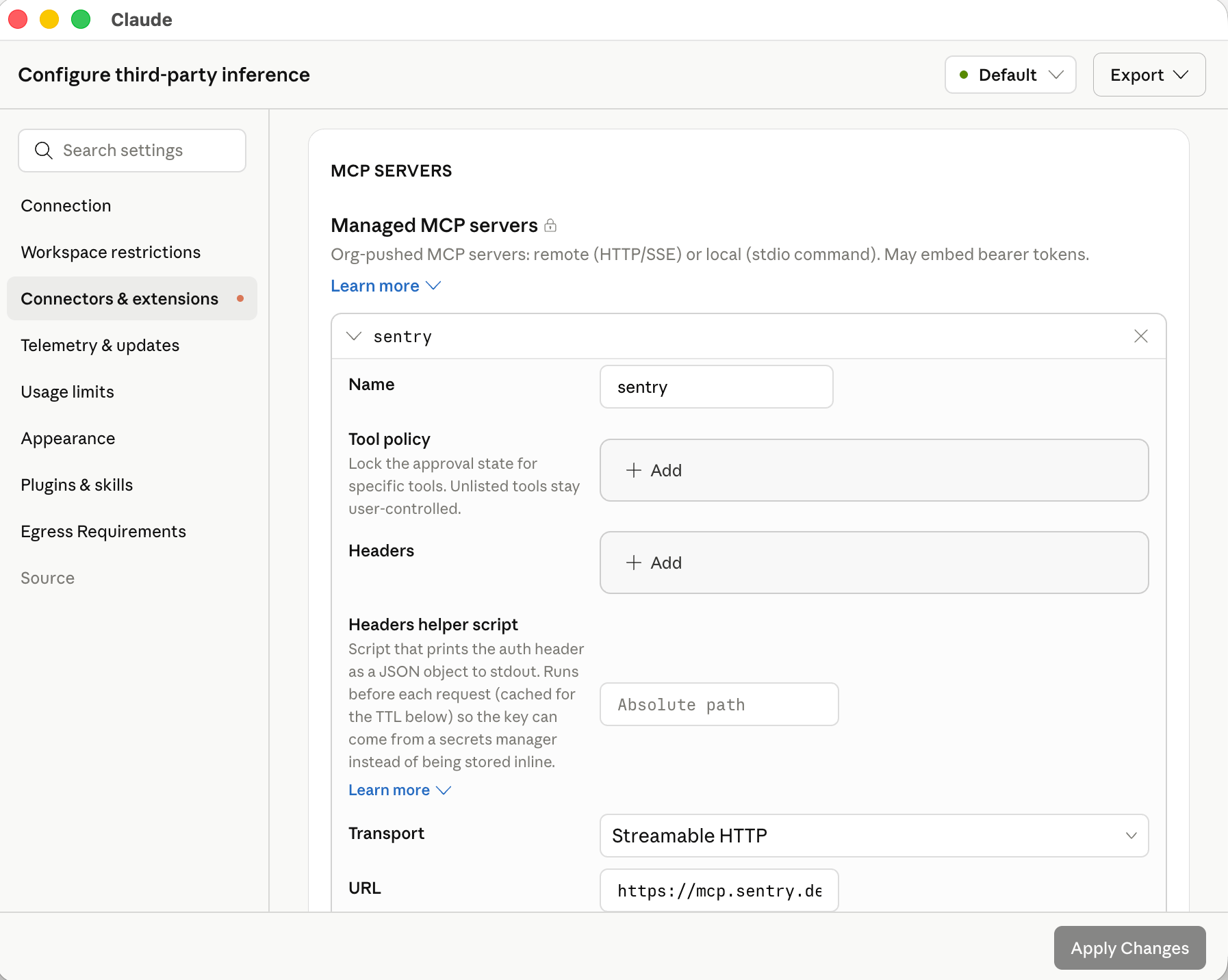
A managed MCP server in the Connectors section of the in-app configuration window.
managedMcpServers array:
Every entry other than a built-in server needs a
transport. Claude Desktop doesn’t read type, the field name that a plugin’s .mcp.json file uses. It drops an entry that has no transport and reports a configuration error.managedMcpServers schema in the configuration reference for every field, including static headers, OAuth, and the headers-helper executable for short-lived tokens.
In the in-app configuration window, each server you add under Connectors has a Test this connection button that runs a live MCP initialize and tools/list against the server using the headers or OAuth settings you’ve entered, then shows the round-trip latency, the discovered tool list, or the error returned. Use it to validate reachability and credentials before exporting the configuration.
Give each remote server’s final address in url. Claude Desktop doesn’t follow HTTP redirects from a managed MCP server, or from its OAuth authorization server when it fetches that server’s metadata or requests and refreshes tokens. If one of these requests is answered with a redirect, for example to the same address with a trailing slash, the server doesn’t connect, and Test this connection reports that redirects are not followed. Remote servers that organization plugins declare in .mcp.json follow the same redirect rule.
OAuth sign-in
For a remote server entry withoauth set, Claude Desktop signs each user in through the system browser and receives the authorization code on a fixed loopback address. Register this redirect URI on the OAuth client, or allow it on your authorization server if clients register themselves:
http://127.0.0.1/callback also matches.
With "oauth": true, Claude Desktop registers its own public client through dynamic client registration and lists this URI as the client’s only redirect URI, so the authorization server must offer a registration endpoint and accept an http loopback redirect URI. With a client you registered yourself, set oauth.clientId and add the URI to that registration. If the registration uses localhost or another port, set oauth.callbackHost or oauth.callbackPort to match; both require clientId. Set up sign-in for managed MCP servers explains how to tell which servers need a client that you register, when a client secret is also required, and where the secret goes.
An http or sse entry with no oauth, no headersHelper, and no Authorization header is treated as "oauth": true when its server asks for authentication (Claude Desktop 1.24012.0 or later). This redirect URI applies to MCP server sign-in only. Gateway single sign-on and bootstrap sign-in register their own loopback redirect URI.
How OAuth sign-in works
Claude Desktop starts sign-in only when the MCP server answers an unauthenticated request with HTTP401. A redirect to a web sign-in page does not start sign-in, so a gateway in front of the server must answer an unauthenticated MCP request with 401 rather than 302.
At launch, Claude Desktop connects to every managed server without user interaction. A server with a stored token connects silently, and Claude Desktop refreshes the token first when it is near expiry. A server with no usable token appears under Customize → Connectors with a Connect button, and no browser window opens until the user selects it.
When the user selects Connect, Claude Desktop:
- Starts a temporary HTTP listener on
127.0.0.1:53280(or the host and port set inoauth.callbackHostandoauth.callbackPort). If another process holds the port, sign-in fails with a port-in-use error. - Reads the
401response. Theresource_metadataURL in itsWWW-Authenticate: Bearerheader, or else the server’s/.well-known/oauth-protected-resourceURL, leads to the protected-resource metadata. Itsresourcemust be the server URL or a parent path on the same origin, and Claude Desktop uses the first authorization server it lists, or looks for authorization-server metadata on the MCP server’s own origin when the server publishes no protected-resource metadata. Claude Desktop then fetches the authorization server’s metadata from/.well-known/oauth-authorization-serveror/.well-known/openid-configuration, and theissuerin the metadata must match the authorization server URL, or sign-in stops. - Uses the client from
oauth.clientId, or registers one at the authorization server’s registration endpoint and stores it for later sign-ins. - Opens the authorization URL in the system browser with a PKCE (
S256) challenge and astatevalue. The authorization endpoint must usehttps. - Waits up to 120 seconds for the browser to return to the redirect URI, exchanges the code at the token endpoint, and connects to the server with the resulting access token. The listener closes when sign-in completes or fails.
oauth.clientId together with one of oauth.tenantId plus oauth.scope (Microsoft Entra ID), a single oauth.authorizationServer entry (the issuer URL exactly as that server’s metadata states it), or oauth.authorizationUrl and oauth.tokenUrl for a provider that serves no discovery document. With several oauth.authorizationServer entries, discovery runs as in step 2 and the discovered authorization server must match one of them.
Tokens are stored on the device, encrypted with the operating system’s secure storage (see Credentials), and refreshed in the background before they expire. When the authorization request carries a scope and the authorization server’s metadata lists offline_access, Claude Desktop adds offline_access so that a refresh token is issued; see oauth.scope and oauth.appendOfflineAccess in the configuration reference to change the requested scopes. If the authorization server rejects a refresh, or issued no refresh token and the access token expires, the server returns to the Connect state and the user signs in again. A stored sign-in belongs to the server’s url, so after you change the url, each user signs in again.
If sign-in fails (the callback does not arrive within 120 seconds, the authorization server rejects the registration or the redirect URI, or the identity provider completes sign-in from a host other than the authorization endpoint’s), the user sees a connection error, the server keeps its Connect button, and main.log in the logs directory records the reason. For an identity provider that completes sign-in from a different host than its authorization endpoint, list that host in oauth.additionalRedirectReferrerHosts. The log names the rejected host.
For a server whose OAuth sign-in goes to Microsoft Entra ID, you can run that sign-in through the OS identity broker instead of the system browser by setting authFlow to broker inside the entry’s oauth object, alongside tenantId, clientId, and scope. On a device where the broker is unavailable, sign-in for that server falls back to the system browser, so keep the loopback redirect URI registered as well if any devices lack the broker.
Short-lived credentials with a headers helper
For short-lived header credentials, configure the helper per server:
The helper follows the
inferenceCredentialHelper execution model, with four differences: no arguments, a 30-second time limit, no CLAUDE_HELPER_CONTEXT, and no prompting for input. The helper applies only to servers provisioned through managed configuration and never replaces the Authorization header on oauth entries.
While the connection is open, the TTL schedule triggers renewal, and a request that the server rejects with HTTP 401 or 403 also re-runs the helper and, when it returns new headers, is retried once with them (Claude Desktop 1.46388.1 or later). A failed helper run does not interrupt the connection; Claude Desktop keeps the current headers and retries on its schedule. A failure while the server is connecting shows the server as needing authentication.
Mid-session renewal requires Claude Desktop 1.21459.0 or later. Earlier versions run the helper only when the server connects.
Supported MCP servers
Any MCP server reachable from the user’s device over HTTPS works with Claude Desktop on 3P, including public servers from third parties and internal servers you build and host (including on internal gateways).Claude Desktop does not present a TLS client certificate when connecting to MCP servers, so a server that requires mutual TLS (mTLS) client-certificate authentication fails to connect. Terminate the client-certificate requirement before the MCP endpoint (for example, at a gateway or reverse proxy), and authenticate the connection with headers or OAuth instead.
managedMcpServers or installed by users. Connectors labeled “Made by Anthropic” are hosted on Anthropic infrastructure and are available only in standard Claude Desktop.
Some connectors return MCP Apps, interactive widgets that Claude Desktop renders in place of a plain-text tool result. Each widget loads in a sandboxed iframe on
*.claudemcpcontent.com, and setting disableNonessentialServices to true blocks that origin, so Claude Desktop shows the connector’s text result instead of the widget. The same key also blocks artifact previews and connector favicons. To keep MCP Apps rendering, leave disableNonessentialServices unset or false, and allow the widget hosts listed under Required egress paths at your perimeter firewall.Productivity suites
Google Workspace and Microsoft 365 each have a dedicated setup path:Google Workspace
Gmail, Calendar, Drive, Docs, and more via Google’s own Workspace MCP servers. See Google’s setup guide to get started.
Microsoft 365
Outlook, OneDrive, SharePoint, and Teams. Requires registering an app in your Entra tenant. The remote connector also needs an Anthropic allowlist step.
Plugin marketplaces (admin)
A plugin marketplace is a catalog file (marketplace.json) that lists one or more Claude plugins. You host it either as a git repository or as a plain file over HTTPS. Claude Desktop fetches it on each device, lists its plugins under Customize → Plugins → Discover → Organization in both Cowork and Code, and keeps them in sync with the revision you pin. You control which plugins are available, which install automatically, and which are required.
This is the recommended way to distribute organization plugins. For a git-hosted marketplace, Claude Desktop clones with the git already installed on each device, so include git in your device baseline (Git for Windows on Windows; the Xcode Command Line Tools provide it on macOS); devices without git can use a marketplace hosted over HTTPS instead. Use the system-wide directory path when end-user devices cannot reach a git server or an HTTPS file host.
Create the marketplace repository
A marketplace repository contains a.claude-plugin/marketplace.json file at its root that lists each plugin and its location. The format is shared with Claude Code; see Create and distribute a plugin marketplace for the full schema and walkthrough.
.claude-plugin/marketplace.json
source path. When Claude Desktop syncs the marketplace, it doesn’t fetch or auto-install a plugin whose source points at a different repository, and that plugin doesn’t appear in the Organization tab. Git submodules aren’t fetched either, so a plugin folder added as a submodule is empty on users’ devices.
The marketplace name must match ^[A-Za-z0-9][A-Za-z0-9._-]{0,127}$ and must not be one of the reserved values unknown, org, or org-provisioned.
Host the marketplace over HTTPS instead of git
When end-user devices do not have git available, or when you already run an internal web server, artifact repository, or object store, you can serve the marketplace as static files over HTTPS instead. Claude Desktop downloads the manifest and each plugin archive itself, so the endpoint has no git dependency, and the fetch goes through the same proxy and TLS path as the rest of the app. Serve amarketplace.json file at any HTTPS path and package each plugin as a zip archive on the same origin as the manifest:
marketplace.json
"source": "url" entry to allowedPluginMarketplaces whose url points at this manifest (see the field table below). Claude Desktop verifies each archive’s sha256 before unpacking it. The zip must contain the plugin at its root (a single wrapping folder is tolerated), including .claude-plugin/plugin.json.
Archive URLs must share the manifest’s origin. That origin is the only host you need to allow through your perimeter firewall, and the only host the marketplace credential is sent to. When Claude Desktop syncs the marketplace, it doesn’t fetch a plugin with a source kind other than archive, or with an archive on a different origin. That plugin doesn’t appear in the Organization tab.
If any archive in a fetch fails to download or fails its digest check, Claude Desktop installs nothing from that fetch and retries on the next sync.
Configure the marketplace
You can add marketplaces directly in the in-app configuration window: in the Plugins section, click Add marketplace and choose Blank, GitHub repo, Git URL, or Marketplace URL. The form validates the entry and exports the encoded JSON for you.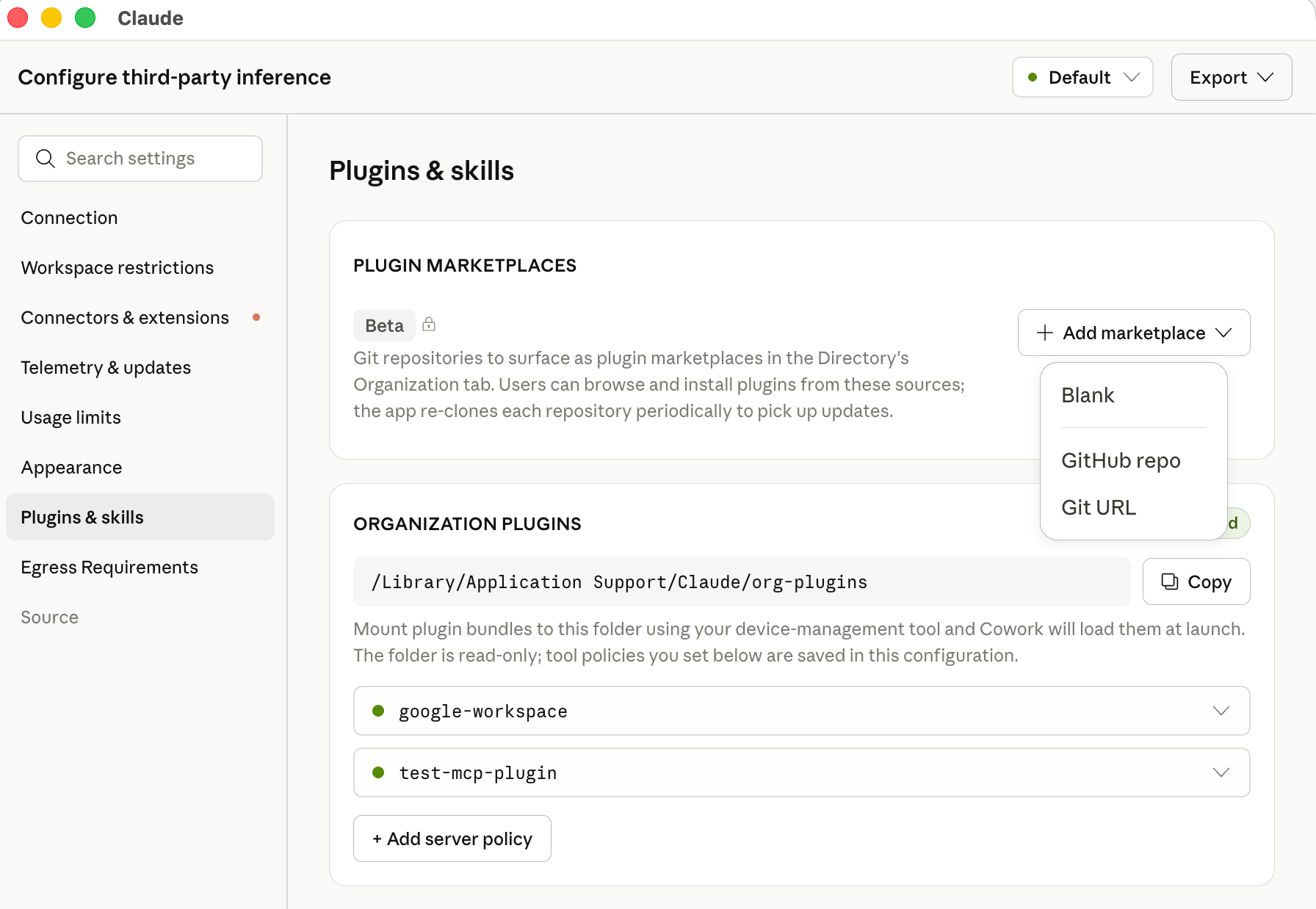
The Plugins section of the in-app configuration window, with the Add marketplace menu and the organization plugins folder.
allowedPluginMarketplaces configuration key. The key is read from an MDM profile, local configuration, or the bootstrap server response. In an MDM profile the value is a JSON array encoded as a string (see Value types). In a local configuration file or the bootstrap response the value is a native JSON array.
.mobileconfig (macOS)
allowedPluginMarketplaces value in the registry policy key your deployment already uses (HKLM\SOFTWARE\Policies\Claude for machine policy). Keep the value in the same hive as the rest of your configuration: when machine policy is present, the app ignores user policy entirely; see Deploy the configuration for the exact rule. For GitLab, Bitbucket, or a self-hosted git server, use "source": "git" with a full HTTPS url instead of repo. For a marketplace hosted over HTTPS without git, use "source": "url" with url pointing at the marketplace.json file:
You can configure multiple marketplaces, and each appears as its own sub-tab under Organization in the Directory. If an admin-configured marketplace has the same
repo, url, or manifest name as one the user added themselves, the admin entry replaces the user’s.
Marketplace installation preferences
Per-plugin auto-install from a trusted origin
Aurl marketplace served from your deployment’s own inference gateway origin (inferenceGatewayBaseUrl) or bootstrap server origin (bootstrapUrl) can mark individual plugins for automatic installation inside marketplace.json itself, without a manifestSha256 pin in configuration. Leave the entry’s installationPreference at "available" and set installationPreference on each plugin you want installed automatically:
marketplace.json
sha256 on its archive. Claude Desktop re-fetches the manifest periodically and picks up a newly published version without a configuration change or an app relaunch. A plugin the user removes stays removed.
Claude Desktop honors these per-plugin marks only when the manifest is served from your inference gateway’s or bootstrap server’s own origin, because those hosts already carry your deployment’s configuration and credentials. On any other origin the marks are ignored, and the marketplace behaves as "available". Entry-level "auto_install" and "required" continue to require the admin-side content pin on every origin.
Marketplace credentials
Claude Desktop fetches marketplaces on the host operating system, outside the Cowork VM. The credential is used only for this fetch and is never passed into the VM or exposed to the model.
Because the fetch happens on the host, the marketplace host does not need to be on the
coworkEgressAllowedHosts allowlist. It does need to be reachable from end-user devices.
Roll out marketplace updates
For a git marketplace, commit the change to the repository, update theref in allowedPluginMarketplaces to the new commit SHA, and distribute the updated managed configuration. For a url marketplace with a manifestSha256 pin, publish the new archive, update its url and sha256 in marketplace.json, and update manifestSha256 in configuration to the new file’s digest. For a url marketplace using per-plugin auto-install from a trusted origin, publish the new marketplace.json and no configuration change is needed. Devices sync to the new revision on the next app launch or periodic re-fetch. To remove a marketplace, delete its entry; Claude Desktop unregisters it and uninstalls its plugins on the next sync.
Organization plugins (admin)
Plugins bundle MCP connectors, skills, slash commands, hooks, and sub-agents into a single directory. On this path, admins distribute plugins by placing them in a system-wide directory on each device, typically via the same MDM or software-distribution channel used for the app itself. Plugins distributed this way are available in Cowork sessions and Chat conversations. Code sessions do not load their skills, commands, sub-agents, or hooks, so a plugin that must reach Code sessions has to be distributed through a plugin marketplace instead.Plugin directory location
On Windows, the directory is under
Program Files (not ProgramData) so that only administrators can create or modify it. Claude Desktop treats the presence of this directory as an admin-provisioned source.
Plugin structure
Each subdirectory oforg-plugins/ is one plugin. The directory name is the plugin’s canonical name.
Each entry in
org-plugins/ must carry a valid manifest: a .claude-plugin/plugin.json, or a top-level SKILL.md whose frontmatter declares agents or mcpServers (a skill folder that also acts as a plugin). A plain skill folder does not qualify on its own. To distribute a single skill, place it under skills/<name>/SKILL.md in a plugin that has a plugin.json. A directory with no valid manifest is not loaded and never appears in the user’s plugin browser. The diagnostic report’s plugin section shows the rejected entry and why. To distribute an MCP connector, declare it in a plugin’s .mcp.json or use managedMcpServers.Symlinks inside a plugin are followed as long as the target resolves to a path inside the plugin directory. Symlinks that point outside the plugin (for example,
skills/foo/SKILL.md → /etc/hosts) are skipped. A symlinked top-level plugin directory (for example, org-plugins/my-plugin → /opt/shared/my-plugin) is also followed.MCP servers declared in a plugin’s
.mcp.json don’t carry a toolPolicy field in the plugin file itself. To lock tools on a plugin-delivered server, set orgPluginSettings in managed configuration, keyed on the server’s name, or add a managedMcpServers entry with "transport": "policy-only", the server’s name, and a toolPolicy. A policy-only entry connects to nothing. It only applies the permissions, and it takes precedence over orgPluginSettings for that server. A regular managedMcpServers entry that matches a plugin’s server by URL or name governs that server the same way.Auto-installing organization plugins
By default, organization plugins appear in the user’s plugin browser as available to install, and each user opts in. To install a plugin automatically for every user, setinstallationPreference in the plugin’s .claude-plugin/plugin.json:
This mirrors the installation preference behavior of remote-managed plugins on claude.ai. Changing a plugin’s
installationPreference takes effect at each user’s next sync.
Updating organization plugins
To roll out a new version of a plugin:- Update the plugin contents in
org-plugins/<name>/via your software-distribution tool - Bump the
versionstring inversion.json - Users pick up the change on their next app launch
org-plugins/. On Claude Desktop 1.46388.1 or later, each user’s installed copy is unregistered the next time the app syncs organization plugins (at launch or when a session starts); earlier versions leave the copy installed.
Plugin hooks
Hooks bundled in a plugin, underhooks/ or declared in its manifest, run wherever the plugin itself loads:
- Cowork sessions run hooks from marketplace plugins, from plugins in the
org-plugins/directory, and from plugins users add themselves. - Code sessions run hooks from marketplace plugins (Claude Desktop 1.32352.0 or later) and from plugins the user installed for Claude Code. Hooks from plugins in the
org-plugins/directory do not run in Code sessions. In remote SSH sessions, hooks from the plugins Claude Desktop copies to the host do not run. - Chat conversations run hooks from the same plugins as Cowork sessions, on Claude Desktop 1.52386.0 or later.
UserPromptSubmit hook that blocks a prompt stops that turn and shows the hook’s reason to the user. When a conversation or session is created, Claude Desktop also sends its first message to your inference provider in a separate request, without tools, to generate the title shown in the sidebar. That request does not pass through plugin hooks, so a first message that a hook blocks still reaches your provider for titling.
Claude Code managed settings deployed on the device govern these hooks as they do in the Claude Code CLI: disableAllHooks turns them off, and allowManagedHooksOnly keeps only the hooks those managed settings define.
Hooks on Windows devices without Git for Windows
On a Windows device without Git for Windows, Claude Code runs a hook in PowerShell when the hook sets neithershell nor args. Hooks in Cowork sessions run the same way, on the device itself and not in Cowork’s virtual machine. PowerShell rejects some commands that Bash accepts, such as a quoted program path followed by arguments.
A PreToolUse hook that runs this way and has no onFailure field blocks the tool call when it fails or times out. The hook error that Claude receives includes blocking because Git Bash wasn't found.
If your Windows devices have hooks, in a plugin or in Claude Code managed settings, make one of these changes:
- Keep a hook written for Bash: install Git for Windows in its default location (
C:\Program Files\Git) on each device, then quit and reopen Claude Desktop - Run the hook without a shell: write the hook in exec form, with the program in
commandand its arguments inargs
"onFailure": "block" to the hook.
User extensions
Unless restricted by an admin, end users can add their own extensions through the in-app UI:- Plugins: install plugins (which can bundle skills, hooks, slash commands, and sub-agents) from the Plugins settings page
- Skills: create and upload their own skills, including by asking Claude to save one in a conversation
- Local MCP servers: add local MCP server processes from Settings → Developer
.mcpb) themselves. Remote servers come from admin-provisioned managedMcpServers, from organization plugins, and from other plugins that bundle them, including plugins users install. A Code session can also load the servers a user defines in Claude Code’s own configuration (~/.claude.json, a project’s .mcp.json, or claude mcp add). To limit plugin-bundled servers, see Controlling user extensions. To limit the servers a Code session loads, see Applied as managed policy.
User-added extensions are stored in the user’s local data directory and apply only to that device.
Claude Desktop keeps its own record of the skills each user creates or uploads, and it removes a skill folder that the record doesn’t list. To deliver skills to users, use organization plugins or a plugin marketplace.
Controlling user extensions
Admins can restrict or disable each user-extension surface independently via managed configuration:
Setting
isLocalDevMcpEnabled to false and leaving isDesktopExtensionEnabled at false restricts MCP servers and connectors to those delivered through managedMcpServers and org-plugins/, plus any that installed plugins bundle, whether from your marketplaces or added by users. To limit plugin-bundled servers to ones you name, or to none, set allowedPluginMcpServers to a list of URL patterns. An empty list admits no plugin-bundled server. Setting skillCreationEnabled to false turns off skill creation and upload in the app. Skills already on the device keep working, as do skills from organization plugins. Users can still install plugins from the marketplaces you provision regardless of these settings. Setting userPluginUploadsEnabled to false removes only users’ options for adding plugins themselves. Plugins a user uploaded earlier stay in place. See the Locked down profile for a complete example.
Setting userPluginMarketplacesEnabled to false also hides every marketplace already on the device that your organization didn’t provision, whether a user added it in the app earlier or Claude Code registered it from a terminal on the same device. By default, Claude Code adds Anthropic’s official marketplace the first time a user starts an interactive terminal session, so that marketplace is hidden too unless you provision it. The app doesn’t install or update plugins from a hidden marketplace. Plugins already installed from a hidden marketplace stay on the device, but they don’t appear in the app or load in its sessions until you remove the key or set it back to true.
userPluginMarketplacesEnabled doesn’t govern Claude Code in a terminal. To limit the marketplaces Claude Code can use in a terminal, set marketplace restrictions in its managed settings. If you deploy Claude Code managed settings to the device, restrict marketplaces there too, because in Code sessions those settings can take precedence over the app’s restrictions.
Related topics
Code
How extensions and managed settings reach the embedded Claude Code engine.
MCP in Claude Code
Configure MCP servers for the standalone Claude Code CLI.
Claude Code plugins
Plugin structure, marketplaces, and management for Claude Code.
Managed MCP in Claude Code
Restrict which MCP servers Claude Code users can add.