

Automatic import of earlier third-party sessions
Claude Desktop can automatically copy into your history the Cowork, Chat, and Code sessions it stored on this computer under an earlier third-party configuration. In an organization managed from the Enterprise Admin Console, this automatic copy is on unless it’s turned off in your organization’s settings. In any other deployment it runs only if your administrator turns it on. Along with the sessions, the automatic copy brings over other things you had under the earlier configuration:- Projects: your Cowork projects. New tasks use a project’s instructions only after you accept them.
- Memory and instructions: your Cowork memory, unless you paused it, and your global instructions. New tasks use them right away. Your Instructions for Claude (Settings → General) come over too. Instructions you already set under the new configuration are kept.
- Scheduled tasks: your scheduled tasks from Cowork and Code. Each stays on or off as it was.
- Uploaded plugins: plugins you uploaded, unless your administrator has turned off plugin uploads (
userPluginUploadsEnabled). Each stays on or off as it was. - Saved skills: skills you saved, unless your administrator has turned off skill creation (
skillCreationEnabled). - Your organization’s optional plugins: the ones you had turned on are turned on again, if they come from your organization’s plugins directory or from a marketplace hosted at the address of its gateway or bootstrap server. With Claude Desktop 2.42304.0 or later, plugins from other marketplaces, such as a git repository, are turned on again too, if your administrator offers the marketplace from the same repository or URL as before. On a computer where the copy already ran, they’re turned on the first time the app starts on 2.42304.0 or later.
- Artifacts: your Cowork artifacts.
Before you open the import wizard
- Your administrator has turned import on by setting
claudeAiImportwithenabledset totruein the managed configuration. The import wizard is off by default; until then, Settings → Import & export has no Import… button and reports that import isn’t enabled for this deployment. The automatic import of earlier third-party sessions doesn’t depend on this setting. - If your administrator lists the claude.ai organizations you may import from, with
allowedOrganizationUuidsunderclaudeAiImport, you can import only by signing in to claude.ai, and only from a listed organization. A sign-in to any other organization or to a personal account is refused, and the wizard’s options to import from a file or from earlier sessions on this computer are turned off. The automatic import of earlier third-party sessions isn’t affected by this list. - Claude Desktop is installed and running in third-party mode. See Installation and setup.
- To bring history over from a claude.ai Team or Enterprise workspace, an owner of that workspace has enabled member data export, which isn’t possible in a HIPAA-ready organization. Personal claude.ai accounts can always export.
Enable member data export (admins)
On Team and Enterprise workspaces, member data export is off by default.allowedOrganizationUuids isn’t set, they can still import Cowork and Claude Code sessions already on their computer in step 2.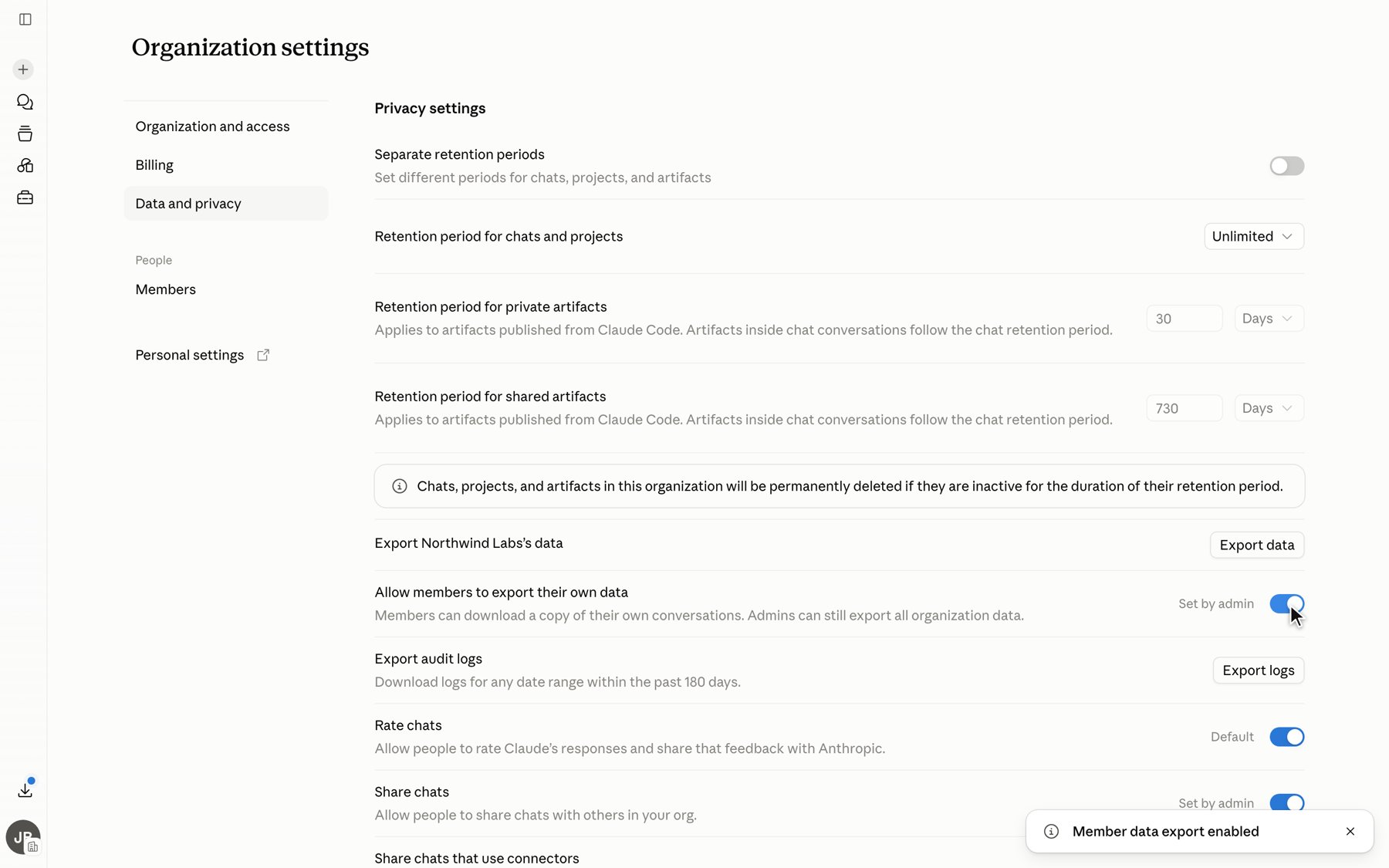
The member data export toggle in claude.ai organization settings. Only workspace owners see this control.
Open the import wizard
In Claude Desktop, go to Settings → Import & export and click Import… to open the Import from Claude wizard.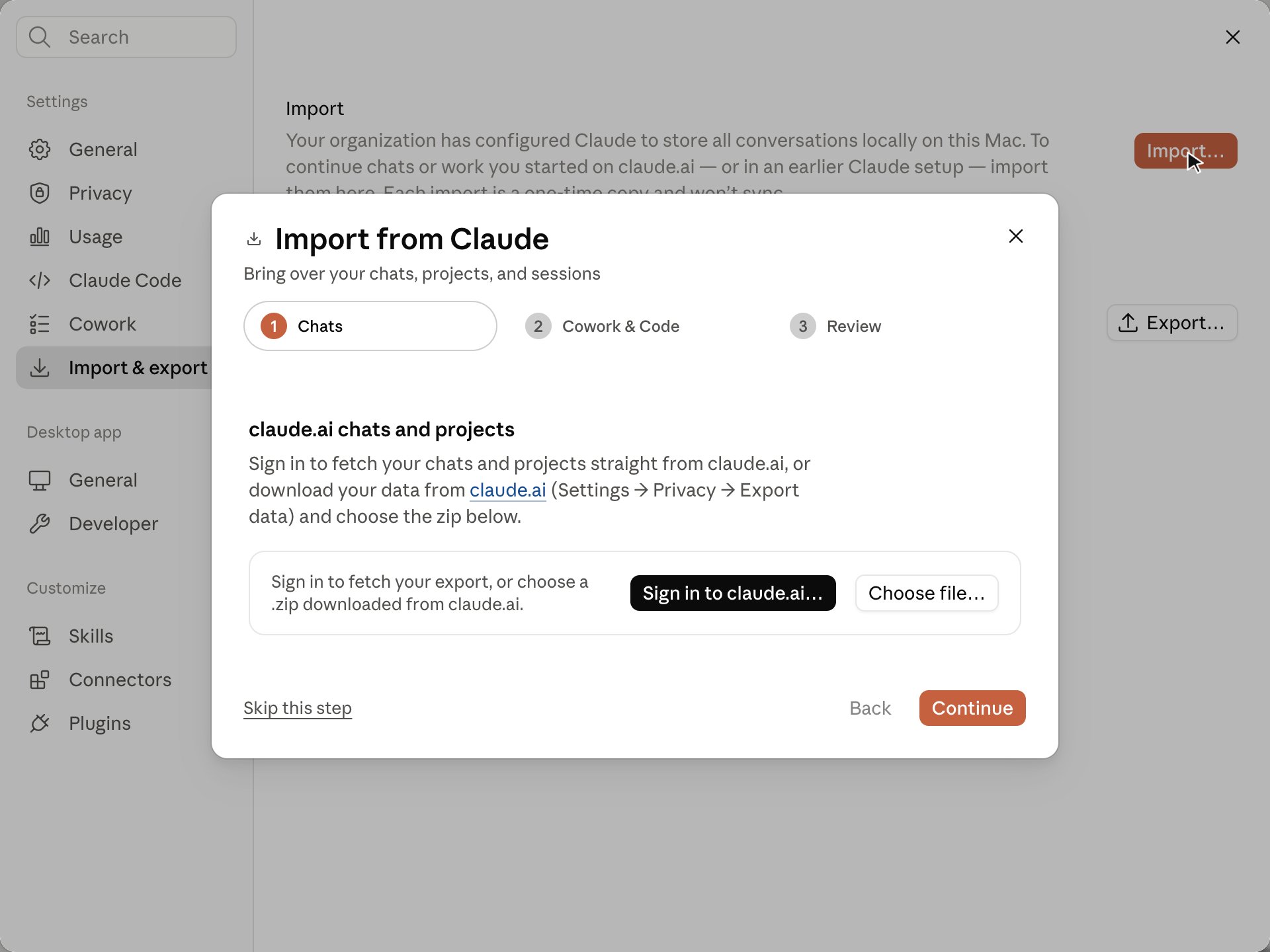
Step 1 of the import wizard, before a source is chosen.
Step 1: claude.ai chats and projects
You can pull your claude.ai history straight into the wizard by signing in, or download it from claude.ai yourself and choose the file.- Sign in to claude.ai (recommended)
- Choose a downloaded file
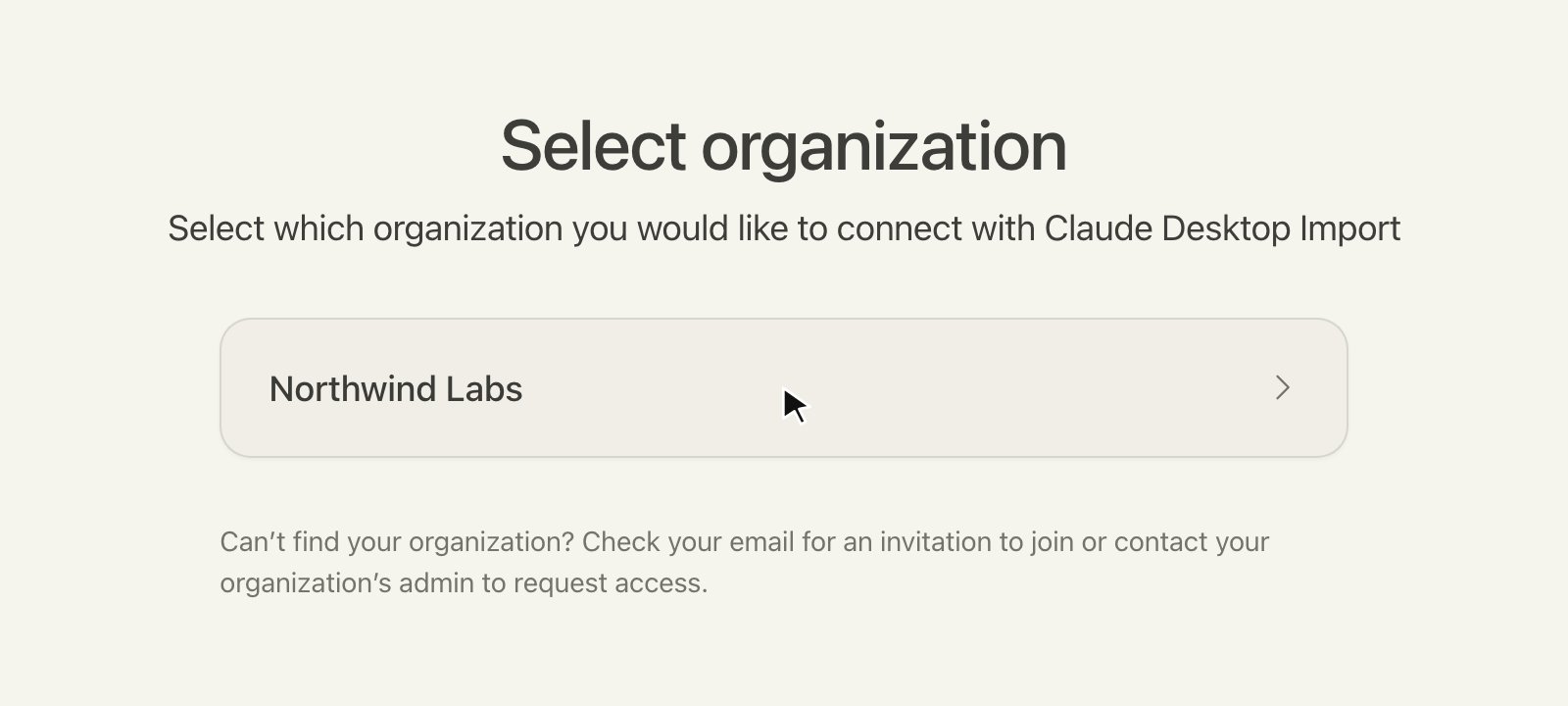
The organization selector, shown if your claude.ai account belongs to more than one workspace.
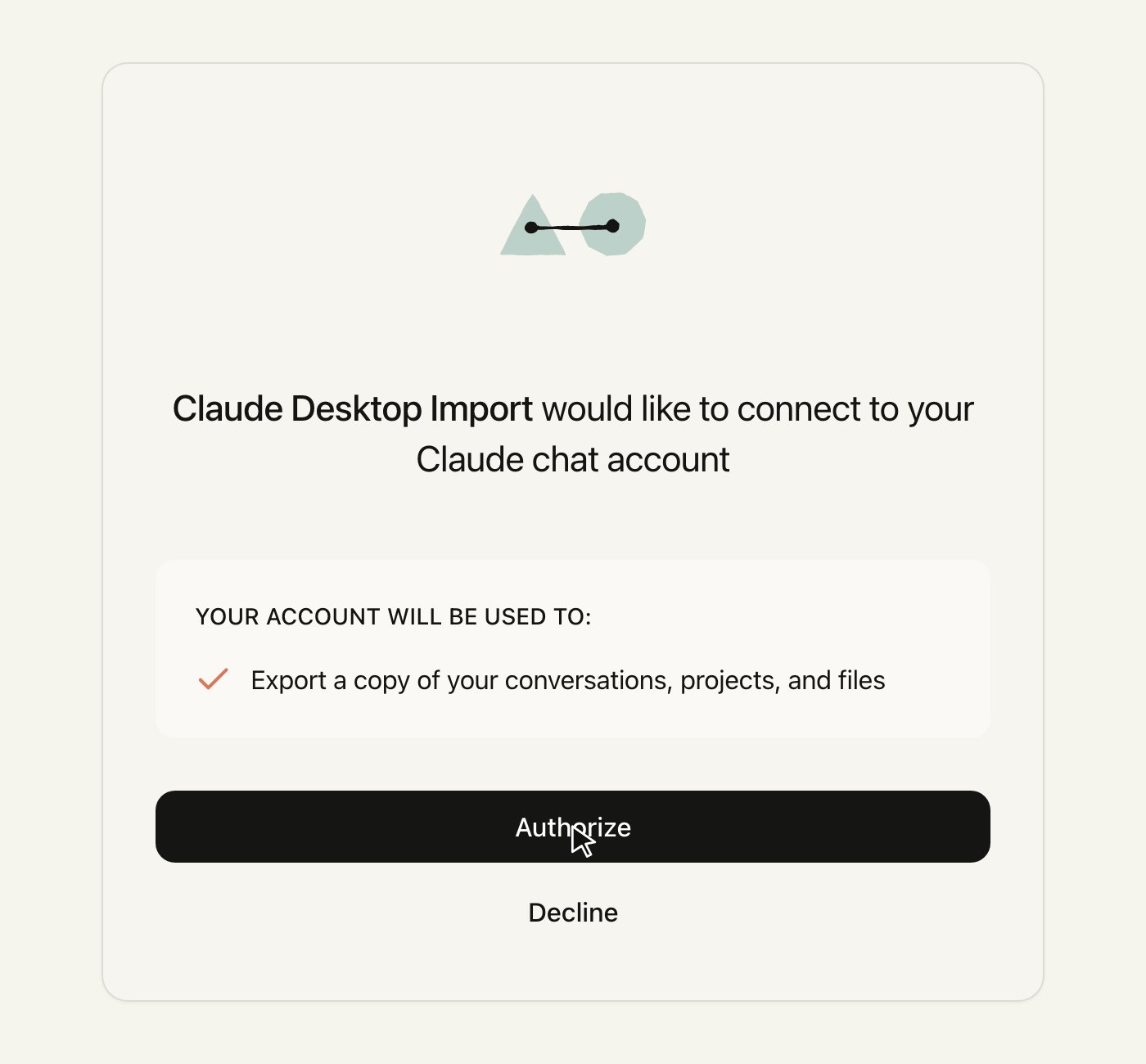
The authorization prompt. The only permission granted is a one-time export of your own data.
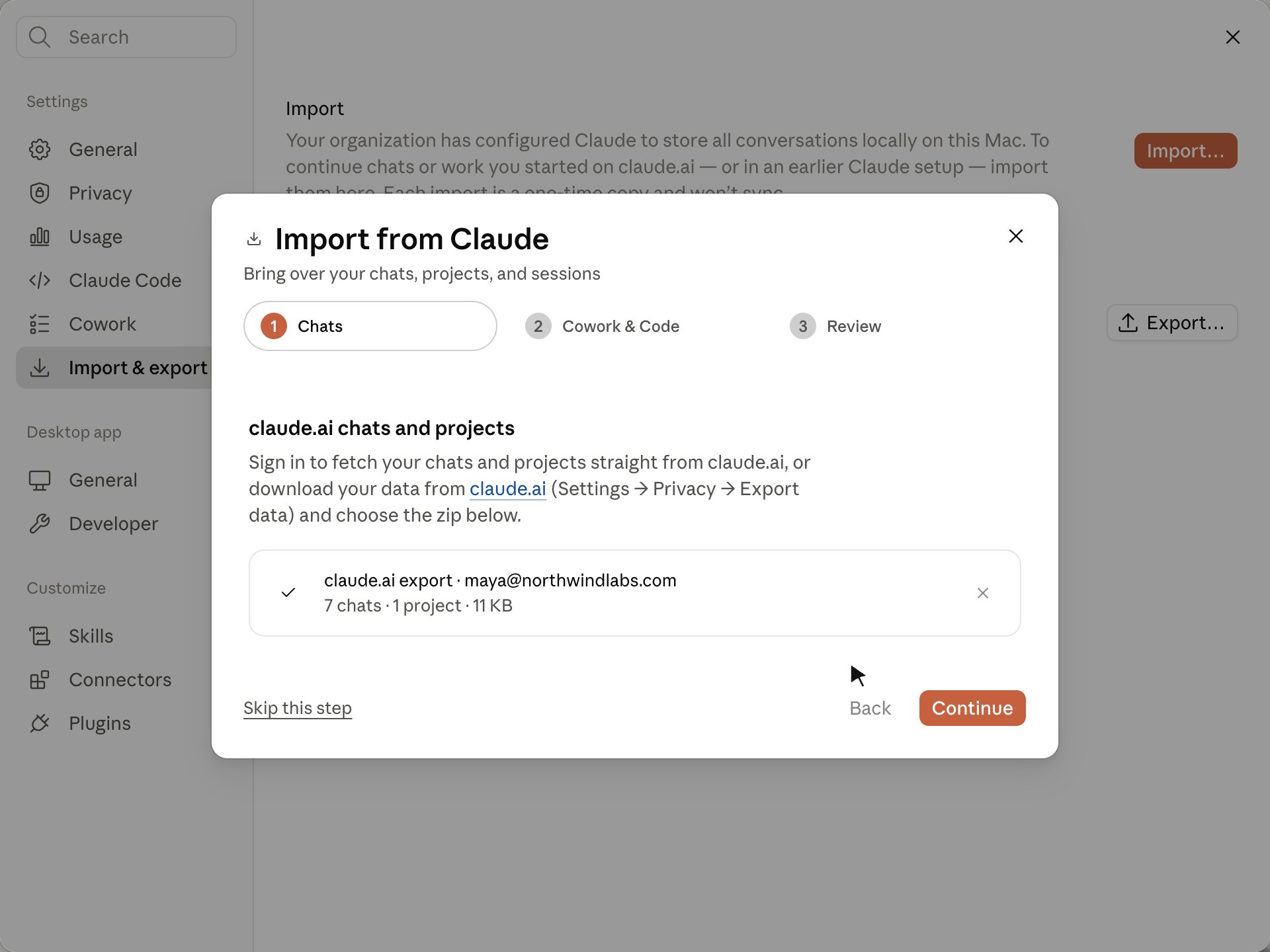
The wizard after the export finishes downloading.
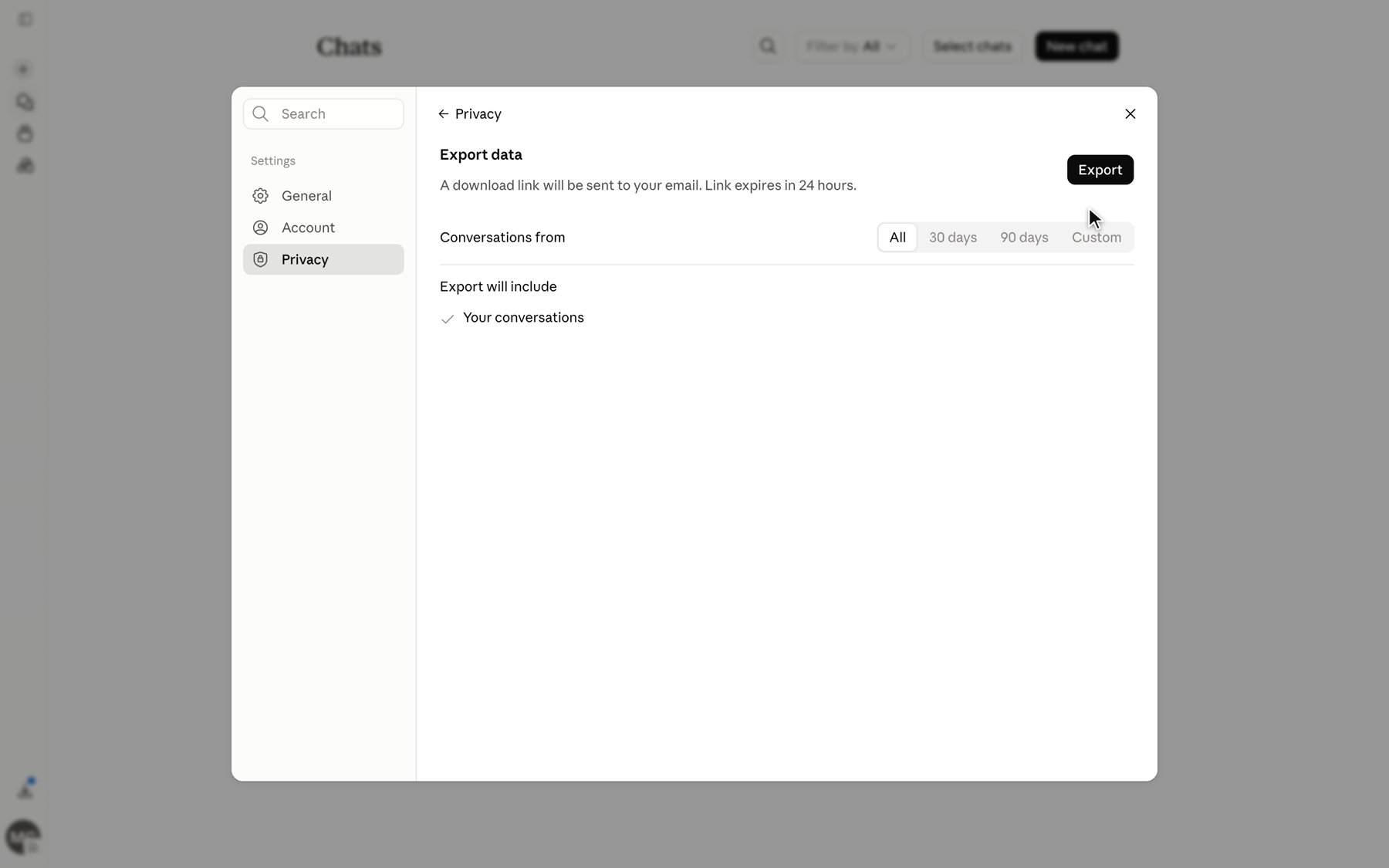
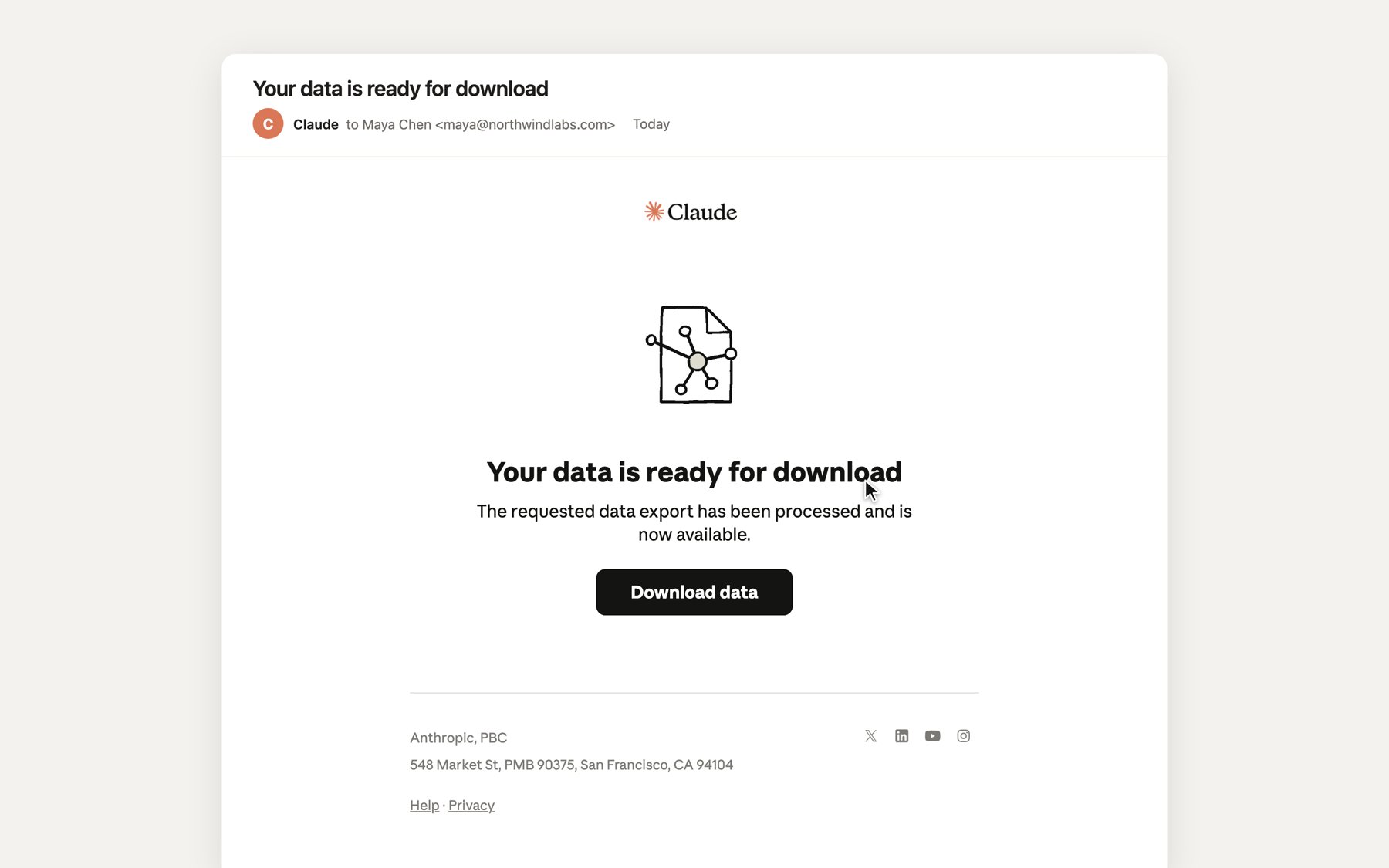
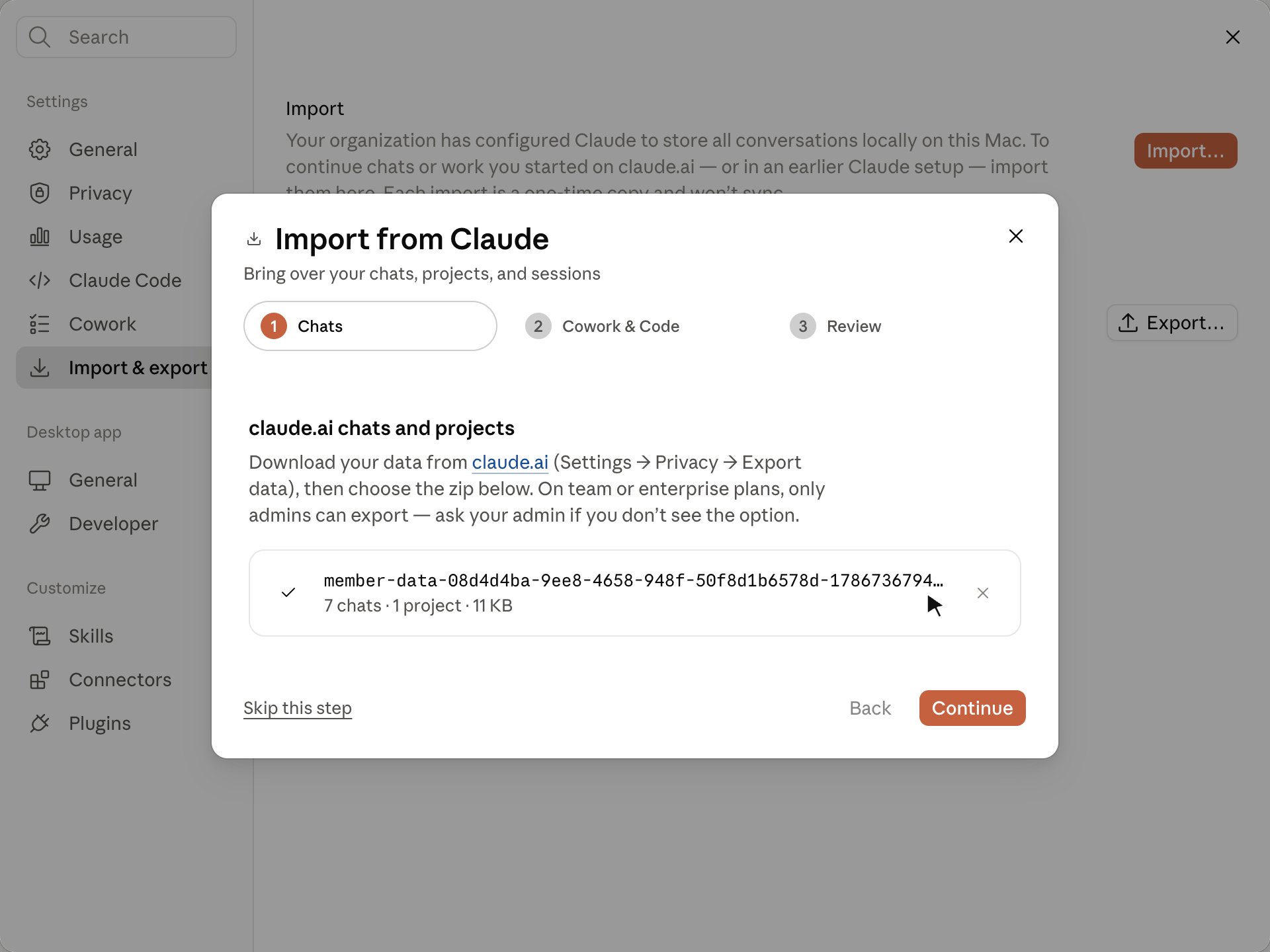
Step 2: local Cowork and Code sessions
The wizard scans this machine for Cowork and Claude Code sessions from an earlier Claude Desktop install and lists what it finds. Choose how far back to include, and add any other folder that holds sessions (for example, a backup or a folder copied from another machine). On Windows, the folder has to be on a local disk. The wizard can’t import one from a network share or a mapped network drive, so copy it to the computer first.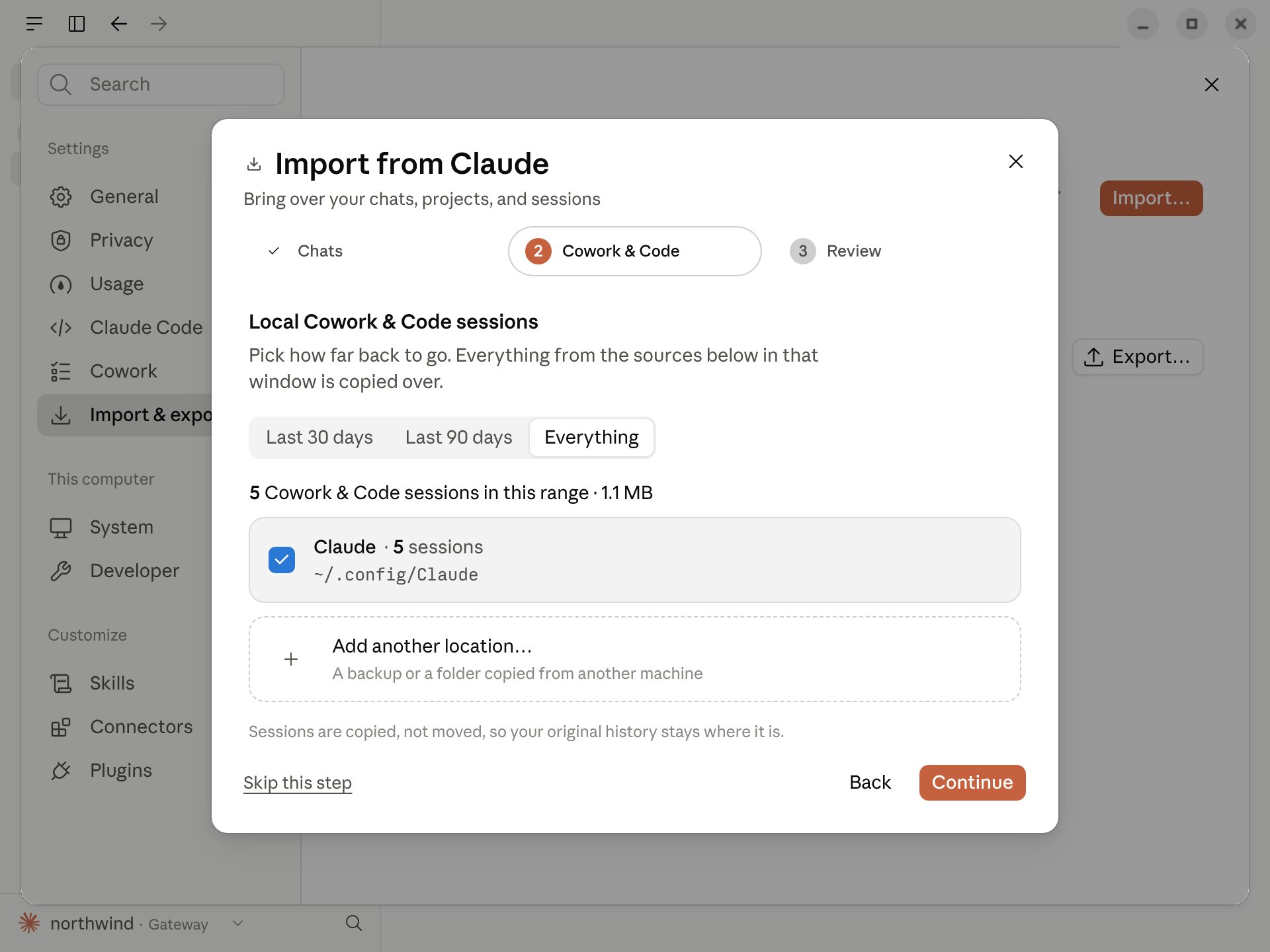
Local sessions found on this machine.
Step 3: review and import
The Review step summarizes what will be added. Click Import to copy everything into your local session store.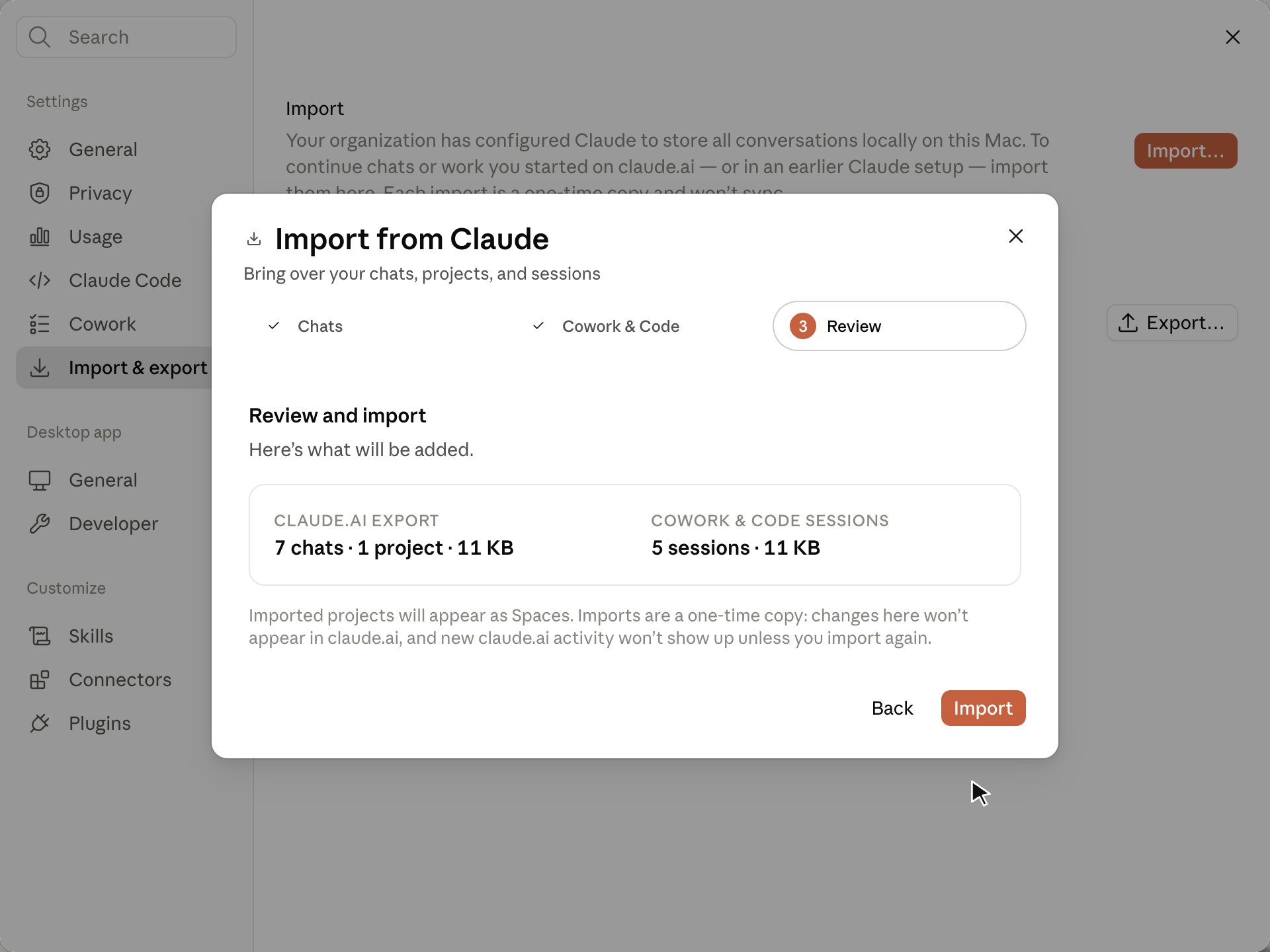
The review summary before import.
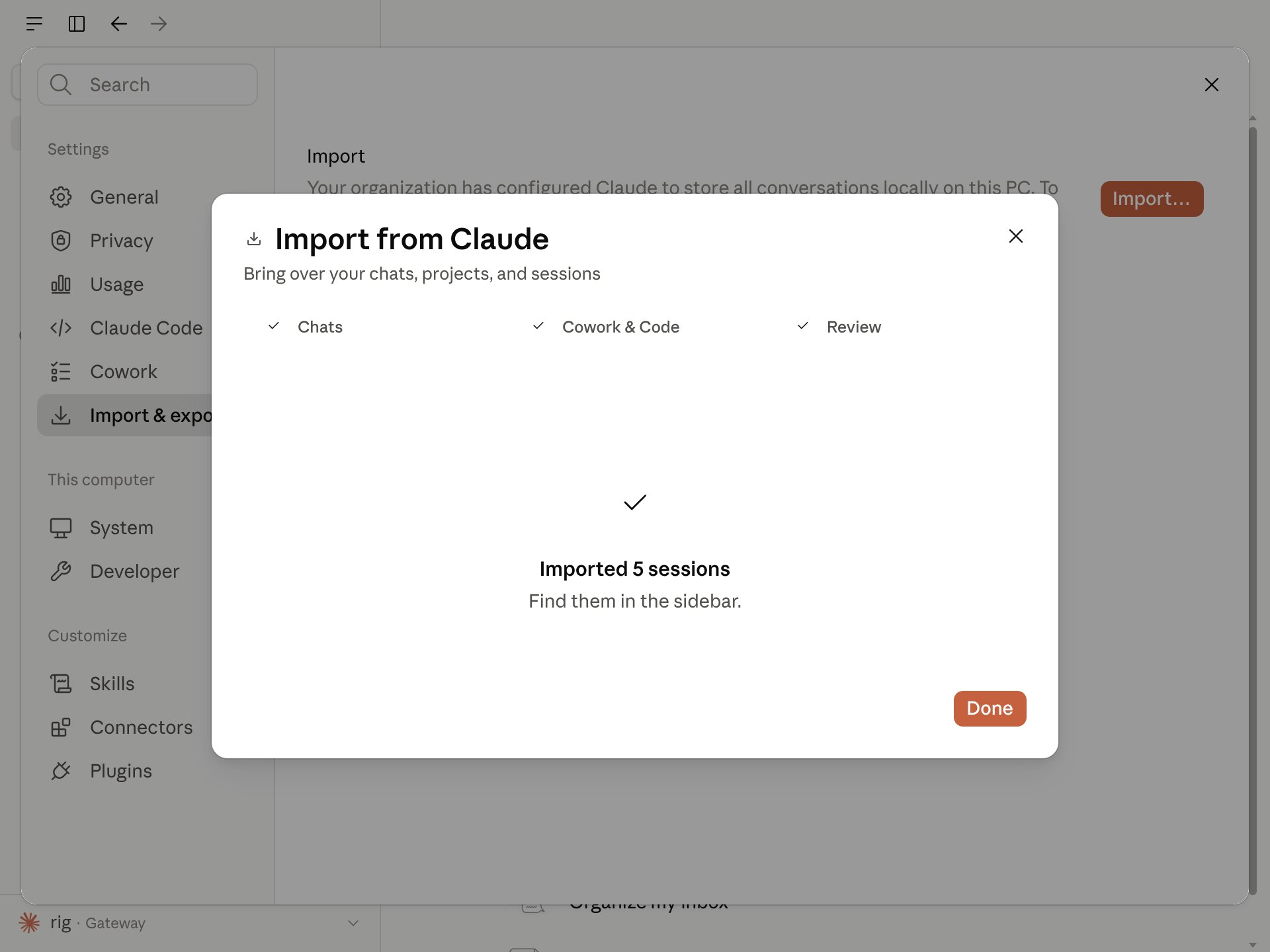
Import complete. Imported chats appear in the sidebar and imported projects appear on the Projects page.
If a project already exists
When an imported project has the same name as a project already in Claude Desktop, the wizard adds a Duplicates step after the import finishes. This happens, for example, when you set up Northwind on this machine and then bring over history from another machine that also has a Northwind project. The step lists each match with two choices.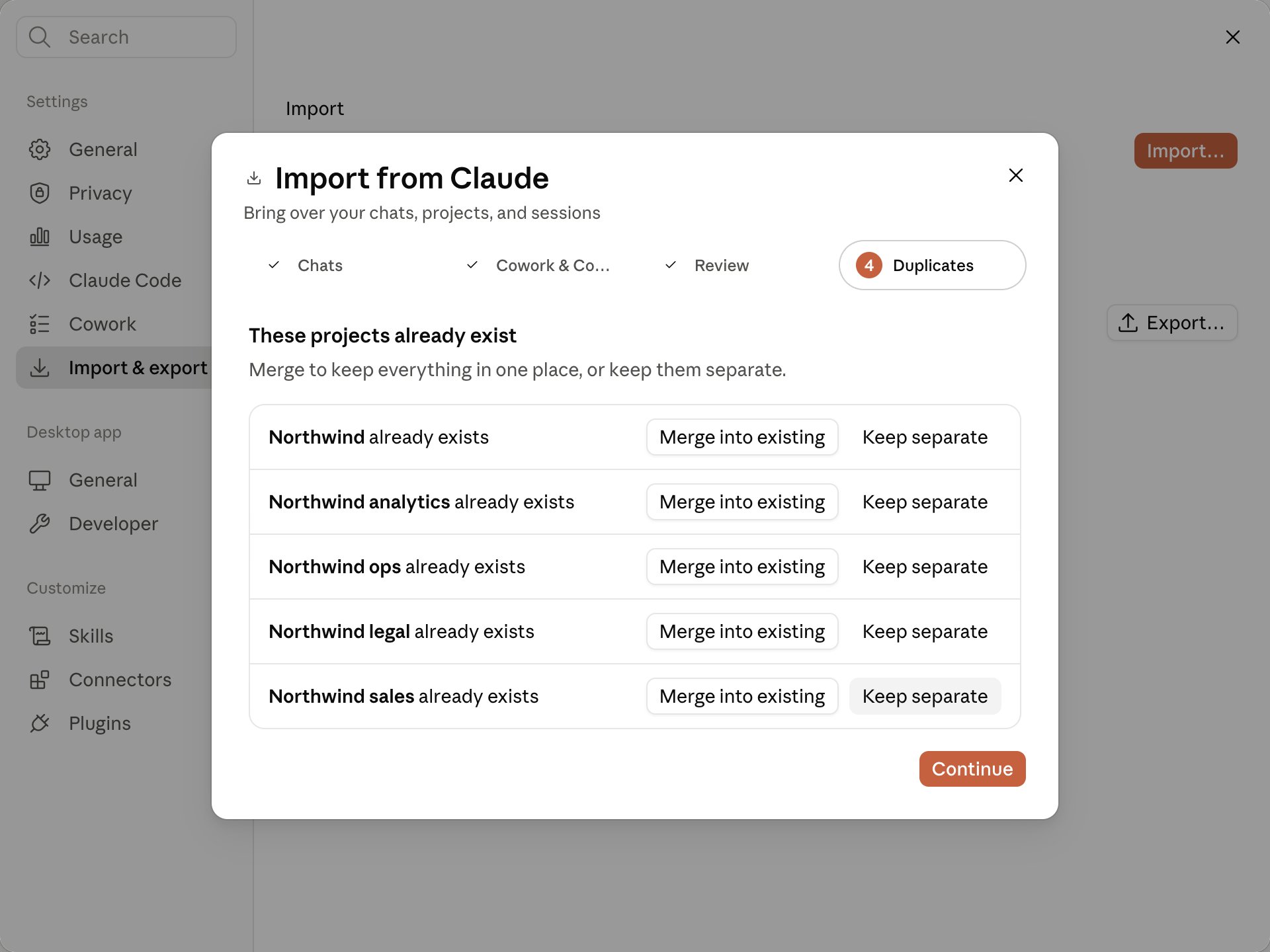
The Duplicates step, listing imported projects that match ones you already have.
- Merge into existing moves the imported chats and sessions into your existing project and removes the duplicate. Folders you attached to the duplicate move with them. If your existing project has no instructions of its own, the imported project’s instructions are shown there for you to review and accept. Later imports from the same source land in the existing project as well, except from a folder or zip you added, where the wizard asks again.
- Keep separate leaves both projects in place. The imported one keeps a numbered name, such as Northwind (1), and Claude Desktop stops offering to merge it.
Continue an imported conversation
Open any imported conversation from the sidebar and keep chatting. The first time you send a message in an imported session, Claude Desktop asks you to confirm before it continues. The reply then comes from your configured inference provider, not from claude.ai.- A session from this app’s earlier third-party configuration on this computer shows a Continue this conversation? prompt. Click Continue to send your message.
- Any other imported conversation or session shows a Resume imported session? prompt. Click Trust and resume to continue.
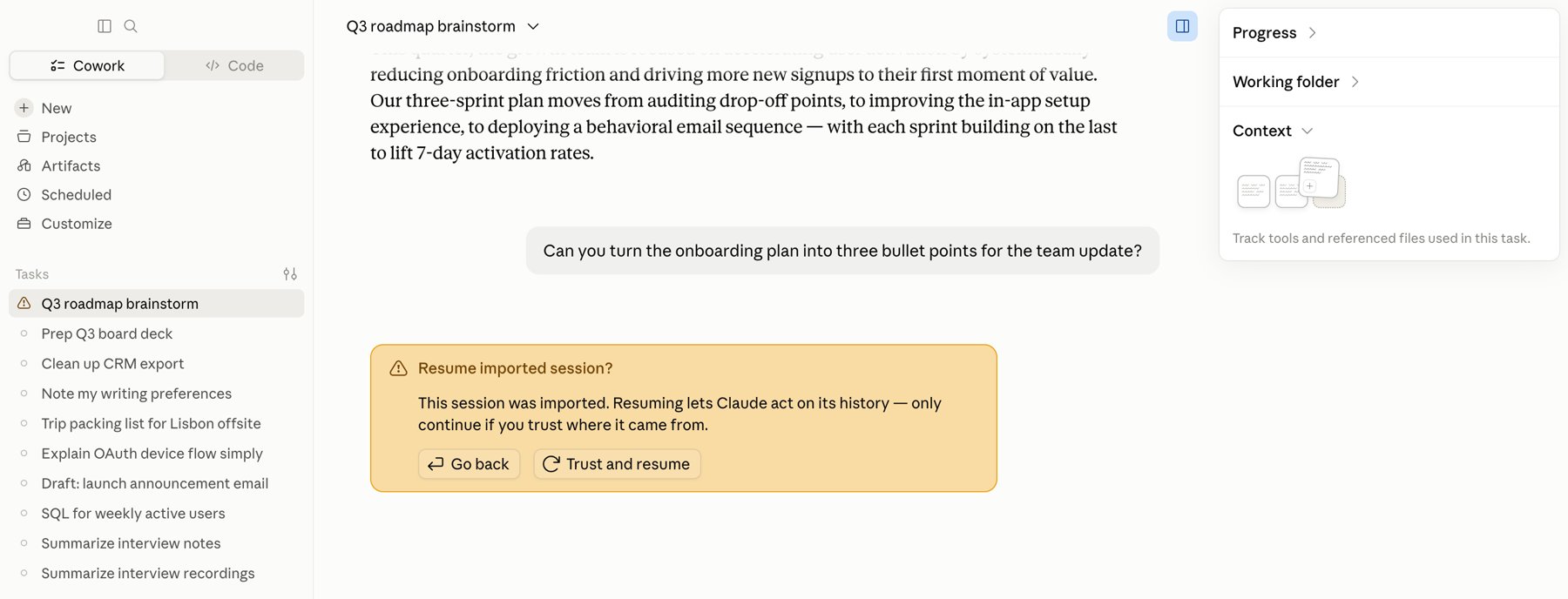
The trust prompt shown the first time you resume a conversation imported from claude.ai.
Make an imported project folder readable in Chat
When an import brings over a project, it puts a folder on the project. In Chat, Claude can’t read that folder until you add it to the project again. Add the folder once for each imported project.Open the project
Note the folder path
Add the folder again
Start a new conversation
Export sessions to move them to another device
When your administrator also setsexportEnabled to true under claudeAiImport, Settings → Import & export offers Export…, which writes this computer’s chats, Cowork tasks, and Code sessions (not terminal Claude Code sessions) to a zip file. On the other device, open the import wizard and select that zip with Choose file…; the wizard lists its sessions in the Cowork & Code step. Importing the same zip again works as it does for an added folder: sessions marked as already imported are skipped, and the rest are copied. The export is a one-time snapshot, not a sync, and the zip contains full conversation content, so handle it as sensitive data.
The zip includes sessions, project names, and each session’s output files when they total 100 MB or less. It leaves out project instructions, memory, scheduled tasks, skills, plugins, and attached files. To move those, your administrator can copy your data to the new device. Sign-ins and connector connections don’t move either way.
What is and isn’t included
- Your data only. An export contains your own conversations, projects, and memory. Other workspace members’ content is not included.
- Chats and projects come over. Each imported project appears on the Projects page. If the project has custom instructions, Claude Desktop shows them in the project for you to review and accept before they take effect. In Chat, Claude can’t read a folder that the import put on a project until you add the folder to the project again.
- Artifacts come over as files. For artifacts Claude created in a conversation, and files Claude wrote with its file-creation tool, the import saves the final version as one of the imported conversation’s output files. Earlier versions aren’t kept. Past a size limit, the rest of a conversation’s artifact content isn’t imported, and the conversation says so.
- Project knowledge files and conversation attachments do not. A member’s own export never includes the contents of files uploaded to a project’s knowledge or attached to a conversation. This is a security policy on claude.ai, and it applies to both the Sign in to claude.ai and Choose a downloaded file paths. Imported chats keep the messages that referenced an attachment, but not the file itself. The only export that includes file contents is an organization-level export, which only a workspace owner can request.
- One-time copy. Imported history does not stay in sync with claude.ai. Run the import again to pick up newer conversations; existing imports are matched and skipped, so you won’t get duplicates.
- Download links expire. The email link from claude.ai is valid for 24 hours. Request a new export if it lapses.
Troubleshoot the import wizard
Claude Desktop runs each claude.ai import through the Claude CLI binary, the helper program that also runs your conversations. Unless your organization deploys the offline installer, Claude Desktop downloads the version of the binary it needs separately from the app, when you start a new conversation or task.Importing a claude.ai export needs a newer version of this app
The wizard shows this message, under Update Claude to import from claude.ai, when this computer has only an earlier version of the Claude CLI binary that can’t import a claude.ai export. You don’t need to update or reinstall Claude Desktop. To download the current version of the binary, follow these steps:Start a new conversation or task
Wait for Claude's reply
Open the import wizard again
That doesn’t look like a claude.ai export
If the message appears as soon as you choose a file, choose the.zip file of your claude.ai export as you downloaded it. If the export came as more than one .zip file, choose all of them together.
If the message appears after you click Import on the Review step, your export can still be valid. Claude Desktop 4.16336.0 and earlier shows this message for other failures too. Before you run the import again from Settings > Import & export, do the following:
- Check the export files: if you imported with Choose file…, use each
.zipfile as you downloaded it, not renamed or compressed again. On Windows, keep its full path under 260 characters, for example by moving it to your Downloads folder. - Start a new conversation or task: close the wizard, send any message, and wait for the reply, so the import can run on the current version of the Claude CLI binary.
.zip file to your administrator, who can pass it to your Anthropic representative.