> ## Documentation Index
> Fetch the complete documentation index at: https://claude.com/docs/llms.txt
> Use this file to discover all available pages before exploring further.
# Import history from claude.ai
> Bring conversations, projects, and local Cowork and Code sessions into Claude Desktop on 3P from a claude.ai workspace or an earlier install
Import brings a copy of your claude.ai conversations and projects into Claude Desktop on third-party (3P), along with any Cowork and Claude Code sessions already on this machine from an earlier install. Everything lands in the local session store described in [User identity and local data](/docs/third-party/claude-desktop/data-storage), so you can pick up work you started on claude.ai and continue it against your organization's own inference provider.
Each import is a one-time copy. New activity on claude.ai after you import does not appear in Claude Desktop unless you import again, and re-running the import does not create duplicates.
## Before you start
* Claude Desktop is installed and running in third-party mode. See [Installation and setup](/docs/third-party/claude-desktop/installation).
* To bring history over from a claude.ai Team or Enterprise workspace, an owner of that workspace has enabled member data export (next section). Personal claude.ai accounts can always export.
## Enable member data export (admins)
On Team and Enterprise workspaces, member data export is off by default. A workspace owner enables it on claude.ai under **Settings → Organization → Data and privacy → Allow members to export their own data**.
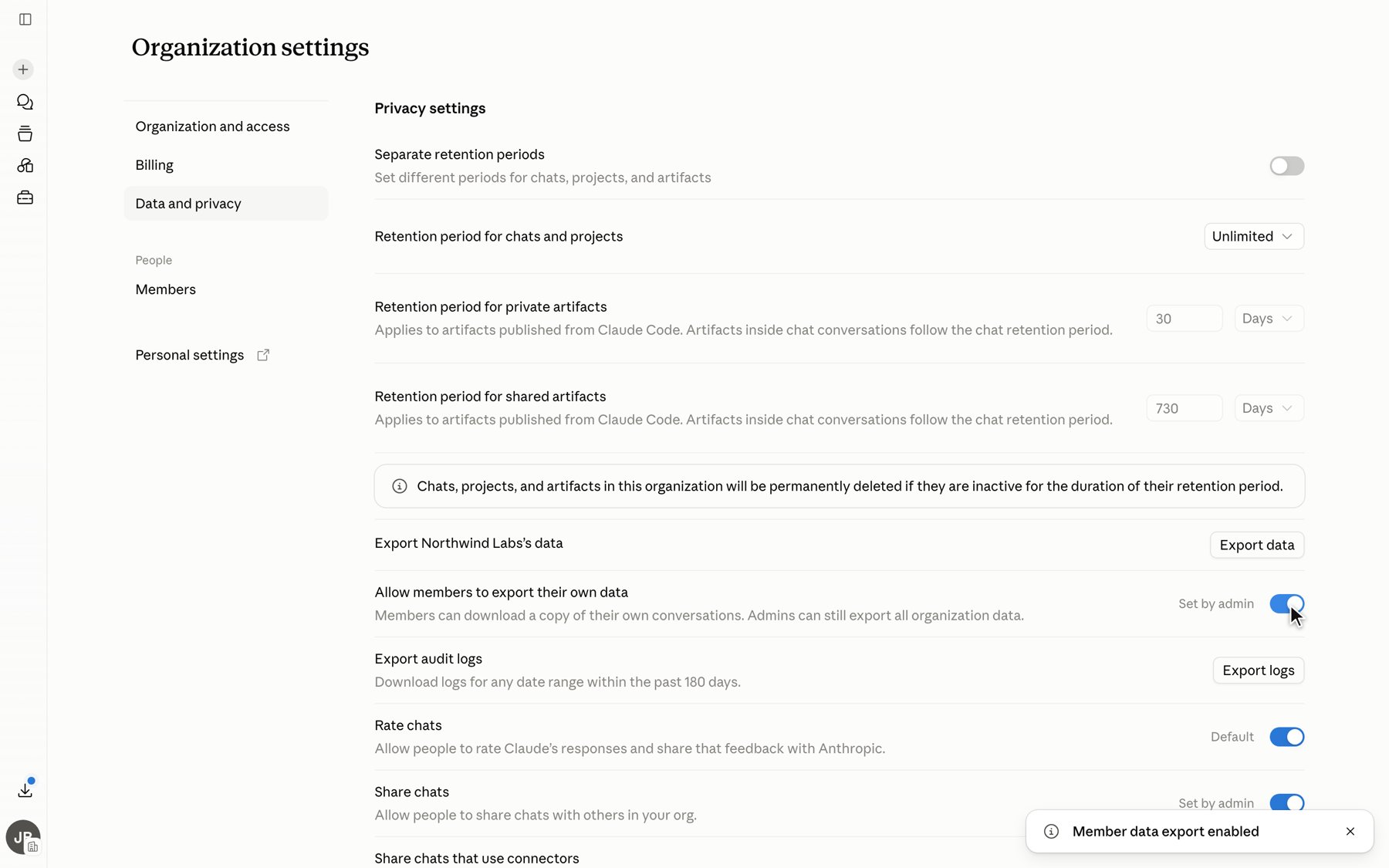 Members of the workspace can then export their own conversations. The toggle does not expose one member's data to another; each member can download only their own history.
## Open the import wizard
In Claude Desktop, go to **Settings → Import & export** and click **Import…** to open the **Import from Claude** wizard.
Members of the workspace can then export their own conversations. The toggle does not expose one member's data to another; each member can download only their own history.
## Open the import wizard
In Claude Desktop, go to **Settings → Import & export** and click **Import…** to open the **Import from Claude** wizard.
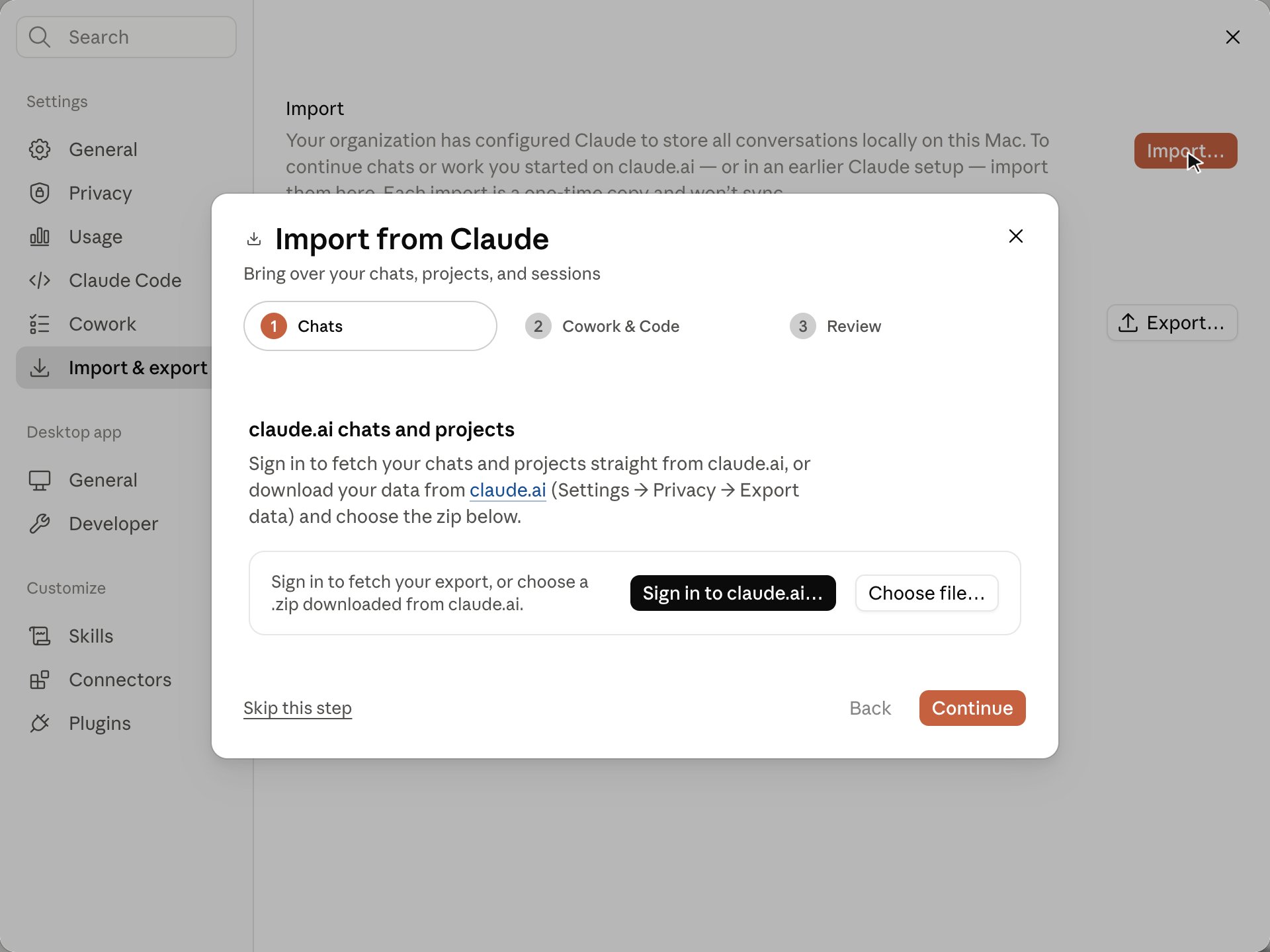 The wizard has three steps: **Chats** (your claude.ai export), **Cowork & Code** (local sessions on this machine), and **Review**. Skip any step you don't need.
## Step 1: claude.ai chats and projects
You can pull your claude.ai history straight into the wizard by signing in, or download it from claude.ai yourself and choose the file.
Click **Sign in to claude.ai…**. Your browser opens to claude.ai; sign in if prompted, choose your organization if you belong to more than one, and click **Authorize**.
The wizard has three steps: **Chats** (your claude.ai export), **Cowork & Code** (local sessions on this machine), and **Review**. Skip any step you don't need.
## Step 1: claude.ai chats and projects
You can pull your claude.ai history straight into the wizard by signing in, or download it from claude.ai yourself and choose the file.
Click **Sign in to claude.ai…**. Your browser opens to claude.ai; sign in if prompted, choose your organization if you belong to more than one, and click **Authorize**.
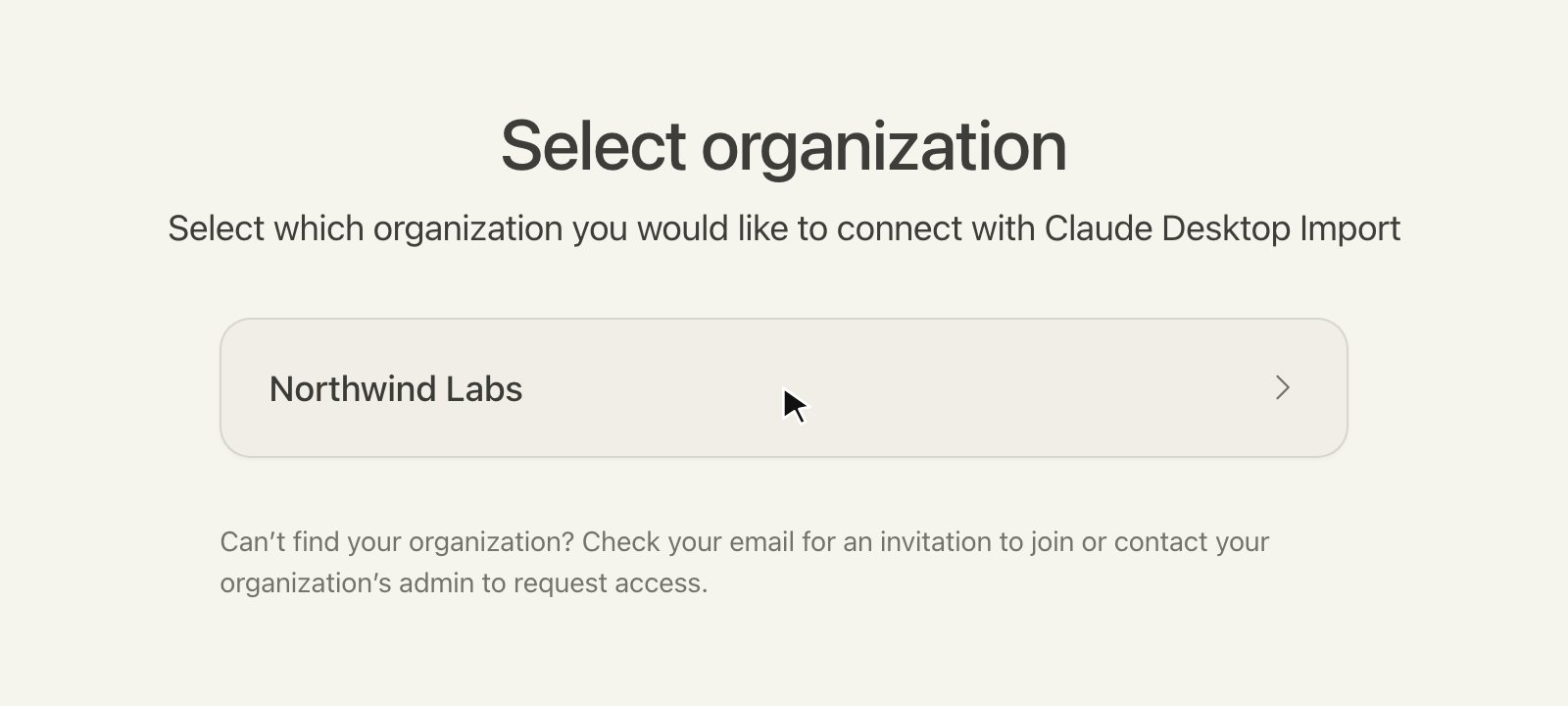
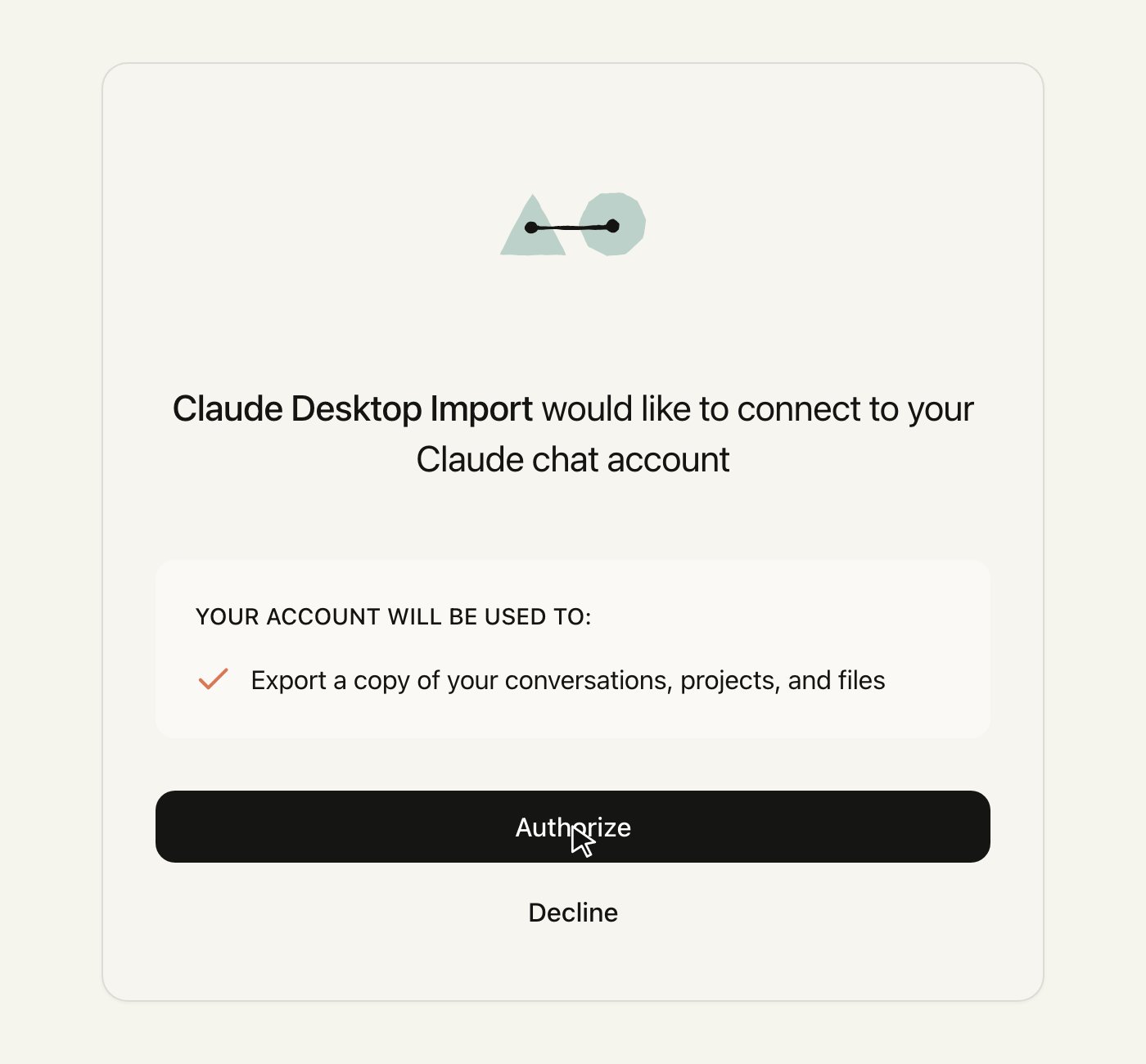 Back in Claude Desktop, click **Fetch export**. The wizard requests an export from claude.ai, downloads it, and shows what it found.
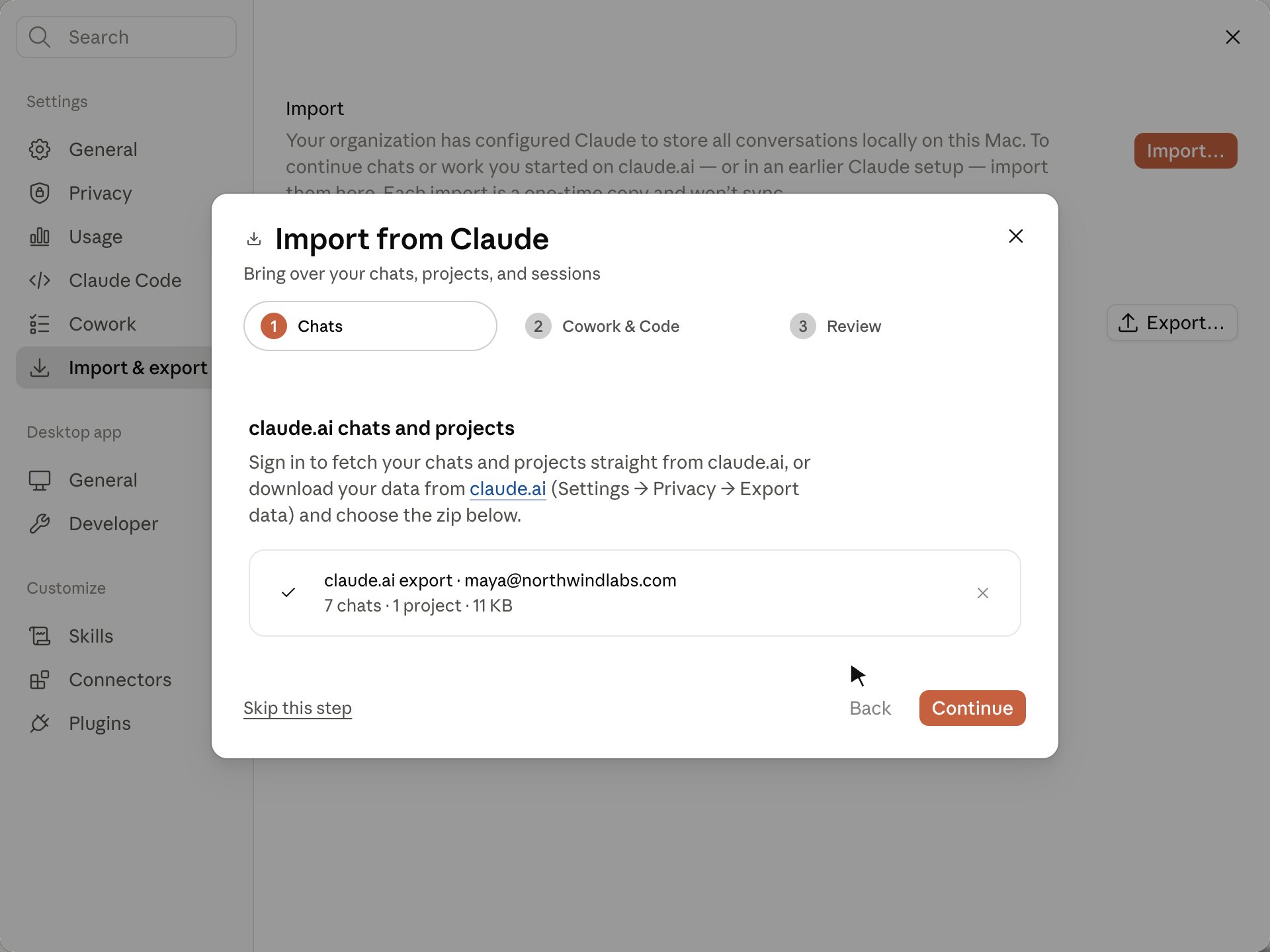 On claude.ai, go to **Settings → Privacy → Export data** and click **Export**. If you don't see **Export data**, ask a workspace owner to [enable member data export](#enable-member-data-export-admins).
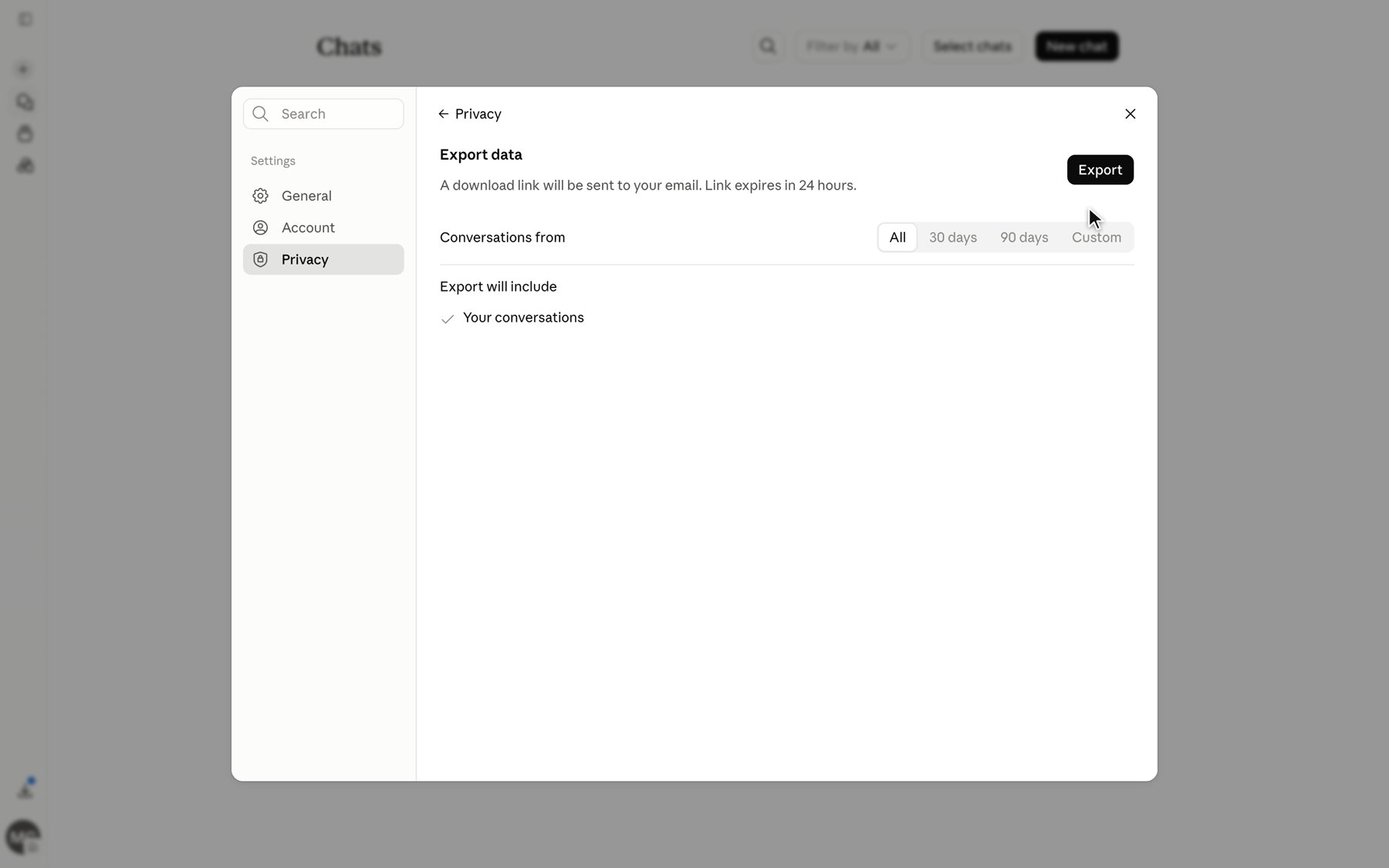 claude.ai emails you a download link when the export is ready. The link expires after 24 hours.
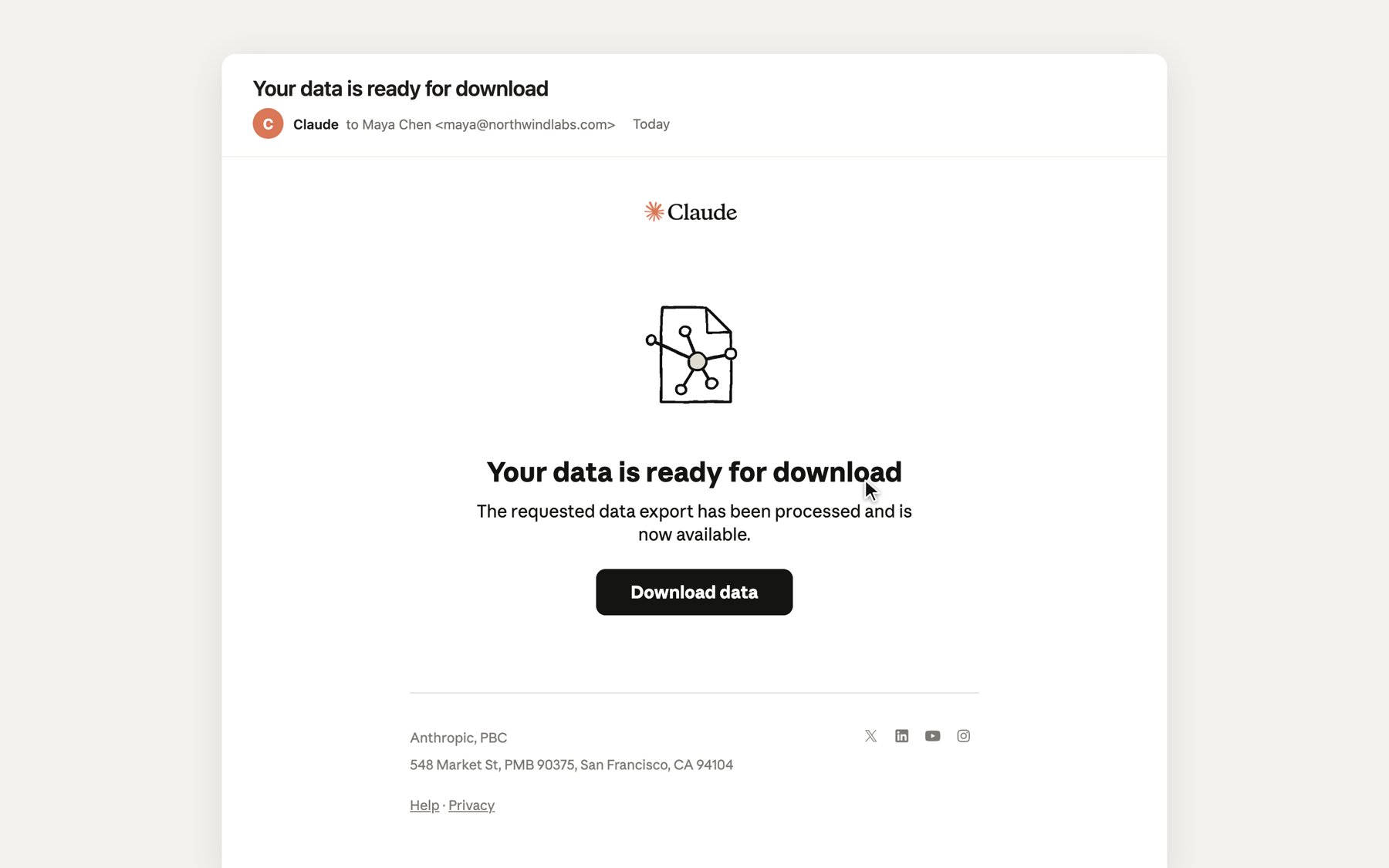 Download the `.zip`, then in the import wizard click **Choose file…** and select it.
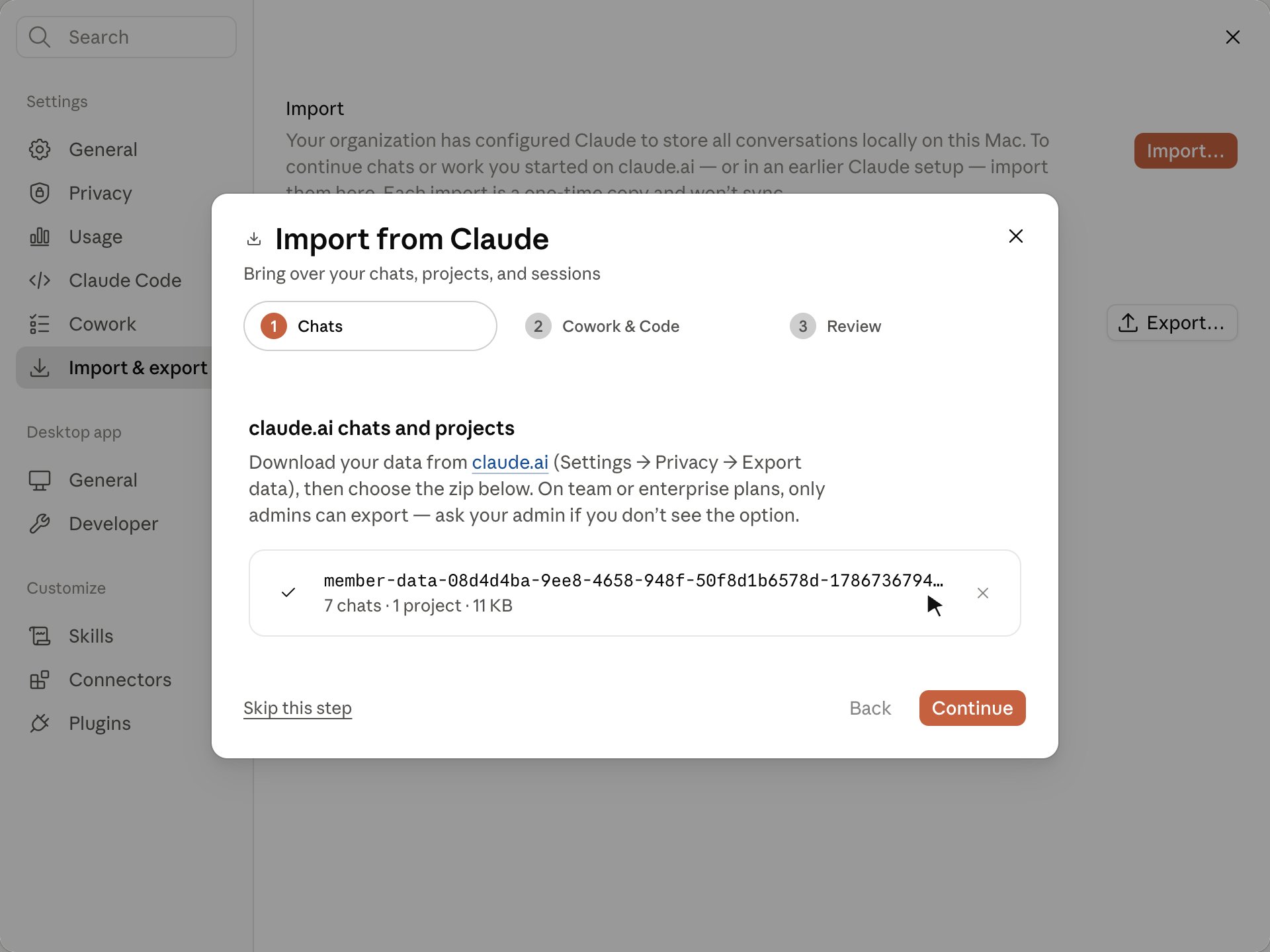 Click **Continue**, or **Skip this step** if you only want to bring in local sessions.
## Step 2: local Cowork and Code sessions
The wizard scans this machine for Cowork and Claude Code sessions from an earlier Claude Desktop install and lists what it finds. Choose how far back to include, and add any other folder that holds sessions (for example, a backup or a folder copied from another machine).
Click **Continue**, or **Skip this step** if you only want to bring in local sessions.
## Step 2: local Cowork and Code sessions
The wizard scans this machine for Cowork and Claude Code sessions from an earlier Claude Desktop install and lists what it finds. Choose how far back to include, and add any other folder that holds sessions (for example, a backup or a folder copied from another machine).
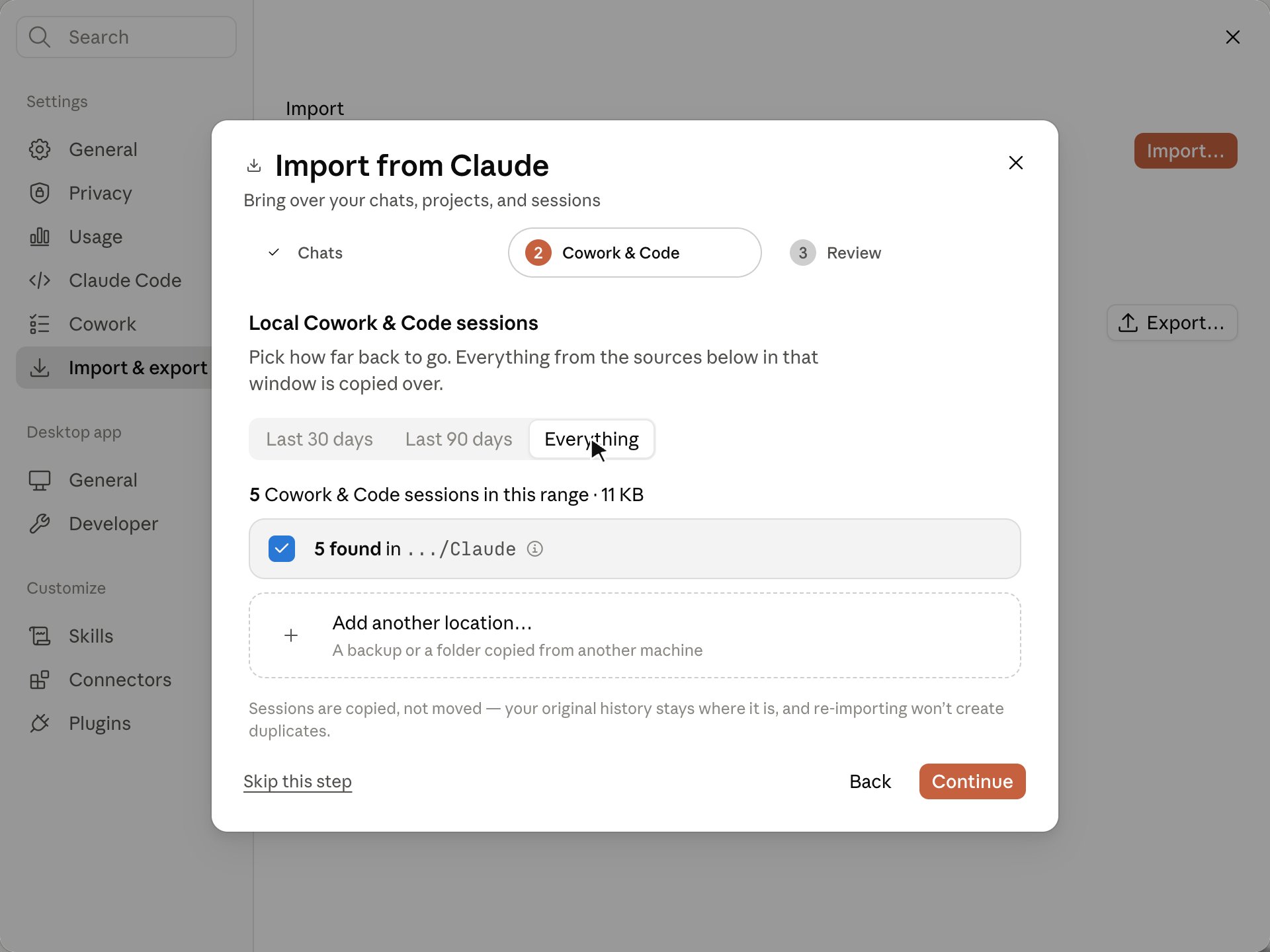 Sessions are copied, not moved. Your original history stays where it is.
## Step 3: review and import
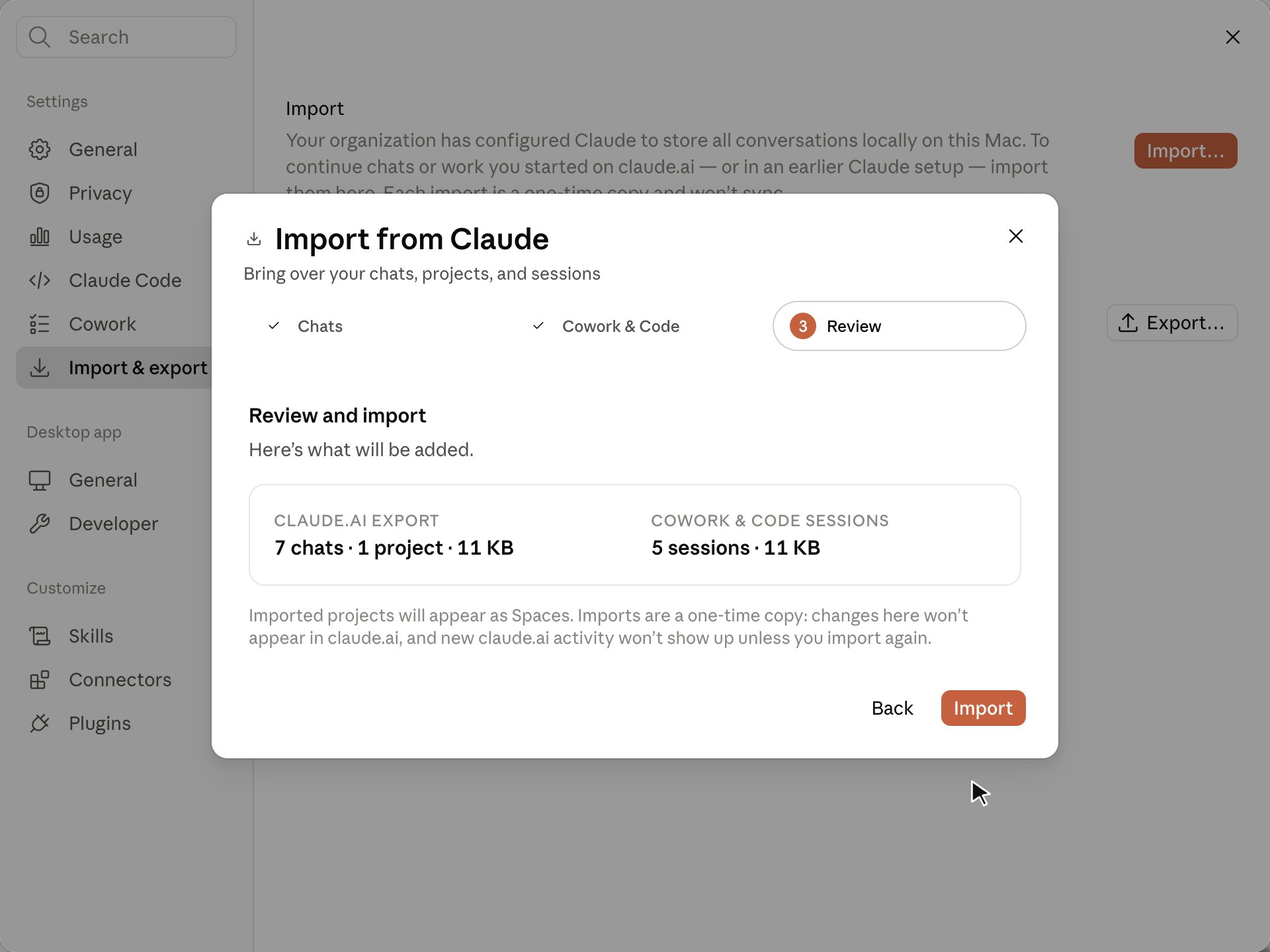
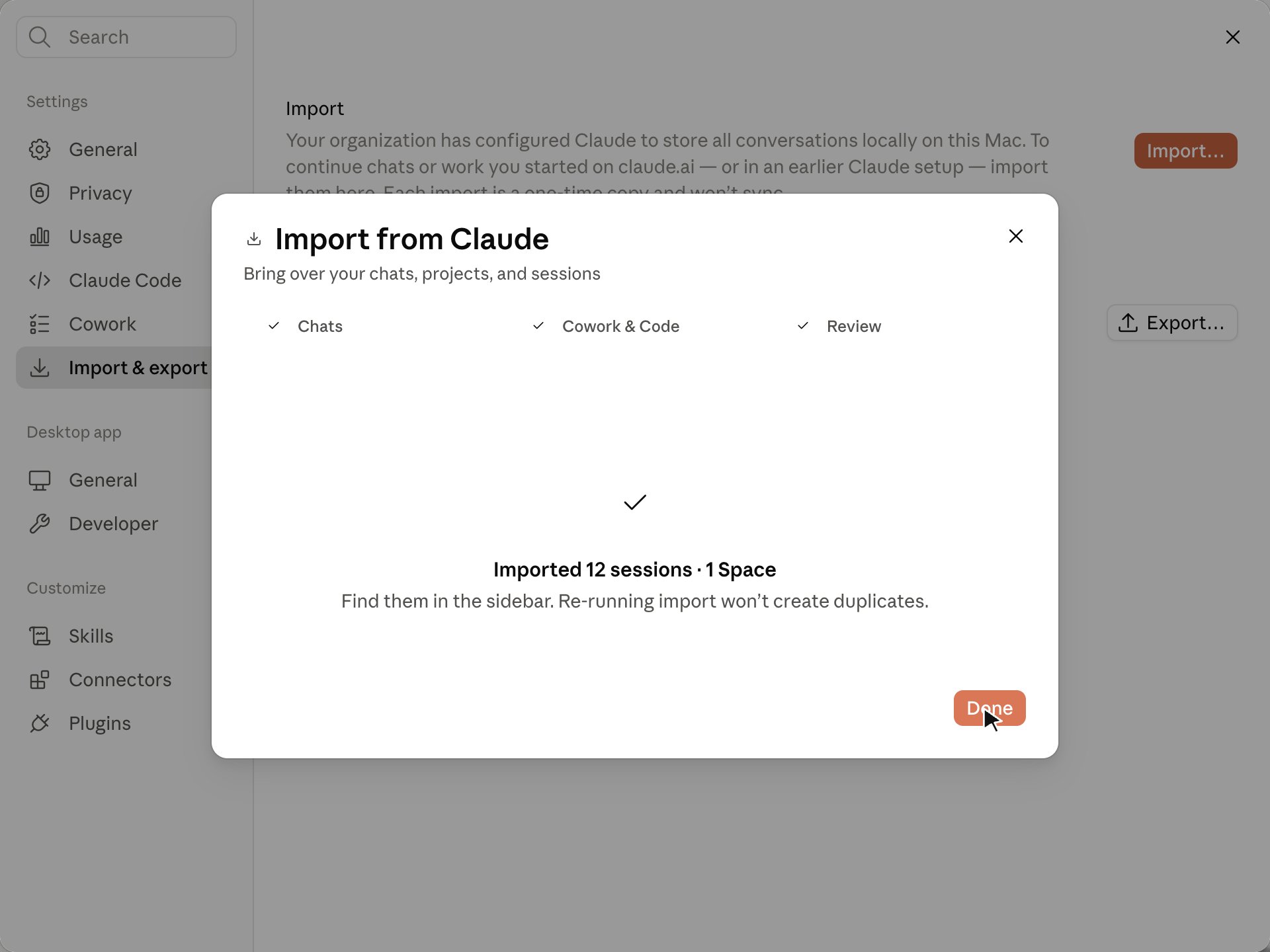
The **Review** step summarizes what will be added. Click **Import** to copy everything into your local session store.
Sessions are copied, not moved. Your original history stays where it is.
## Step 3: review and import
The **Review** step summarizes what will be added. Click **Import** to copy everything into your local session store.
 ## Continue an imported conversation
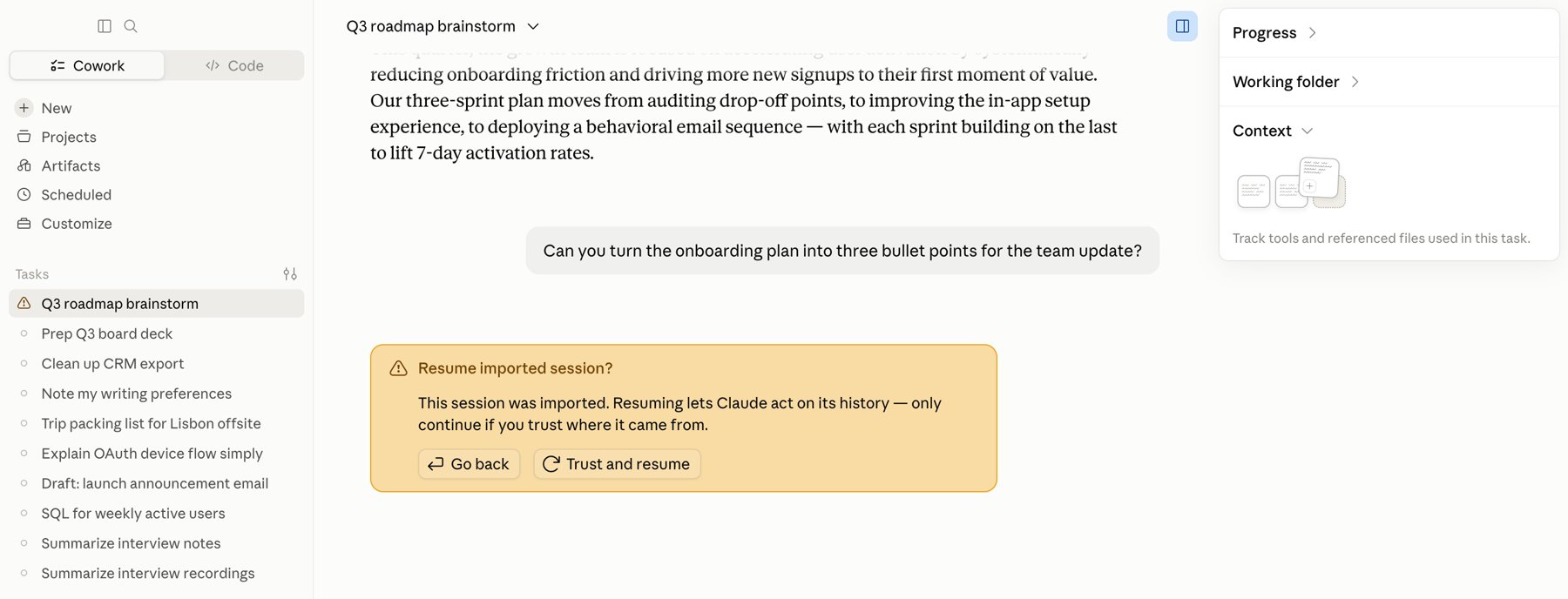
Open any imported conversation from the sidebar and keep chatting. The first time you send a message in an imported session, Claude Desktop shows a **Resume imported session?** prompt. Click **Trust and resume** to continue; the reply comes from your configured inference provider, not from claude.ai.
## Continue an imported conversation
Open any imported conversation from the sidebar and keep chatting. The first time you send a message in an imported session, Claude Desktop shows a **Resume imported session?** prompt. Click **Trust and resume** to continue; the reply comes from your configured inference provider, not from claude.ai.
 ## What is and isn't included
* **Your data only.** An export contains your own conversations, projects, and memory. Other workspace members' content is not included.
* **Attachment bytes are not fetched over sign-in.** When you use **Sign in to claude.ai**, the export contains chats and projects only. To include the files you uploaded to conversations, use the **Choose a downloaded file** path instead.
* **One-time copy.** Imported history does not stay in sync with claude.ai. Run the import again to pick up newer conversations; existing imports are matched and skipped, so you won't get duplicates.
* **Download links expire.** The email link from claude.ai is valid for 24 hours. Request a new export if it lapses.
## What is and isn't included
* **Your data only.** An export contains your own conversations, projects, and memory. Other workspace members' content is not included.
* **Attachment bytes are not fetched over sign-in.** When you use **Sign in to claude.ai**, the export contains chats and projects only. To include the files you uploaded to conversations, use the **Choose a downloaded file** path instead.
* **One-time copy.** Imported history does not stay in sync with claude.ai. Run the import again to pick up newer conversations; existing imports are matched and skipped, so you won't get duplicates.
* **Download links expire.** The email link from claude.ai is valid for 24 hours. Request a new export if it lapses.