> ## Documentation Index
> Fetch the complete documentation index at: https://claude.com/docs/llms.txt
> Use this file to discover all available pages before exploring further.
# Use Claude for M365 with third-party platforms
> Deploy the Office add-ins through Amazon Bedrock, Google Cloud Vertex AI, Azure AI Foundry, or an LLM gateway, without individual Claude accounts.
Organizations using Amazon Bedrock, Google Cloud Vertex AI, Azure AI
Foundry, or an LLM gateway can deploy Claude's Office add-ins without
requiring individual Claude accounts. The add-in connects through your
organization's infrastructure, keeping prompts and responses within your
trust boundary.
## Connection paths
Four connection paths are available. Your IT admin selects one during
deployment. End users see the same interface regardless.
| Path | How it works |
| ---------------- | ------------------------------------------------------------------------------------------------------------------------------------------ |
| LLM gateway | Requests route through your gateway (LiteLLM, Portkey, Kong, and others) to your chosen provider. Matches the pattern used by Claude Code. |
| Bedrock direct | The add-in authenticates via Microsoft Entra ID and calls Amazon Bedrock directly without intermediaries. |
| Vertex AI direct | The add-in authenticates through Google OAuth and calls Vertex AI directly. |
| Foundry direct | The add-in authenticates directly to your Azure AI Foundry resource using its API key. |
## Requirements by connection path
All paths need:
* Claude for Excel, PowerPoint, Word, or Outlook installed from
Microsoft AppSource or via admin deployment.
* Microsoft 365 with Entra ID for admin consent and token issuance.
* For Outlook: Microsoft Graph admin consent for `Mail.ReadWrite`,
`Calendars.Read`, `User.Read`, and `offline_access`, granted via
Anthropic's app or your own Entra app registration.
| Path | Additional requirements |
| ---------------- | ------------------------------------------------------------------------------------------------------------------------------------------------------------------------------------------------------------------------------------------------------- |
| LLM gateway | Gateway URL and API token from your IT team. |
| Bedrock direct | AWS account with Claude model access enabled in target region. IAM OIDC identity provider and role configured to trust Microsoft Entra ID tokens. |
| Vertex AI direct | Google Cloud project with Vertex AI API enabled and Claude model access. Google OAuth client configured with the add-in's redirect URI. |
| Foundry direct | Azure AI Foundry resource with at least one Claude model deployed. Deployment names must use default model IDs (for example, `claude-opus-4-6`), not custom names. Resource API key from Azure Portal, your Foundry resource, Keys and Endpoint, KEY 1. |
Your organization's IT team manages these resources. Anthropic cannot
provide or reset credentials.
## Network allowlist
The add-in requires access to specific domains. The required domains
differ depending on whether your organization uses the Anthropic API
directly (1P) or a third-party platform (3P).
In all configurations, prompts and responses travel only to your chosen
inference provider. Domains pointing to Anthropic (such as
`pivot.claude.ai`) serve the add-in's interface, feature configuration,
and operational telemetry, not prompt or response content.
### Anthropic API (1P)
Use this table if your organization signs in with Claude accounts and
inference goes to `api.anthropic.com`.
| Domain | Required when | Purpose |
| ------------------------------ | ------------------------- | ------------------------------------------------------------------------------------------ |
| `pivot.claude.ai` | Always | Add-in host serving task pane UI, analytics, icon search, skill downloads, and telemetry. |
| `claude.ai` | Always | Anthropic OAuth sign-in and feature-flag evaluation. |
| `api.anthropic.com` | Always | Claude inference API, file uploads, code-execution containers, and MCP connector registry. |
| `appsforoffice.microsoft.com` | Always | Microsoft Office.js runtime script (required by all Office add-ins). |
| `login.microsoftonline.com` | If using Outlook | Microsoft Entra ID sign-in via Nested App Auth for the Graph token. |
| `o1158394.ingest.us.sentry.io` | Optional | Crash and error reporting; blocking degrades diagnostics only. |
| `mcp-proxy.anthropic.com` | If using MCP connectors | Proxy for MCP connector tool calls. |
| `bridge.claudeusercontent.com` | If using work across apps | WebSocket bridge for the work-across-apps feature. |
| `graph.microsoft.com` | If using Outlook | Microsoft Graph mailbox and calendar API. |
### Third-party platforms (3P)
Use this table if your organization signs in with Microsoft Entra ID
and inference goes to your LLM gateway, Bedrock, Vertex AI, or Azure
AI Foundry.
| Domain | Required when | Purpose |
| ---------------------------------------- | ------------------------- | ------------------------------------------------------------------------------------- |
| `pivot.claude.ai` | Always | Add-in host serving task pane UI, analytics, and telemetry. |
| `claude.ai/api/` | Always | Feature-flag evaluation without sign-in. |
| `appsforoffice.microsoft.com` | Always | Microsoft Office.js runtime script. |
| `login.microsoftonline.com` | Always | Microsoft Entra ID sign-in via Nested App Auth; reads admin config and issues tokens. |
| `o1158394.ingest.us.sentry.io` | Optional | Crash and error reporting; blocking degrades diagnostics only. |
| Your LLM gateway URL | If using LLM gateway | Organization's LLM gateway for inference. |
| `sts.amazonaws.com` | If using Bedrock direct | AWS STS for exchanging Entra ID token for temporary Bedrock credentials. |
| `bedrock-runtime..amazonaws.com` | If using Bedrock direct | Bedrock inference endpoint; replace `` with your configured AWS region. |
| `accounts.google.com` | If using Vertex AI direct | Google OAuth consent screen. |
| `oauth2.googleapis.com` | If using Vertex AI direct | Google OAuth token exchange and refresh. |
| `aiplatform.googleapis.com` | If using Vertex AI direct | Vertex AI global inference endpoint. |
| `-aiplatform.googleapis.com` | If using Vertex AI direct | Vertex AI regional inference endpoint; replace `` with your GCP region. |
| `.services.ai.azure.com` | If using Foundry direct | Azure AI Foundry inference endpoint; replace `` with your resource name. |
| `graph.microsoft.com` | If using Outlook | Microsoft Graph mailbox and calendar API. |
## Deploy the add-in for your organization
Use the `claude-for-msft-365-install` plugin to configure and deploy the add-in
across your organization. The plugin provisions cloud resources (for
Bedrock or Vertex AI direct), generates the add-in manifest, and obtains
admin consent in a single guided flow.
### Run the setup wizard
[Install the plugin](https://github.com/anthropics/financial-services/tree/main/claude-for-msft-365-install)
from the financial services marketplace, then run the setup wizard
from inside Claude.
Add the marketplace in your shell:
```bash theme={null}
claude plugin marketplace add anthropics/financial-services
```
Install the plugin:
```bash theme={null}
claude plugin install claude-for-msft-365-install@claude-for-financial-services
```
Keep the plugin current before each deployment. List installed plugins
with `claude plugin list` and compare your version against the
[latest published version](https://github.com/anthropics/financial-services/blob/main/claude-for-msft-365-install/.claude-plugin/plugin.json).
If yours is older, update it:
```bash theme={null}
claude plugin update claude-for-msft-365-install@claude-for-financial-services
```
Then, from inside Claude, run the setup wizard:
```
/claude-for-msft-365-install:setup
```
The wizard walks you through the path you chose:
* **LLM gateway**: collects the gateway URL and token, determines the
API format, generates the manifest, handles Azure admin consent.
* **Bedrock direct**: creates the IAM OIDC identity provider and role,
generates the manifest, handles Azure admin consent.
* **Vertex AI direct**: walks through Google OAuth client creation,
generates the manifest, handles Azure admin consent.
* **Foundry direct**: captures `azure_resource_name` and
`azure_api_key`, then generates the manifest.
When complete, the add-in is ready for tenant-wide deployment.
Bedrock and Vertex AI paths require Node.js for manifest generation and
validation. The wizard checks for it and prompts installation if
missing.
### Available commands
The plugin exposes the following slash commands once installed.
| Command | Function |
| ------------------------------------------------ | --------------------------------------------------------------------------------------------------------------------------------------------------------------------------------------------- |
| `/claude-for-msft-365-install:setup` | Interactive wizard: provisions cloud resources, handles admin consent, writes manifest. |
| `/claude-for-msft-365-install:manifest` | Generates a customized add-in manifest XML. |
| `/claude-for-msft-365-install:consent` | Generates the Azure admin-consent URL for the add-in's app registration. |
| `/claude-for-msft-365-install:update-user-attrs` | Writes per-user configuration via Microsoft Graph extension attributes. |
| `/claude-for-msft-365-install:bootstrap` | Builds a bootstrap endpoint for per-user MCP servers, skills, and dynamic config. |
| `/claude-for-msft-365-install:debug` | Diagnoses deployment issues: stale config after a manifest update, connection failures, an add-in that does not appear, sign-in or admin-consent loops, and reading the add-in's error paste. |
Run `/claude-for-msft-365-install:debug` whenever a connection or sign-in
does not behave as expected. It triages from the symptom, reads the "Copy
error details" paste from the connection-failed screen, and explains how
each connection path works, so you can resolve most third-party platform
questions without escalating.
### What the wizard provisions
The setup wizard creates resources in your cloud account based on the
connection path you choose.
| Path | Provisioned resources |
| ---------------- | ------------------------------------------------------------------------------------------------------------------------------------------------------------------------------------------------------------------ |
| LLM gateway | None. Collects your gateway URL and token, then generates the manifest. |
| Bedrock direct | IAM OIDC identity provider trusting Microsoft Entra ID tokens, role with `bedrock:InvokeModel` and `bedrock:InvokeModelWithResponseStream` permissions, trust policy scoped to the Claude add-in's application ID. |
| Vertex AI direct | Walks through creating a Google OAuth client in the GCP Console (not automatable via CLI), enables the Vertex AI API, captures client ID and secret for the manifest. |
| Foundry direct | None. Collects resource name and API key for the manifest. |
### Per-user configuration
If values vary per user, such as different gateway tokens or AWS roles
for different teams, run `/claude-for-msft-365-install:update-user-attrs`
with per-user keys after initial setup to write configuration via
Microsoft Graph extension attributes.
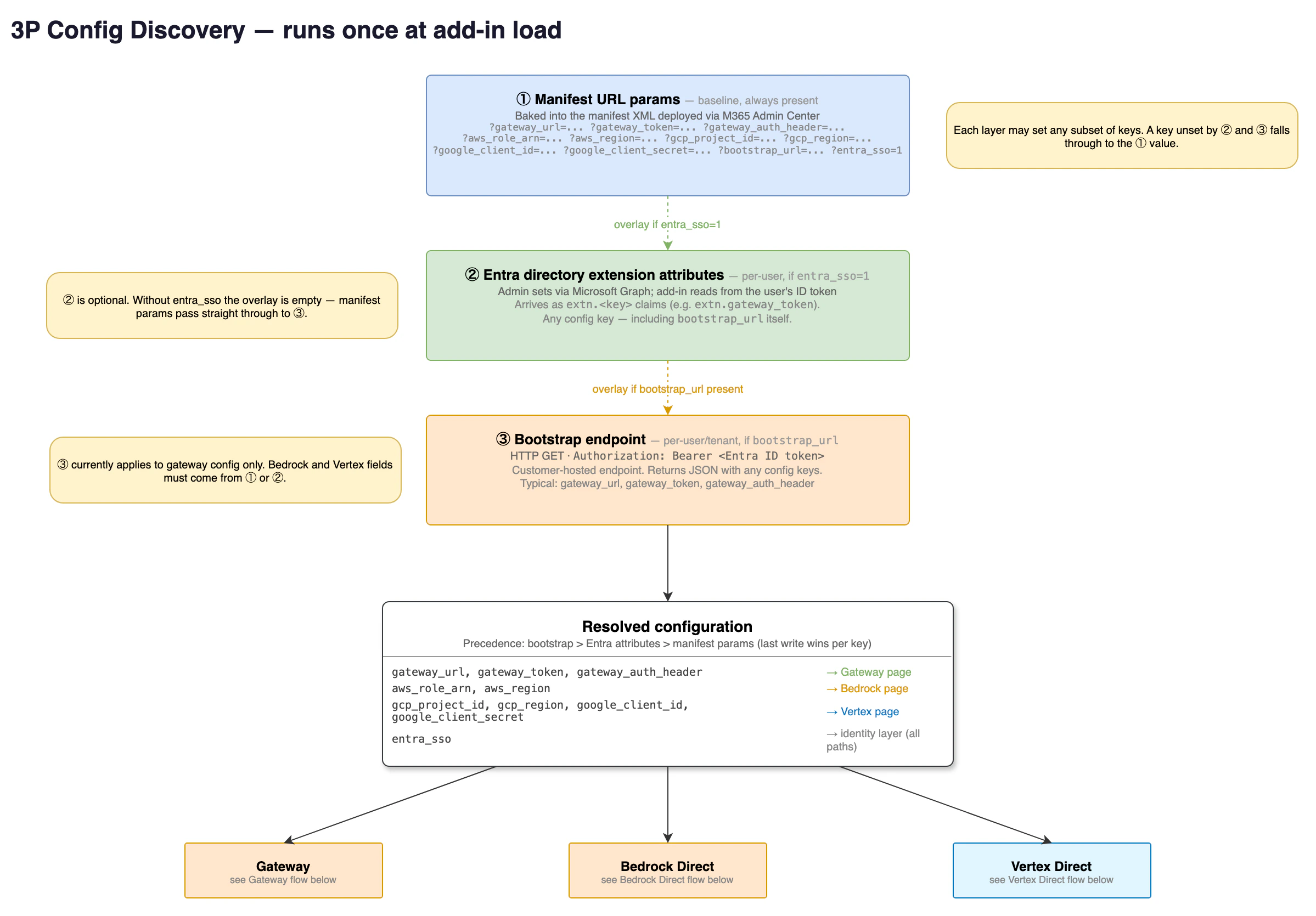
At load, the add-in resolves each configuration key from three sources in
order of precedence: a bootstrap endpoint, Microsoft Entra ID extension
attributes, then manifest parameters. Per-user attributes override the
manifest defaults, so one deployed manifest can serve teams with
different settings.
 ### Deploy to Outlook
Outlook requires a separate manifest file from Excel, PowerPoint, and
Word. Microsoft uses a different add-in schema for mail applications, so
the two cannot be combined into one file. When you tell the setup wizard
you are deploying to Outlook, it generates a second file named
`manifest-outlook.xml` alongside `manifest.xml`. Upload each file as its
own custom app in the steps below.
Claude for Outlook reads mail and calendar data through Microsoft Graph,
which requires a one-time tenant-wide grant from a Global Administrator
regardless of which platform serves the model. Complete the
[Microsoft Graph admin consent](/office-agents/outlook#grant-microsoft-graph-consent)
step before deployment so users are not prompted individually. The Graph
token stays in the user's Outlook client and is never sent to your
gateway or to Anthropic.
If your organization's policy does not permit consenting to a third-party
multi-tenant application, register your own single-tenant Entra
application with the same delegated Graph permissions and provide its
client ID to the setup wizard as `graph_client_id`. See
[Use your own Entra app instead](/office-agents/outlook#use-your-own-entra-app-instead).
Amazon Bedrock is not currently supported for Claude for Outlook. Bedrock
remains supported for Claude for Excel, PowerPoint, and Word. Claude for
Outlook on third-party platforms currently supports Claude Opus 4.7 only.
### Deploy to Microsoft 365
After the wizard generates your manifest files:
Open the Microsoft 365 Admin Center and go to Settings, Integrated
apps, Upload custom apps. Select "Office Add-in" as the app type,
then upload the `manifest.xml` file. If you are deploying Outlook,
repeat this step with `manifest-outlook.xml` as a second custom app.
If all users share the same configuration, select "Entire
organization". If you wrote per-user attributes, assign to "Specific
users/groups" matching exactly who was configured. Others would open
the add-in with no configuration.
Accept permissions and finish deployment.
Propagation to users takes up to 24 hours, usually faster. The add-in
appears under Tools, Add-ins on Mac or Home, Add-ins on Windows in
Excel, PowerPoint, and Word once deployed. In Outlook it appears in the
message ribbon when an email is open.
Custom manifest deployment is where most issues surface: the add-in does
not appear, users see old configuration after an update, or sign-in
fails. Run `/claude-for-msft-365-install:debug` to diagnose these, or to
sideload and validate a manifest locally before a tenant-wide upload.
Start with a pilot group to confirm functionality, then widen
assignment. You can change assignment later without redeploying.
## Connection instructions for end users
### LLM gateway
Open Excel, PowerPoint, Word, or Outlook and launch the Claude add-in.
On the sign-in screen, select "Cloud provider or gateway". Then
choose your connection: Gateway, Vertex, Bedrock, or Azure. Contact
your IT team for connection details if you're unsure which one to
select.
For Gateway, enter the gateway URL (HTTPS base URL of your LLM
proxy, for example
`https://llm-gateway.example.com`) and the API token your IT team
provided. By default the add-in sends the token in the `x-api-key`
header with every request. If your admin set
`gateway_auth_header: authorization` in the manifest, the add-in
sends `Authorization: Bearer ` instead.
The add-in checks the connection by sending a test request to the
gateway. On success, you see the main add-in experience.
Your credentials are stored locally in your browser's localStorage
within the add-in's sandboxed iframe and are not synced to Anthropic's
servers. Because the Office add-in runs in a sandboxed iframe within
Microsoft applications, it cannot use your OS keychain the way Claude
Code does. Only enter gateway-issued tokens, not raw cloud-provider
credentials.
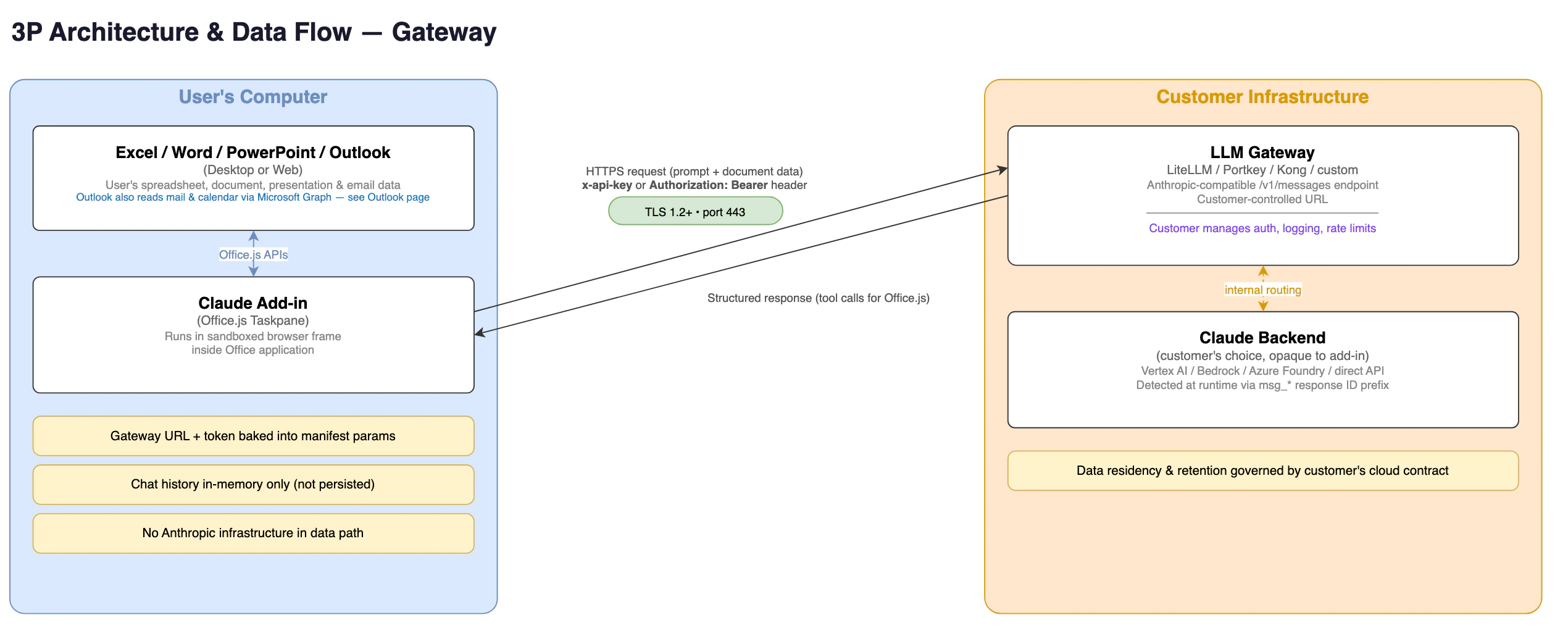
In this path, every request travels from the add-in to your gateway,
which forwards it to the provider you configured.
### Deploy to Outlook
Outlook requires a separate manifest file from Excel, PowerPoint, and
Word. Microsoft uses a different add-in schema for mail applications, so
the two cannot be combined into one file. When you tell the setup wizard
you are deploying to Outlook, it generates a second file named
`manifest-outlook.xml` alongside `manifest.xml`. Upload each file as its
own custom app in the steps below.
Claude for Outlook reads mail and calendar data through Microsoft Graph,
which requires a one-time tenant-wide grant from a Global Administrator
regardless of which platform serves the model. Complete the
[Microsoft Graph admin consent](/office-agents/outlook#grant-microsoft-graph-consent)
step before deployment so users are not prompted individually. The Graph
token stays in the user's Outlook client and is never sent to your
gateway or to Anthropic.
If your organization's policy does not permit consenting to a third-party
multi-tenant application, register your own single-tenant Entra
application with the same delegated Graph permissions and provide its
client ID to the setup wizard as `graph_client_id`. See
[Use your own Entra app instead](/office-agents/outlook#use-your-own-entra-app-instead).
Amazon Bedrock is not currently supported for Claude for Outlook. Bedrock
remains supported for Claude for Excel, PowerPoint, and Word. Claude for
Outlook on third-party platforms currently supports Claude Opus 4.7 only.
### Deploy to Microsoft 365
After the wizard generates your manifest files:
Open the Microsoft 365 Admin Center and go to Settings, Integrated
apps, Upload custom apps. Select "Office Add-in" as the app type,
then upload the `manifest.xml` file. If you are deploying Outlook,
repeat this step with `manifest-outlook.xml` as a second custom app.
If all users share the same configuration, select "Entire
organization". If you wrote per-user attributes, assign to "Specific
users/groups" matching exactly who was configured. Others would open
the add-in with no configuration.
Accept permissions and finish deployment.
Propagation to users takes up to 24 hours, usually faster. The add-in
appears under Tools, Add-ins on Mac or Home, Add-ins on Windows in
Excel, PowerPoint, and Word once deployed. In Outlook it appears in the
message ribbon when an email is open.
Custom manifest deployment is where most issues surface: the add-in does
not appear, users see old configuration after an update, or sign-in
fails. Run `/claude-for-msft-365-install:debug` to diagnose these, or to
sideload and validate a manifest locally before a tenant-wide upload.
Start with a pilot group to confirm functionality, then widen
assignment. You can change assignment later without redeploying.
## Connection instructions for end users
### LLM gateway
Open Excel, PowerPoint, Word, or Outlook and launch the Claude add-in.
On the sign-in screen, select "Cloud provider or gateway". Then
choose your connection: Gateway, Vertex, Bedrock, or Azure. Contact
your IT team for connection details if you're unsure which one to
select.
For Gateway, enter the gateway URL (HTTPS base URL of your LLM
proxy, for example
`https://llm-gateway.example.com`) and the API token your IT team
provided. By default the add-in sends the token in the `x-api-key`
header with every request. If your admin set
`gateway_auth_header: authorization` in the manifest, the add-in
sends `Authorization: Bearer ` instead.
The add-in checks the connection by sending a test request to the
gateway. On success, you see the main add-in experience.
Your credentials are stored locally in your browser's localStorage
within the add-in's sandboxed iframe and are not synced to Anthropic's
servers. Because the Office add-in runs in a sandboxed iframe within
Microsoft applications, it cannot use your OS keychain the way Claude
Code does. Only enter gateway-issued tokens, not raw cloud-provider
credentials.
In this path, every request travels from the add-in to your gateway,
which forwards it to the provider you configured.
 ### Bedrock, Vertex AI, or Foundry direct
Open Excel, PowerPoint, Word, or Outlook and launch the Claude add-in.
For Bedrock (Excel, PowerPoint, and Word only), sign in with your
Microsoft work account. The add-in uses your Entra ID token to
assume the AWS role your admin
configured, so no separate AWS credentials are needed.
For Vertex AI, sign in with the Google account your admin authorized
via the Google OAuth client created during setup.
For Foundry, the add-in connects automatically if your admin
pre-filled the Azure resource name and API key. Otherwise, enter the
values your IT team provided and select Connect.
The add-in reads the configuration your admin provisioned and
connects to Bedrock, Vertex AI, or Foundry directly.
If you see an error at sign-in, confirm with your IT team that your
account is in the group assigned to the add-in.
In a direct connection, the add-in authenticates with your identity
provider and calls the model provider without an intermediary gateway.
The flow differs by provider.
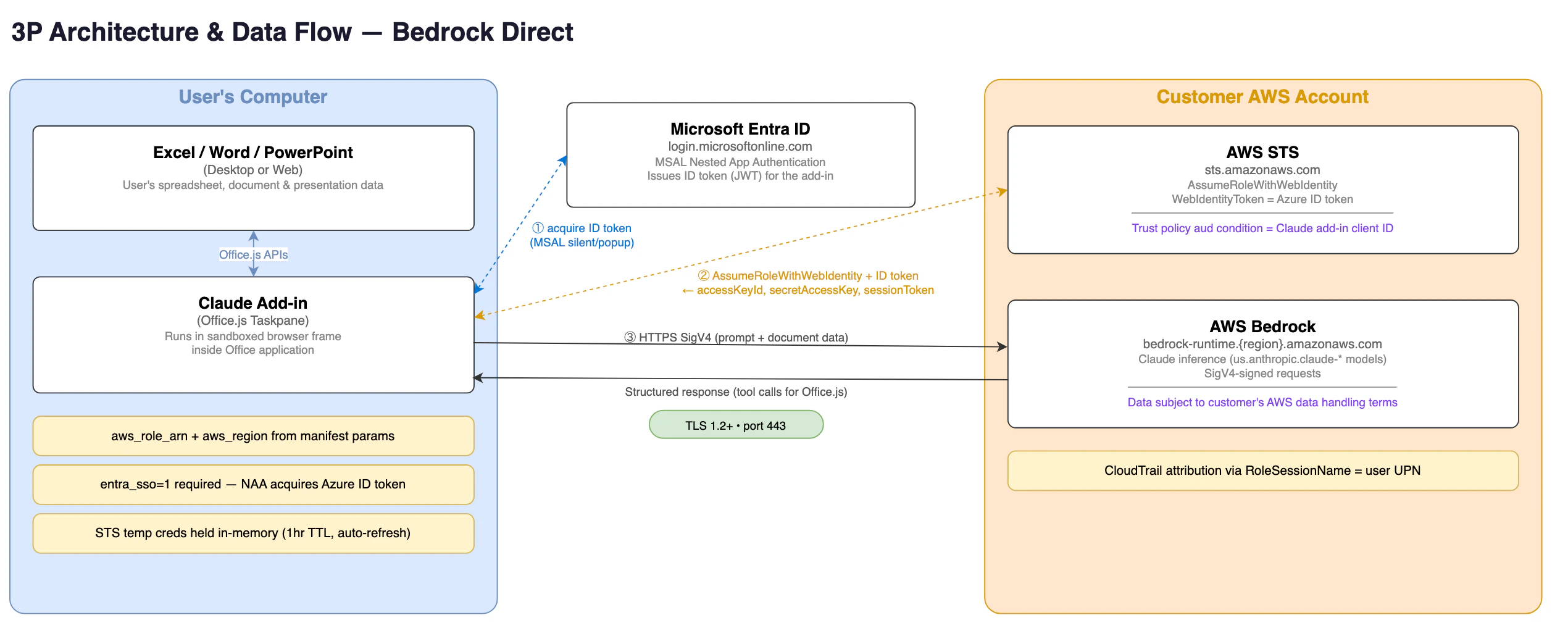
Bedrock direct uses your Microsoft Entra ID token to assume an AWS role,
then calls Amazon Bedrock.
### Bedrock, Vertex AI, or Foundry direct
Open Excel, PowerPoint, Word, or Outlook and launch the Claude add-in.
For Bedrock (Excel, PowerPoint, and Word only), sign in with your
Microsoft work account. The add-in uses your Entra ID token to
assume the AWS role your admin
configured, so no separate AWS credentials are needed.
For Vertex AI, sign in with the Google account your admin authorized
via the Google OAuth client created during setup.
For Foundry, the add-in connects automatically if your admin
pre-filled the Azure resource name and API key. Otherwise, enter the
values your IT team provided and select Connect.
The add-in reads the configuration your admin provisioned and
connects to Bedrock, Vertex AI, or Foundry directly.
If you see an error at sign-in, confirm with your IT team that your
account is in the group assigned to the add-in.
In a direct connection, the add-in authenticates with your identity
provider and calls the model provider without an intermediary gateway.
The flow differs by provider.
Bedrock direct uses your Microsoft Entra ID token to assume an AWS role,
then calls Amazon Bedrock.
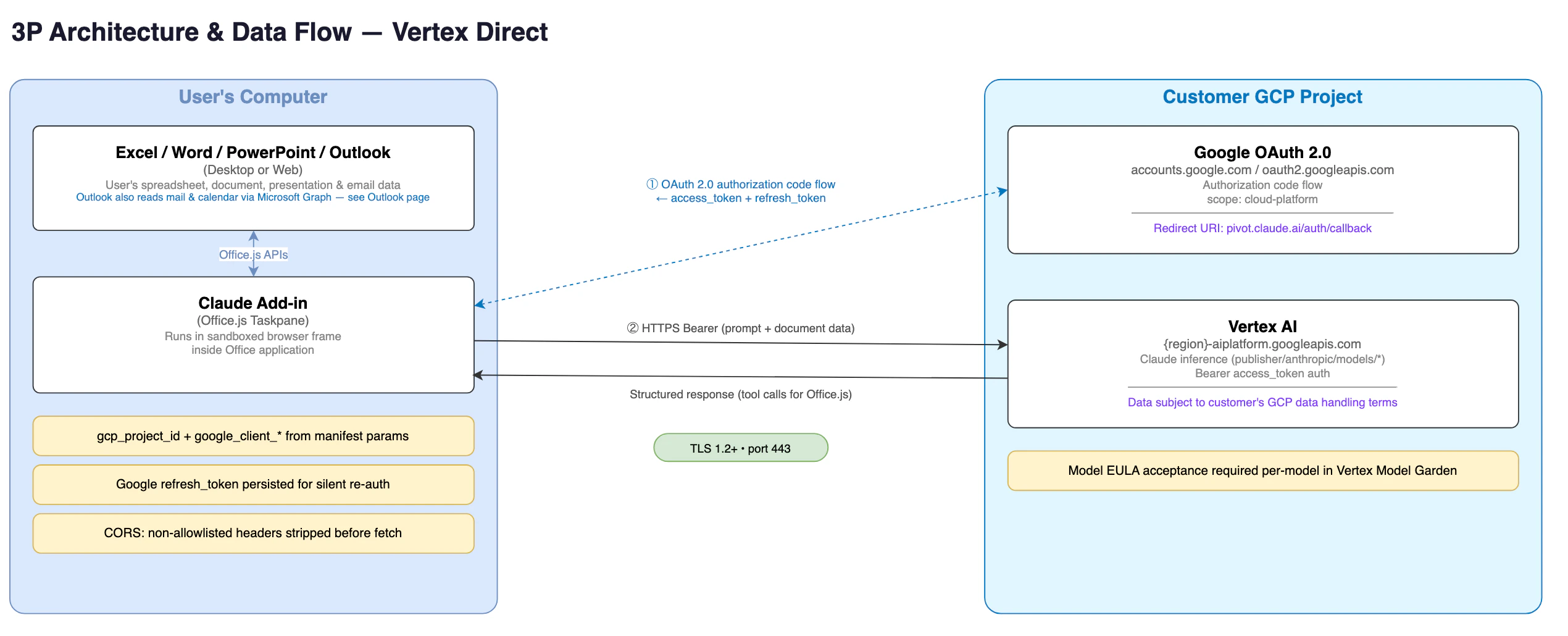
 Vertex AI direct authenticates through Google OAuth, then calls Vertex
AI.
Vertex AI direct authenticates through Google OAuth, then calls Vertex
AI.
 ### Change or update your gateway connection
If your gateway API token expires or your IT team provides a new URL,
go to Settings in the add-in sidebar, enter the new values, and select
"Test Connection". This Settings section appears only for gateway
connections. For Bedrock, Vertex AI, or Foundry direct, select Logout
from the account menu and sign in again with your new credentials.
## Gateway requirements for IT teams
The Office add-ins support the same three API formats as Claude Code.
Set `gateway_api_format` in your add-in manifest to specify which format
your gateway uses.
### CORS requirements
The add-in's taskpane loads from `https://pivot.claude.ai`. Every
request to your gateway is cross-origin, and the browser silently
discards responses lacking CORS headers.
Your gateway must return `Access-Control-Allow-Origin: https://pivot.claude.ai`
(or `*`) on every response: GET, POST, OPTIONS, and all error responses.
Setting it only on the OPTIONS preflight is insufficient. For the
preflight, return `Access-Control-Allow-Headers` listing the request
headers the add-in sends, such as
`x-api-key, authorization, content-type, anthropic-version`. The `*`
wildcard does not cover the `Authorization` header per the Fetch
specification, so list it explicitly if you set
`gateway_auth_header: authorization`.
### Required endpoints
The endpoints your gateway must expose depend on which API format it
speaks.
**`gateway_api_format: anthropic` (default):**
| Endpoint | Description |
| ------------------- | ----------------------------------------------------------------------------- |
| `POST /v1/messages` | Send messages to Claude; supports both streaming and non-streaming responses. |
| `GET /v1/models` | List available models. |
**`gateway_api_format: bedrock`:**
| Endpoint | Description |
| ---------------------------------------------------- | -------------------------------------------- |
| `POST /model/{model-id}/invoke` | Send message and receive complete response. |
| `POST /model/{model-id}/invoke-with-response-stream` | Send message and receive streaming response. |
Native Bedrock `InvokeModel` pass-through. `gateway_url` must point at
the pass-through prefix, for example `https://litellm.example.com/bedrock`.
**`gateway_api_format: vertex`:**
| Endpoint | Description |
| ----------------------------------------------------------------------------------------------------- | -------------------------------------------- |
| `POST /projects/{project}/locations/{region}/publishers/anthropic/models/{model-id}:rawPredict` | Send message and receive complete response. |
| `POST /projects/{project}/locations/{region}/publishers/anthropic/models/{model-id}:streamRawPredict` | Send message and receive streaming response. |
Native Vertex pass-through. `gateway_url` must include the API-version
segment, for example `https://litellm.example.com/vertex_ai/v1`. Also
requires `gcp_project_id` and `gcp_region` so the add-in can build the
path.
### Required header
For `anthropic` format, the gateway must forward the `anthropic-version`
request header to the upstream provider.
For `bedrock` and `vertex` formats, the SDK places `anthropic_version`
in the request body instead. The gateway must preserve it there.
Failure to forward the header or preserve the body field may result in
reduced functionality or prevent the add-in from working.
### Authorization header
The add-in can send your gateway's authorization token in either the
`x-api-key` header or the `Authorization` header. The default is
`x-api-key`. To switch to `Authorization: Bearer`, set
`gateway_auth_header: authorization` in the manifest.
### Model discovery
For gateways using `gateway_api_format: anthropic`, the add-in attempts
to discover available Claude models via `GET /v1/models` on login. If
your gateway doesn't expose a model list at that path, the add-in falls
back to prompting the user for a model ID manually.
For `gateway_api_format: bedrock` and `gateway_api_format: vertex`, the
add-in uses a built-in model list and probes the gateway to verify each
model is reachable, rather than calling `GET /v1/models`.
### Differences from Claude Code gateway setup
If your team already runs Claude Code through a gateway, the table
below summarizes how the Office add-in setup differs.
| Aspect | Claude Code | Office add-ins |
| ------------------ | ---------------------------------------------------- | ------------------------------------------------------------------------------------------------------------- |
| Credential storage | OS keychain or environment variables | Browser localStorage (sandboxed iframe) |
| Auth configuration | Environment variables, settings file, helper scripts | Manual entry in add-in UI (gateway), Entra ID (Bedrock), Google OAuth (Vertex AI), or Azure API key (Foundry) |
| Token refresh | Supports helper scripts for rotation | Manual re-entry in settings (gateway), automatic via Entra ID (Bedrock) or Google OAuth (Vertex AI) |
| Custom model names | Configurable via environment variables | Not configurable in v1 |
## Example gateway configuration with LiteLLM
LiteLLM PyPI versions 1.82.7 and 1.82.8 contained credential-stealing
malware. Do not install those versions. If already installed, remove the
package, rotate all credentials on affected systems, and follow
remediation steps in [BerriAI/litellm#24518](https://github.com/BerriAI/litellm/issues/24518).
LiteLLM is a third-party proxy service. Anthropic does not endorse,
maintain, or audit LiteLLM's security or functionality. This section is
informational and may become outdated. Use at your own discretion.
The example configurations below route Office add-in requests through
LiteLLM to Anthropic, Bedrock, Vertex AI, or Azure.
### Route to Anthropic directly
Use this `config.yaml` to point the gateway at the Anthropic API.
```yaml theme={null}
model_list:
- model_name: claude-opus-4-7
litellm_params:
model: claude-opus-4-7
api_key: os.environ/ANTHROPIC_API_KEY
litellm_settings:
drop_params: true
```
### Route to Amazon Bedrock
Use this `config.yaml` to route requests through Amazon Bedrock.
```yaml theme={null}
model_list:
- model_name: claude-opus-4-7
litellm_params:
model: bedrock/us.anthropic.claude-opus-4-7
aws_region_name: us-east-1
litellm_settings:
drop_params: true
```
### Route to Google Cloud Vertex AI
Use this `config.yaml` to route requests through Vertex AI.
```yaml theme={null}
model_list:
- model_name: claude-opus-4-7
litellm_params:
model: vertex_ai/claude-opus-4-7
vertex_project: your-gcp-project-id
vertex_location: us-east5
litellm_settings:
drop_params: true
```
### Route to Azure
Use this `config.yaml` to route requests through Azure AI Foundry.
```yaml theme={null}
model_list:
- model_name: claude-opus-4-7
litellm_params:
model: azure_ai/claude-opus-4-7
api_base: https://your-resource.services.ai.azure.com/anthropic
api_key: os.environ/AZURE_API_KEY
extra_headers:
x-api-key: os.environ/AZURE_API_KEY
litellm_settings:
drop_params: true
```
For detailed setup instructions, see
[LiteLLM's Anthropic format documentation](https://docs.litellm.ai/).
## What Anthropic collects
Even when inference goes through your own infrastructure, the add-in
communicates with `pivot.claude.ai` to load its interface and with
`claude.ai/api/` to evaluate feature flags. These connections transmit
operational telemetry such as which features are used, performance
timings, and error rates, so Anthropic can maintain and improve the
add-in experience. They do not transmit your prompts or Claude's
responses.
Anthropic collects information in accordance with Amazon Bedrock, Google
Cloud Vertex AI, or Microsoft Azure's terms, consistent with Anthropic's
arrangements with customers. Anthropic does not have access to a
customer's AWS, Google, or Microsoft instance, including prompts or
outputs it contains. Anthropic does not train generative models with
such content or use it for other purposes. Anthropic can access
metadata such as tool use and token counts, and uses such metadata for
analytic and product-improvement purposes.
For details on what your organization's gateway or cloud provider logs,
contact your IT team.
To route a full audit trail, including prompts, tool inputs, tool
outputs, and document references, to your own infrastructure, see
[Configure a custom OpenTelemetry collector for Claude for M365](https://support.claude.com/en/articles/14447276-configure-a-custom-opentelemetry-collector-for-office-agents).
## Why sign-in redirects through pivot.claude.ai
During Google sign-in for Vertex AI, Anthropic sign-in, or Microsoft admin
consent, your identity provider redirects the browser to
`https://pivot.claude.ai/auth/callback`. Security reviewers sometimes ask
whether this means access tokens for your cloud provider or mailbox pass
through Anthropic's servers. They do not. This section explains what the
redirect carries in each flow and why the page cannot obtain a token.
### OAuth authorization-code redirects
Google sign-in for Vertex AI, Anthropic sign-in, and MCP connector
authorization all use the OAuth 2.0 authorization-code grant. When the
identity provider redirects to `pivot.claude.ai/auth/callback`, the URL
contains two query parameters:
* `code`: a one-time authorization code, not an access token
* `state`: a random value the add-in generated before sign-in started
The callback page is a static page served from `pivot.claude.ai`. It reads
those two parameters from the URL, shows a Copy button, and instructs you
to paste the value back into the add-in inside Office. The page has no
server-side logic that stores, forwards, or exchanges the code.
An authorization code on its own cannot be redeemed for an access token.
The token endpoint requires an additional secret that only the add-in
running on your machine holds:
* **Anthropic sign-in and MCP connector authorization**: a Proof Key for
Code Exchange (PKCE) verifier. The add-in generates a random verifier
locally, sends only its SHA-256 hash to the identity provider when
sign-in starts, and keeps the verifier in browser session storage. The
token endpoint rejects any exchange that does not present the original
verifier.
* **Google sign-in for Vertex AI**: the `client_secret` belonging to the
Google OAuth client your organization created during setup. This value
is provisioned into the add-in's configuration on each user's machine
and is sent only to `oauth2.googleapis.com` during token exchange.
Anthropic does not have this value.
The add-in also verifies that the `state` value pasted back matches the
one it generated and stored locally before sign-in. A mismatch is
rejected. This prevents an attacker from tricking a user into completing
a sign-in the attacker initiated.
After the add-in exchanges the code, the resulting access and refresh
tokens are held in the browser's local storage inside the Office add-in
sandbox. The add-in presents the access token only to the inference or
MCP-proxy endpoint for your sign-in path, and presents the refresh token
only to the OAuth token endpoint. Each of these endpoints appears in the
[Network allowlist](#network-allowlist). These tokens never reach
`pivot.claude.ai`.
### Why the redirect cannot target localhost
Office add-ins run inside a sandboxed browser frame hosted by Microsoft
365\. There is no local web server to receive a loopback redirect, and the
browser tab that handles sign-in is isolated from the add-in frame's
storage. The redirect must therefore target a registered HTTPS URL, and
the callback page at `pivot.claude.ai` bridges the two contexts by
displaying the code for you to paste back into the add-in.
### Microsoft admin-consent redirects
The Microsoft Graph consent link in
[Grant Microsoft Graph consent](/office-agents/outlook#grant-microsoft-graph-consent)
uses Microsoft's
[admin-consent endpoint](https://learn.microsoft.com/en-us/entra/identity-platform/v2-admin-consent).
By Microsoft's specification, the redirect back to
`pivot.claude.ai/auth/callback` carries only the consent outcome: an
`admin_consent` boolean and the `tenant` ID. It never carries an access
token or an authorization code. The callback page displays a confirmation
message and nothing else.
The Microsoft Graph access token itself is obtained separately through
[Nested App Authentication](https://learn.microsoft.com/en-us/office/dev/add-ins/develop/enable-nested-app-authentication-in-your-add-in),
where the Office host brokers the token directly into the add-in on the
user's machine. The Microsoft Authentication Library (MSAL) caches it in
the browser's local storage, and the add-in calls `graph.microsoft.com`
directly. The Graph token never reaches `pivot.claude.ai` or any other
Anthropic endpoint.
### Verify this in your own environment
You can confirm every claim above with a network capture on a test
machine:
* The redirect to `pivot.claude.ai/auth/callback` carries `code` and
`state`, or `admin_consent` and `tenant`, in the query string. No
`access_token` parameter appears.
* The `POST` that exchanges the code goes to `oauth2.googleapis.com` for
Vertex AI or to `claude.ai` for Anthropic sign-in, originates from the
add-in frame, and includes the `code_verifier` or `client_secret` that
never appeared in any request to `pivot.claude.ai`.
* Microsoft Graph calls go directly to `graph.microsoft.com` with a
bearer token that was issued by `login.microsoftonline.com` and never
transited an Anthropic domain.
## Differences from signing in with a Claude account
When you sign in with a Claude account, the add-ins connect directly to
Anthropic. When you connect through a third-party platform, the add-ins
send inference requests to your organization's infrastructure instead,
and your IT team controls how that traffic is routed and logged.
Some features that rely on a Claude account are not available through
third-party platforms yet. Support is being added.
| Feature | Claude account | Third-party platform |
| ------------------------------------------------------------ | -------------- | ---------------------------------------------------------------------------------------------------------- |
| Chat with your spreadsheet, deck, document, or email | Yes | Yes |
| Read and edit cells, slides, formulas, and document text | Yes | Yes |
| Read, search, and triage your mailbox and calendar (Outlook) | Yes | Yes, except Bedrock |
| Connectors (S\&P, FactSet, and others) | Yes | Coming soon |
| Working across apps | Yes | No |
| Dictation | Yes | No |
| Skills | Yes | Coming soon |
| File uploads | Yes | No |
| Web search | Yes | Vertex direct, Foundry direct, and gateways the add-in detects as routing to a Foundry-compatible upstream |
| Code execution | Yes | Foundry direct, and gateways the add-in detects as routing to a Foundry-compatible upstream |
If your team needs these features, talk to your Claude admin about
which sign-in path fits your organization.
## Troubleshooting
### "Connection refused" or network error
The gateway URL or cloud endpoint is unreachable from the user's
network. Verify the URL is correct, the service is running, and there
are no firewall or VPN restrictions blocking the connection. Check the
[Network allowlist](#network-allowlist) to confirm all required domains
are allowed.
### 401 Unauthorized or "Invalid token"
The auth token is invalid or expired. For gateway connections, confirm
the token with your IT team. For direct-cloud connections, verify the
user's Entra ID account is in the assigned group and that the OIDC trust
or OAuth client is configured correctly. For Foundry, regenerate the key
in Azure Portal, Keys and Endpoint.
### 403 Forbidden or "Access denied"
The token is valid but lacks the right permissions. For Bedrock, verify
the IAM role has `bedrock:InvokeModel` permissions. For Vertex, verify
your Google account has the Vertex AI User role on the project. For
gateways, check the token's scope with your IT admin. For Foundry, check
the resource's networking rules, or confirm the key belongs to the right
resource.
### 404 Not found
The add-in could not reach the expected API path. For gateways, verify
the URL is the base URL such as `https://litellm.example.com:4000`.
Don't include `/v1/messages` in the URL field.
### 500 or other server errors
The gateway or cloud provider encountered an internal error. Check your
gateway logs, such as `docker logs litellm` for LiteLLM, for
upstream provider errors. Try the request again, and contact your IT
admin if the issue persists.
### "No models available"
The add-in could not find Claude models. For gateways using
`gateway_api_format: anthropic`, your gateway may not expose a model
list at `GET /v1/models`; your IT team can configure the gateway to
serve a model list or give you a specific model ID to enter manually.
For gateways using `gateway_api_format: bedrock` or `vertex`, none of
the built-in models responded to the add-in's probe; confirm with your
IT team that the gateway routes to a region or project with Claude
models enabled. For Bedrock or Vertex direct, confirm that at least one
Claude model (Claude Sonnet 4.5 or later) is enabled in your account and
region. For Foundry, confirm at least one Claude model is deployed in
the resource Model catalog.
### Streaming responses fail or hang
Verify that your gateway supports Server-Sent Events (SSE) pass-through.
Some proxy configurations strip or buffer SSE connections, which
prevents streaming responses from reaching the add-in.
### A feature I expected is not available
Connectors, Skills, file uploads, dictation, and working across apps are
not available through third-party platforms yet. If you need these, ask your
admin about signing in with a Claude account instead.
### Change or update your gateway connection
If your gateway API token expires or your IT team provides a new URL,
go to Settings in the add-in sidebar, enter the new values, and select
"Test Connection". This Settings section appears only for gateway
connections. For Bedrock, Vertex AI, or Foundry direct, select Logout
from the account menu and sign in again with your new credentials.
## Gateway requirements for IT teams
The Office add-ins support the same three API formats as Claude Code.
Set `gateway_api_format` in your add-in manifest to specify which format
your gateway uses.
### CORS requirements
The add-in's taskpane loads from `https://pivot.claude.ai`. Every
request to your gateway is cross-origin, and the browser silently
discards responses lacking CORS headers.
Your gateway must return `Access-Control-Allow-Origin: https://pivot.claude.ai`
(or `*`) on every response: GET, POST, OPTIONS, and all error responses.
Setting it only on the OPTIONS preflight is insufficient. For the
preflight, return `Access-Control-Allow-Headers` listing the request
headers the add-in sends, such as
`x-api-key, authorization, content-type, anthropic-version`. The `*`
wildcard does not cover the `Authorization` header per the Fetch
specification, so list it explicitly if you set
`gateway_auth_header: authorization`.
### Required endpoints
The endpoints your gateway must expose depend on which API format it
speaks.
**`gateway_api_format: anthropic` (default):**
| Endpoint | Description |
| ------------------- | ----------------------------------------------------------------------------- |
| `POST /v1/messages` | Send messages to Claude; supports both streaming and non-streaming responses. |
| `GET /v1/models` | List available models. |
**`gateway_api_format: bedrock`:**
| Endpoint | Description |
| ---------------------------------------------------- | -------------------------------------------- |
| `POST /model/{model-id}/invoke` | Send message and receive complete response. |
| `POST /model/{model-id}/invoke-with-response-stream` | Send message and receive streaming response. |
Native Bedrock `InvokeModel` pass-through. `gateway_url` must point at
the pass-through prefix, for example `https://litellm.example.com/bedrock`.
**`gateway_api_format: vertex`:**
| Endpoint | Description |
| ----------------------------------------------------------------------------------------------------- | -------------------------------------------- |
| `POST /projects/{project}/locations/{region}/publishers/anthropic/models/{model-id}:rawPredict` | Send message and receive complete response. |
| `POST /projects/{project}/locations/{region}/publishers/anthropic/models/{model-id}:streamRawPredict` | Send message and receive streaming response. |
Native Vertex pass-through. `gateway_url` must include the API-version
segment, for example `https://litellm.example.com/vertex_ai/v1`. Also
requires `gcp_project_id` and `gcp_region` so the add-in can build the
path.
### Required header
For `anthropic` format, the gateway must forward the `anthropic-version`
request header to the upstream provider.
For `bedrock` and `vertex` formats, the SDK places `anthropic_version`
in the request body instead. The gateway must preserve it there.
Failure to forward the header or preserve the body field may result in
reduced functionality or prevent the add-in from working.
### Authorization header
The add-in can send your gateway's authorization token in either the
`x-api-key` header or the `Authorization` header. The default is
`x-api-key`. To switch to `Authorization: Bearer`, set
`gateway_auth_header: authorization` in the manifest.
### Model discovery
For gateways using `gateway_api_format: anthropic`, the add-in attempts
to discover available Claude models via `GET /v1/models` on login. If
your gateway doesn't expose a model list at that path, the add-in falls
back to prompting the user for a model ID manually.
For `gateway_api_format: bedrock` and `gateway_api_format: vertex`, the
add-in uses a built-in model list and probes the gateway to verify each
model is reachable, rather than calling `GET /v1/models`.
### Differences from Claude Code gateway setup
If your team already runs Claude Code through a gateway, the table
below summarizes how the Office add-in setup differs.
| Aspect | Claude Code | Office add-ins |
| ------------------ | ---------------------------------------------------- | ------------------------------------------------------------------------------------------------------------- |
| Credential storage | OS keychain or environment variables | Browser localStorage (sandboxed iframe) |
| Auth configuration | Environment variables, settings file, helper scripts | Manual entry in add-in UI (gateway), Entra ID (Bedrock), Google OAuth (Vertex AI), or Azure API key (Foundry) |
| Token refresh | Supports helper scripts for rotation | Manual re-entry in settings (gateway), automatic via Entra ID (Bedrock) or Google OAuth (Vertex AI) |
| Custom model names | Configurable via environment variables | Not configurable in v1 |
## Example gateway configuration with LiteLLM
LiteLLM PyPI versions 1.82.7 and 1.82.8 contained credential-stealing
malware. Do not install those versions. If already installed, remove the
package, rotate all credentials on affected systems, and follow
remediation steps in [BerriAI/litellm#24518](https://github.com/BerriAI/litellm/issues/24518).
LiteLLM is a third-party proxy service. Anthropic does not endorse,
maintain, or audit LiteLLM's security or functionality. This section is
informational and may become outdated. Use at your own discretion.
The example configurations below route Office add-in requests through
LiteLLM to Anthropic, Bedrock, Vertex AI, or Azure.
### Route to Anthropic directly
Use this `config.yaml` to point the gateway at the Anthropic API.
```yaml theme={null}
model_list:
- model_name: claude-opus-4-7
litellm_params:
model: claude-opus-4-7
api_key: os.environ/ANTHROPIC_API_KEY
litellm_settings:
drop_params: true
```
### Route to Amazon Bedrock
Use this `config.yaml` to route requests through Amazon Bedrock.
```yaml theme={null}
model_list:
- model_name: claude-opus-4-7
litellm_params:
model: bedrock/us.anthropic.claude-opus-4-7
aws_region_name: us-east-1
litellm_settings:
drop_params: true
```
### Route to Google Cloud Vertex AI
Use this `config.yaml` to route requests through Vertex AI.
```yaml theme={null}
model_list:
- model_name: claude-opus-4-7
litellm_params:
model: vertex_ai/claude-opus-4-7
vertex_project: your-gcp-project-id
vertex_location: us-east5
litellm_settings:
drop_params: true
```
### Route to Azure
Use this `config.yaml` to route requests through Azure AI Foundry.
```yaml theme={null}
model_list:
- model_name: claude-opus-4-7
litellm_params:
model: azure_ai/claude-opus-4-7
api_base: https://your-resource.services.ai.azure.com/anthropic
api_key: os.environ/AZURE_API_KEY
extra_headers:
x-api-key: os.environ/AZURE_API_KEY
litellm_settings:
drop_params: true
```
For detailed setup instructions, see
[LiteLLM's Anthropic format documentation](https://docs.litellm.ai/).
## What Anthropic collects
Even when inference goes through your own infrastructure, the add-in
communicates with `pivot.claude.ai` to load its interface and with
`claude.ai/api/` to evaluate feature flags. These connections transmit
operational telemetry such as which features are used, performance
timings, and error rates, so Anthropic can maintain and improve the
add-in experience. They do not transmit your prompts or Claude's
responses.
Anthropic collects information in accordance with Amazon Bedrock, Google
Cloud Vertex AI, or Microsoft Azure's terms, consistent with Anthropic's
arrangements with customers. Anthropic does not have access to a
customer's AWS, Google, or Microsoft instance, including prompts or
outputs it contains. Anthropic does not train generative models with
such content or use it for other purposes. Anthropic can access
metadata such as tool use and token counts, and uses such metadata for
analytic and product-improvement purposes.
For details on what your organization's gateway or cloud provider logs,
contact your IT team.
To route a full audit trail, including prompts, tool inputs, tool
outputs, and document references, to your own infrastructure, see
[Configure a custom OpenTelemetry collector for Claude for M365](https://support.claude.com/en/articles/14447276-configure-a-custom-opentelemetry-collector-for-office-agents).
## Why sign-in redirects through pivot.claude.ai
During Google sign-in for Vertex AI, Anthropic sign-in, or Microsoft admin
consent, your identity provider redirects the browser to
`https://pivot.claude.ai/auth/callback`. Security reviewers sometimes ask
whether this means access tokens for your cloud provider or mailbox pass
through Anthropic's servers. They do not. This section explains what the
redirect carries in each flow and why the page cannot obtain a token.
### OAuth authorization-code redirects
Google sign-in for Vertex AI, Anthropic sign-in, and MCP connector
authorization all use the OAuth 2.0 authorization-code grant. When the
identity provider redirects to `pivot.claude.ai/auth/callback`, the URL
contains two query parameters:
* `code`: a one-time authorization code, not an access token
* `state`: a random value the add-in generated before sign-in started
The callback page is a static page served from `pivot.claude.ai`. It reads
those two parameters from the URL, shows a Copy button, and instructs you
to paste the value back into the add-in inside Office. The page has no
server-side logic that stores, forwards, or exchanges the code.
An authorization code on its own cannot be redeemed for an access token.
The token endpoint requires an additional secret that only the add-in
running on your machine holds:
* **Anthropic sign-in and MCP connector authorization**: a Proof Key for
Code Exchange (PKCE) verifier. The add-in generates a random verifier
locally, sends only its SHA-256 hash to the identity provider when
sign-in starts, and keeps the verifier in browser session storage. The
token endpoint rejects any exchange that does not present the original
verifier.
* **Google sign-in for Vertex AI**: the `client_secret` belonging to the
Google OAuth client your organization created during setup. This value
is provisioned into the add-in's configuration on each user's machine
and is sent only to `oauth2.googleapis.com` during token exchange.
Anthropic does not have this value.
The add-in also verifies that the `state` value pasted back matches the
one it generated and stored locally before sign-in. A mismatch is
rejected. This prevents an attacker from tricking a user into completing
a sign-in the attacker initiated.
After the add-in exchanges the code, the resulting access and refresh
tokens are held in the browser's local storage inside the Office add-in
sandbox. The add-in presents the access token only to the inference or
MCP-proxy endpoint for your sign-in path, and presents the refresh token
only to the OAuth token endpoint. Each of these endpoints appears in the
[Network allowlist](#network-allowlist). These tokens never reach
`pivot.claude.ai`.
### Why the redirect cannot target localhost
Office add-ins run inside a sandboxed browser frame hosted by Microsoft
365\. There is no local web server to receive a loopback redirect, and the
browser tab that handles sign-in is isolated from the add-in frame's
storage. The redirect must therefore target a registered HTTPS URL, and
the callback page at `pivot.claude.ai` bridges the two contexts by
displaying the code for you to paste back into the add-in.
### Microsoft admin-consent redirects
The Microsoft Graph consent link in
[Grant Microsoft Graph consent](/office-agents/outlook#grant-microsoft-graph-consent)
uses Microsoft's
[admin-consent endpoint](https://learn.microsoft.com/en-us/entra/identity-platform/v2-admin-consent).
By Microsoft's specification, the redirect back to
`pivot.claude.ai/auth/callback` carries only the consent outcome: an
`admin_consent` boolean and the `tenant` ID. It never carries an access
token or an authorization code. The callback page displays a confirmation
message and nothing else.
The Microsoft Graph access token itself is obtained separately through
[Nested App Authentication](https://learn.microsoft.com/en-us/office/dev/add-ins/develop/enable-nested-app-authentication-in-your-add-in),
where the Office host brokers the token directly into the add-in on the
user's machine. The Microsoft Authentication Library (MSAL) caches it in
the browser's local storage, and the add-in calls `graph.microsoft.com`
directly. The Graph token never reaches `pivot.claude.ai` or any other
Anthropic endpoint.
### Verify this in your own environment
You can confirm every claim above with a network capture on a test
machine:
* The redirect to `pivot.claude.ai/auth/callback` carries `code` and
`state`, or `admin_consent` and `tenant`, in the query string. No
`access_token` parameter appears.
* The `POST` that exchanges the code goes to `oauth2.googleapis.com` for
Vertex AI or to `claude.ai` for Anthropic sign-in, originates from the
add-in frame, and includes the `code_verifier` or `client_secret` that
never appeared in any request to `pivot.claude.ai`.
* Microsoft Graph calls go directly to `graph.microsoft.com` with a
bearer token that was issued by `login.microsoftonline.com` and never
transited an Anthropic domain.
## Differences from signing in with a Claude account
When you sign in with a Claude account, the add-ins connect directly to
Anthropic. When you connect through a third-party platform, the add-ins
send inference requests to your organization's infrastructure instead,
and your IT team controls how that traffic is routed and logged.
Some features that rely on a Claude account are not available through
third-party platforms yet. Support is being added.
| Feature | Claude account | Third-party platform |
| ------------------------------------------------------------ | -------------- | ---------------------------------------------------------------------------------------------------------- |
| Chat with your spreadsheet, deck, document, or email | Yes | Yes |
| Read and edit cells, slides, formulas, and document text | Yes | Yes |
| Read, search, and triage your mailbox and calendar (Outlook) | Yes | Yes, except Bedrock |
| Connectors (S\&P, FactSet, and others) | Yes | Coming soon |
| Working across apps | Yes | No |
| Dictation | Yes | No |
| Skills | Yes | Coming soon |
| File uploads | Yes | No |
| Web search | Yes | Vertex direct, Foundry direct, and gateways the add-in detects as routing to a Foundry-compatible upstream |
| Code execution | Yes | Foundry direct, and gateways the add-in detects as routing to a Foundry-compatible upstream |
If your team needs these features, talk to your Claude admin about
which sign-in path fits your organization.
## Troubleshooting
### "Connection refused" or network error
The gateway URL or cloud endpoint is unreachable from the user's
network. Verify the URL is correct, the service is running, and there
are no firewall or VPN restrictions blocking the connection. Check the
[Network allowlist](#network-allowlist) to confirm all required domains
are allowed.
### 401 Unauthorized or "Invalid token"
The auth token is invalid or expired. For gateway connections, confirm
the token with your IT team. For direct-cloud connections, verify the
user's Entra ID account is in the assigned group and that the OIDC trust
or OAuth client is configured correctly. For Foundry, regenerate the key
in Azure Portal, Keys and Endpoint.
### 403 Forbidden or "Access denied"
The token is valid but lacks the right permissions. For Bedrock, verify
the IAM role has `bedrock:InvokeModel` permissions. For Vertex, verify
your Google account has the Vertex AI User role on the project. For
gateways, check the token's scope with your IT admin. For Foundry, check
the resource's networking rules, or confirm the key belongs to the right
resource.
### 404 Not found
The add-in could not reach the expected API path. For gateways, verify
the URL is the base URL such as `https://litellm.example.com:4000`.
Don't include `/v1/messages` in the URL field.
### 500 or other server errors
The gateway or cloud provider encountered an internal error. Check your
gateway logs, such as `docker logs litellm` for LiteLLM, for
upstream provider errors. Try the request again, and contact your IT
admin if the issue persists.
### "No models available"
The add-in could not find Claude models. For gateways using
`gateway_api_format: anthropic`, your gateway may not expose a model
list at `GET /v1/models`; your IT team can configure the gateway to
serve a model list or give you a specific model ID to enter manually.
For gateways using `gateway_api_format: bedrock` or `vertex`, none of
the built-in models responded to the add-in's probe; confirm with your
IT team that the gateway routes to a region or project with Claude
models enabled. For Bedrock or Vertex direct, confirm that at least one
Claude model (Claude Sonnet 4.5 or later) is enabled in your account and
region. For Foundry, confirm at least one Claude model is deployed in
the resource Model catalog.
### Streaming responses fail or hang
Verify that your gateway supports Server-Sent Events (SSE) pass-through.
Some proxy configurations strip or buffer SSE connections, which
prevents streaming responses from reaching the add-in.
### A feature I expected is not available
Connectors, Skills, file uploads, dictation, and working across apps are
not available through third-party platforms yet. If you need these, ask your
admin about signing in with a Claude account instead.