> ## Documentation Index
> Fetch the complete documentation index at: https://claude.com/docs/llms.txt
> Use this file to discover all available pages before exploring further.
# Use Claude for Outlook
> An Outlook add-in that integrates Claude into your inbox and calendar, for Pro, Max, Team, and Enterprise plans.
Claude for Outlook is an add-in that brings Claude into your Outlook inbox
and calendar. It is built for professionals whose work runs through email,
including private equity and investment banking associates managing deal
flow, in-house legal teams running counterparty negotiations, and
consultants tracking multiple client threads.
Claude for Outlook is currently in beta and available to Pro, Max, Team,
and Enterprise plans.
## What you can do
With Claude for Outlook, you can:
* Triage your unread inbox into what needs you, what Claude can handle,
and what is noise.
* Draft replies, reply-alls, and forwards in your voice, landed unsent in
Outlook's compose pane.
* Summarize long threads into decisions made, open items, and who owes
what, with per-email citations.
* Read `.docx` and `.xlsx` attachments inline without opening them.
* Find meeting times across attendees and draft invites into Outlook's
native appointment form.
* Prep for your next meeting with a one-page brief of recent threads and
attached documents.
## Get started with Claude for Outlook
### Supported versions
Claude for Outlook runs on the following Outlook clients.
* Outlook on the web
* Outlook on Windows, both new Outlook and classic Outlook, with a
Microsoft 365 subscription
* Outlook on Mac with a Microsoft 365 subscription
The following are not supported: Outlook 2016 and 2019 perpetual or
volume-licensed editions, Outlook on iOS, Outlook on Android, and
mailboxes hosted on Exchange on-premises. Exchange Online through
Microsoft 365 is required.
### Install for yourself
Go to the [Claude for Outlook listing on Microsoft AppSource](https://appsource.microsoft.com/).
Select "Get it now" to install.
Open Outlook, open any email, select the Claude button in the message
ribbon, and sign in with your Claude account.
If you do not see the Claude button on the message, open the overflow menu
on the reading pane, choose Customize actions, and check Claude under
Apps. It then appears on every message and in the Home ribbon.
### Deploy to your organization
Organization admins can deploy Claude for Outlook through the Microsoft
365 Admin Center.
In the [Microsoft 365 Admin Center](https://admin.microsoft.com), go
to Settings, then Integrated apps.
Search for "Claude by Anthropic for Outlook" in Microsoft AppSource.
Deploy the add-in to your organization or to specific people. See
[Microsoft's deployment guide](https://learn.microsoft.com/en-us/microsoft-365/admin/manage/manage-deployment-of-add-ins)
for assignment options.
Complete the [Microsoft Graph admin consent](#grant-microsoft-graph-consent)
step below so users are not prompted individually.
After installation, team members open Outlook, open any email, select the
Claude button in the message ribbon, and sign in with their Claude
credentials. Pinning the task pane keeps it open as you move between
messages.
### Install from a manifest file
If your organization blocks the Microsoft Store, an IT administrator can
deploy the add-in by uploading its manifest file directly.
Download the
[Claude for Outlook manifest](https://pivot.claude.ai/manifest-outlook.xml)
and save it to a secure location.
In the [Microsoft 365 Admin Center](https://admin.microsoft.com), go
to Settings, then Integrated apps.
Select Upload custom apps, then Office Add-in. Choose "I have a
manifest file on this device", select the file you downloaded, and
upload it.
Choose your deployment scope: the entire organization, specific
people, specific groups, or just yourself for testing.
Review the settings and select Deploy. The add-in appears within
minutes for most people. Full organization rollout can take up to 24
hours on the Microsoft 365 side.
Complete the consent step in the next section.
### Grant Microsoft Graph consent
Claude for Outlook reads mail and calendar data through Microsoft Graph.
This requires a one-time tenant-wide grant from a Global Administrator
and is separate from the Integrated apps deployment.
Have a Global Administrator open the following admin consent link in a
browser where they are signed in to your Microsoft 365 tenant.
```
https://login.microsoftonline.com/organizations/v2.0/adminconsent?client_id=c2995f31-11e7-4882-b7a7-ef9def0a0266&scope=https://graph.microsoft.com/Mail.ReadWrite%20https://graph.microsoft.com/Calendars.Read%20https://graph.microsoft.com/User.Read%20offline_access&redirect_uri=https://pivot.claude.ai/auth/callback
```
The administrator sees a Microsoft permissions screen listing
`Mail.ReadWrite`, `Calendars.Read`, `User.Read`, and `offline_access`.
After they select Accept, all users in the organization
can use Claude for Outlook without additional Microsoft prompts. The grant
takes effect immediately. Only the add-in rollout in the previous step can
take up to 24 hours.
If this step is skipped, every user sees a "Need admin approval" message
when Claude first tries to read mail or calendar data.
The redirect to `pivot.claude.ai` after consent carries only the consent
outcome, never a token or authorization code. See
[Why sign-in redirects through pivot.claude.ai](/office-agents/third-party-platforms#why-sign-in-redirects-through-pivotclaudeai)
for what each redirect carries and how to verify it in a network capture.
#### Use your own Entra app instead
If your organization's policy does not permit consenting to a third-party
multi-tenant application, register a single-tenant application in the
Microsoft Entra admin center and have the add-in use it instead. The data
flow is identical; the Graph token stays in the user's Outlook client
either way. The difference is that approval and Conditional Access policy
live entirely under an application your organization owns.
In the Entra admin center, go to App registrations and create a new
registration. Choose "Accounts in this organizational directory only".
Under Authentication, add a Single-page application platform with
redirect URI `brk-multihub://pivot.claude.ai`. In Advanced settings,
set "Allow public client flows" to Yes.
Under API permissions, add the Microsoft Graph delegated permissions
`Mail.ReadWrite`, `Calendars.Read`, `User.Read`, and `offline_access`.
Select "Grant admin consent" for your tenant.
Copy the application's client ID from the Overview page. Append
`?graph_client_id=YOUR_CLIENT_ID` to the manifest URL from the
[Install from a manifest file](#install-from-a-manifest-file) section
and use that URL when downloading the manifest.
With this option, skip the admin consent link entirely. Users do not see a
Microsoft permissions prompt because your tenant has already consented to
your own application.
### Deploy in a US Government or national cloud
If your Microsoft 365 tenant is in GCC High, DoD, or 21Vianet, register
your own Entra application with `graph_client_id` as described above
(Anthropic's multi-tenant application exists only in the global cloud)
and set `graph_cloud` to the matching value:
| Tenant | `graph_cloud` |
| ----------------- | ---------------------------------- |
| Commercial or GCC | `global` (default; may be omitted) |
| GCC High | `us-gov-high` |
| DoD | `us-gov-dod` |
| 21Vianet (China) | `china` |
For a DoD tenant the manifest URL ends with:
```
?graph_client_id=YOUR_CLIENT_ID&graph_cloud=us-gov-dod
```
For GCC High and 21Vianet tenants, `graph_cloud` may be omitted: the
add-in detects those clouds at sign-in from the authority host Outlook
reports. Setting it explicitly is still recommended when your compliance
program requires the endpoints to be fixed in the reviewed manifest
rather than derived at runtime. DoD tenants share an authority host with
GCC High, so `graph_cloud=us-gov-dod` is always required for DoD.
### Connect through a third-party platform
If your organization routes API traffic through an internal LLM gateway,
Google Cloud Vertex AI, or Azure AI Foundry, you can use the add-in
without Claude accounts. This is the same gateway pattern used by Claude
Code. Amazon Bedrock is not currently supported for Claude for Outlook.
For setup instructions and gateway requirements, see
[Use Claude for M365 with third-party platforms](/office-agents/third-party-platforms).
## Triage your inbox
Ask Claude what needs your attention. Claude reads your unread mail and
attachments and sorts them into three groups: action items for you, items
Claude can handle for your review, and noise you can archive in one
selection. Each action item carries a one-line reason. Items Claude can
handle, such as scheduling asks, acknowledgments, and standard-form
documents, arrive pre-drafted.
Prompts to try:
* "What needs me?"
* "Draft replies for everything you can handle"
* "Archive all the calendar responses and newsletters"
## Draft replies in your voice
Tell Claude what you want to say. It drafts the reply into Outlook's
native compose pane, unsent. Tone is learned from your sent folder, so
the draft matches your sentence length and formality register. Claude
leaves the closing off so Outlook can append your configured signature
without duplication.
Claude chooses reply versus reply-all deliberately and warns before adding
anyone who was not on the thread.
Prompts to try:
* "Reply to this and agree to the extension, push back on the fee"
* "Reply-all thanking everyone and confirming Thursday works"
* "Forward this to Dana with a two-line summary"
## Summarize long threads
Claude reads the entire conversation, including every reply and forward,
and tells you what has been decided, what is still open, and who owes
what. Every claim cites the specific email it came from. Selecting a
citation opens that message in Outlook.
Prompts to try:
* "What's been decided and what's still open?"
* "Who owes what on this thread?"
## Read attachments inline
Claude reads `.docx` and `.xlsx` attachments on the open email without
you opening them. For `.pptx` attachments, open the deck in PowerPoint
with the thread loaded as context using
[Work across M365 apps](/office-agents/work-across-apps). PDF attachments
are not currently read inline; save the file and upload it through the
sidebar instead.
Prompts to try:
* "Summarize the attached memo"
* "What's in the spreadsheet on this email?"
## Search your mailbox
Ask Claude to find a past conversation by topic, not only by keywords.
Results return as citations that open the source message in Outlook so
you can verify every answer against the original email.
Prompts to try:
* "When did we last discuss the cap with Fernwood?"
* "Find the email where Dana sent the revised term sheet"
## Find time and create events
Claude checks free/busy for everyone whose calendar you can see and
proposes slots that respect working hours and existing holds. The invite
is drafted into Outlook's native appointment form with attendees, subject,
and agenda for you to review and send.
Prompts to try:
* "Find 30 minutes with Dana and the Fernwood team next week"
* "Block Thursday afternoon for deep work"
## Prep for meetings
For your next event, Claude pulls the last thread with each attendee and
any attached documents into a one-page brief, so you walk in knowing the
open items and what each person last said.
Prompts to try:
* "Prep me for my 2pm"
* "What's open with Dana before our call?"
## Work across M365 apps
Claude for Outlook shares context with Claude for Excel, PowerPoint, and
Word, so Claude can work across your open Office apps in a single
conversation. For example, you can open an attached letter of intent in
Word with the email thread already loaded as context, or pull numbers from
an email into an open Excel model, without copying between apps.
For setup instructions, see
[Work across M365 apps](/office-agents/work-across-apps).
## Model availability
When you sign in with a Claude account, you can choose between Claude
Opus 4.7, Opus 4.6, and Sonnet 4.6. When you connect through a
third-party platform such as Vertex AI, Azure AI Foundry, or an LLM
gateway, Opus 4.7 is the only officially supported model.
## How Claude accesses your mailbox
Claude reads the email or event you have open via Office.js. For anything
that spans your mailbox or calendar, including thread retrieval, search,
free/busy lookups, and move or flag operations, Claude uses Microsoft
Graph. All Graph calls run in your browser, and the Graph access token
stays in the browser's MSAL cache and is never sent to Anthropic.
Claude never sends mail or invites on its own. The add-in does not request
the `Mail.Send` permission. Every draft lands unsent in Outlook's compose
or appointment form, and you click Send.
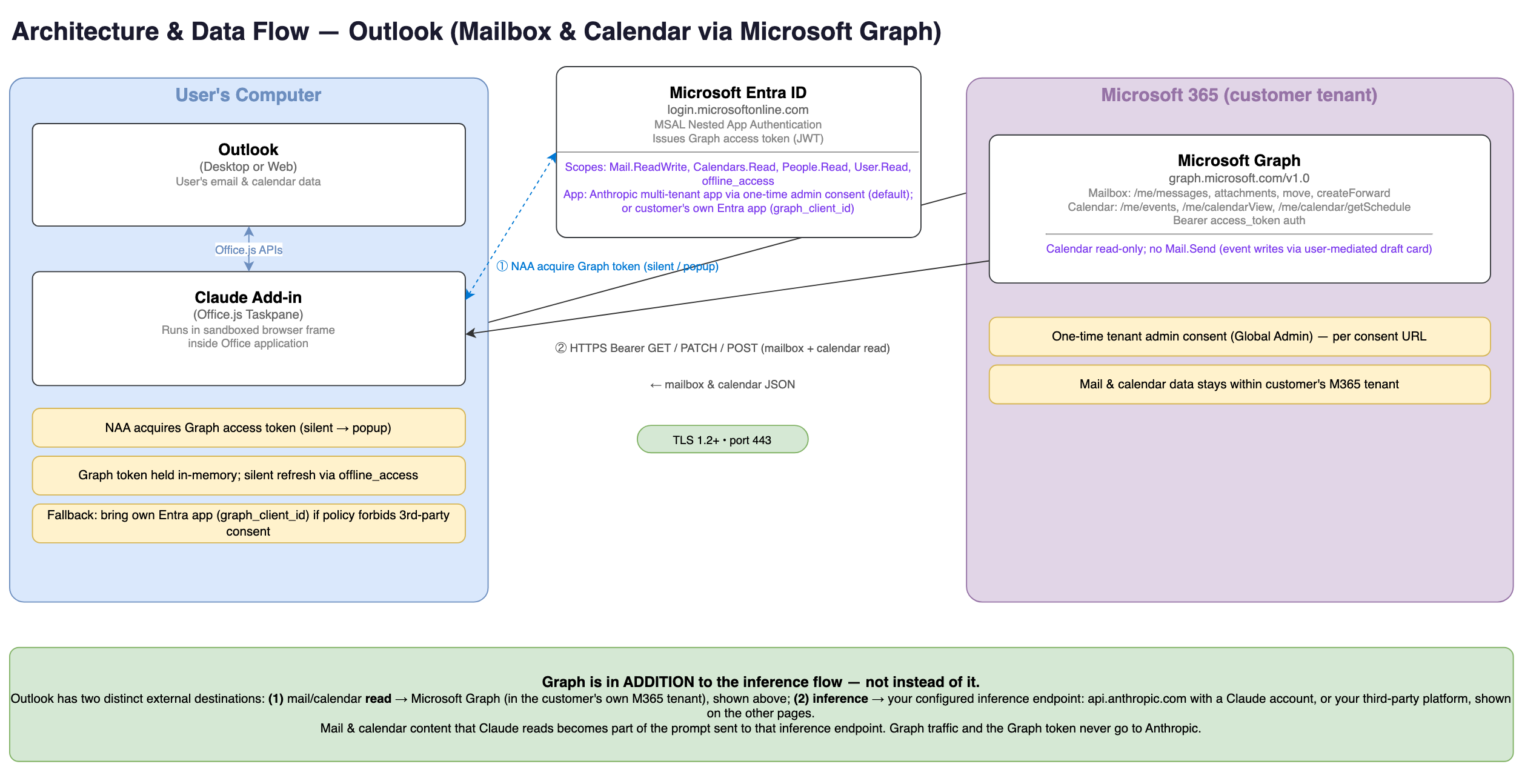 Where mailbox content goes after Claude reads it depends on how you sign
in.
### When you sign in with a Claude account
Mailbox content that Claude reads becomes part of the prompt sent to
`api.anthropic.com`. Standard API retention applies: see
[Data retention and audit](#data-retention-and-audit). The add-in does not
keep a server-side copy or index of your mailbox.
### When you connect through a third-party platform
The prompt goes only to the inference endpoint you configured, such as
Vertex AI, Azure AI Foundry, or an LLM gateway. No mailbox content reaches
Anthropic. See
[Use Claude for M365 with third-party platforms](/office-agents/third-party-platforms)
for configuration details. The add-in does not keep a server-side copy or
index of your mailbox.
## Chat history
Chat history is stored locally in your browser using IndexedDB.
Conversations are not stored on Anthropic's servers and are not synced
across devices or browsers. You can clear all chat history from Settings
at any time. The local store is also cleared when you clear your browser
data. Chat history is specific to the combination of the add-in surface,
your user ID, and your organization ID, so your Excel and Outlook
histories are separate.
## Data retention and audit
For Claude for Outlook use, inputs and outputs are deleted on Anthropic's
backend within 30 days of receipt or generation, except as described in
[How long do you store my organization's data?](https://privacy.claude.com/en/articles/7996866-how-long-do-you-store-my-organization-s-data)
Enterprise organizations can route full audit telemetry from Claude for
Outlook to their own OpenTelemetry collector for integration with a SIEM
or observability platform. See
[Configure a custom OpenTelemetry collector](/office-agents/enterprise-readiness)
for setup. On Pro, Max, and Team plans, observability and audit
export are not available. Claude for Outlook does not inherit custom data
retention settings your organization may have configured and is not
included in Enterprise audit logs or the Compliance API at this time.
## Prompt injection risks
Be cautious with email from external or untrusted senders. Email bodies
and attachments are untrusted input and may contain instructions intended
to manipulate Claude rather than you.
Prompt injection refers to malicious instructions hidden in an email
body, signature, or attachment that try to trick the AI into taking
unintended actions. For example, a routine inbound email might contain
hidden text instructing Claude to forward a thread or draft a reply you
did not ask for. Claude may interpret these instructions as legitimate
requests.
Review every draft and inbox action before accepting it, especially when
working with email from external or untrusted senders.
## Recommended use during beta
As a beta feature, Claude for Outlook is not recommended for:
* Unattended sending. Claude never sends mail or invites on its own; every
draft lands unsent for your review.
* Client-facing or counterparty correspondence without reading the draft
first.
* Replacing your judgment on which emails matter or how to handle a
relationship.
* Mailboxes containing privileged or regulated data without appropriate
organizational controls.
To use Claude for Outlook safely and effectively:
* Review drafted replies and invites before sending, especially recipient
lists.
* Verify thread summaries against the cited source emails for high-stakes
conversations.
* Apply appropriate Microsoft 365 permissions and Conditional Access
policies for the add-in.
* Maintain human oversight for anything leaving your organization.
Where mailbox content goes after Claude reads it depends on how you sign
in.
### When you sign in with a Claude account
Mailbox content that Claude reads becomes part of the prompt sent to
`api.anthropic.com`. Standard API retention applies: see
[Data retention and audit](#data-retention-and-audit). The add-in does not
keep a server-side copy or index of your mailbox.
### When you connect through a third-party platform
The prompt goes only to the inference endpoint you configured, such as
Vertex AI, Azure AI Foundry, or an LLM gateway. No mailbox content reaches
Anthropic. See
[Use Claude for M365 with third-party platforms](/office-agents/third-party-platforms)
for configuration details. The add-in does not keep a server-side copy or
index of your mailbox.
## Chat history
Chat history is stored locally in your browser using IndexedDB.
Conversations are not stored on Anthropic's servers and are not synced
across devices or browsers. You can clear all chat history from Settings
at any time. The local store is also cleared when you clear your browser
data. Chat history is specific to the combination of the add-in surface,
your user ID, and your organization ID, so your Excel and Outlook
histories are separate.
## Data retention and audit
For Claude for Outlook use, inputs and outputs are deleted on Anthropic's
backend within 30 days of receipt or generation, except as described in
[How long do you store my organization's data?](https://privacy.claude.com/en/articles/7996866-how-long-do-you-store-my-organization-s-data)
Enterprise organizations can route full audit telemetry from Claude for
Outlook to their own OpenTelemetry collector for integration with a SIEM
or observability platform. See
[Configure a custom OpenTelemetry collector](/office-agents/enterprise-readiness)
for setup. On Pro, Max, and Team plans, observability and audit
export are not available. Claude for Outlook does not inherit custom data
retention settings your organization may have configured and is not
included in Enterprise audit logs or the Compliance API at this time.
## Prompt injection risks
Be cautious with email from external or untrusted senders. Email bodies
and attachments are untrusted input and may contain instructions intended
to manipulate Claude rather than you.
Prompt injection refers to malicious instructions hidden in an email
body, signature, or attachment that try to trick the AI into taking
unintended actions. For example, a routine inbound email might contain
hidden text instructing Claude to forward a thread or draft a reply you
did not ask for. Claude may interpret these instructions as legitimate
requests.
Review every draft and inbox action before accepting it, especially when
working with email from external or untrusted senders.
## Recommended use during beta
As a beta feature, Claude for Outlook is not recommended for:
* Unattended sending. Claude never sends mail or invites on its own; every
draft lands unsent for your review.
* Client-facing or counterparty correspondence without reading the draft
first.
* Replacing your judgment on which emails matter or how to handle a
relationship.
* Mailboxes containing privileged or regulated data without appropriate
organizational controls.
To use Claude for Outlook safely and effectively:
* Review drafted replies and invites before sending, especially recipient
lists.
* Verify thread summaries against the cited source emails for high-stakes
conversations.
* Apply appropriate Microsoft 365 permissions and Conditional Access
policies for the add-in.
* Maintain human oversight for anything leaving your organization.